
Many gamers reported that their screen color saturation changes when playing a game. This makes them uneasy as the change in color is not aesthetic at all. One reason for this issue is that the display driver can’t render colors properly. In this post, we will see what you can do if your monitor color changes while playing a game.
Fix Color Saturation changes while playing a game on PC
If Color Saturation changes while playing a game on your computer, first of all, reboot your computer. This will allow it to reconfigure itself and, hopefully, do the job. In case, the color keeps changing even after restarting, follow the solutions mentioned below to resolve the issue.
- Update or reinstall display drivers
- Disable Auto HDR
- Recalibrate color settings
- Select a different color setting in the game
- Repair the game files
Let us talk about them in detail.
1] Update or reinstall display drivers
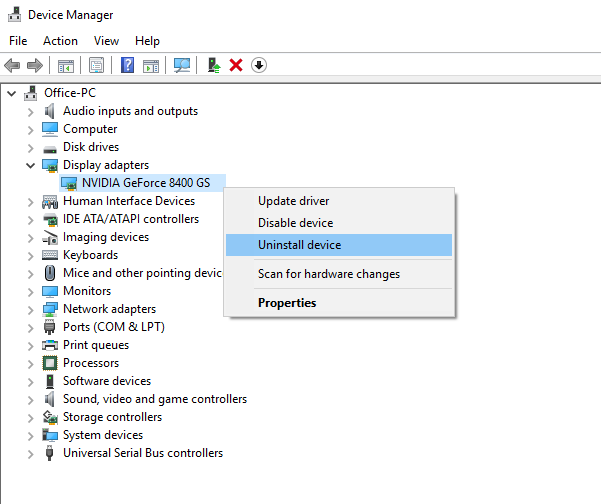
Let us first start by updating your graphics drivers. If you leave your drivers outdated for a long time, some applications, including games, may not support them. That is why you must keep your drivers up-to-date. So, go ahead, update your Display driver, and check if the issue is resolved.
In case, the issue is not resolved, we need to reinstall the display drivers. To do so, follow the steps below.
- Open Device Manager from the Start Menu.
- Expand Display Adapters.
- Right-click on the display driver and select Uninstall device > Uninstall.
Note: Your screen will go black for a few seconds. - Once your screen appears again, right-click on Display Adapters and select Scan for hardware changes.
This way, Windows will scan for the correct driver and install it. In case the driver is not installed, download it from the manufacturer’s website.
2] Disable Auto HDR
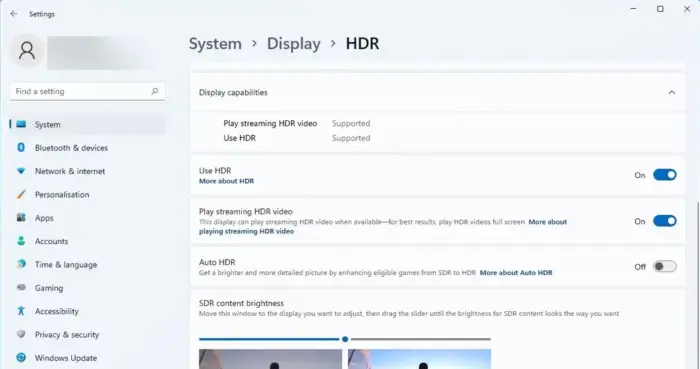
Windows has a feature called Auto HDR, that improves the display quality of some games using machine learning. In case, the feature is broken, has some bug, or is not supporting that particular, you will experience peculiarity. That is why, to resolve the issue, we need to turn off Auto HDR. Follow the steps mentioned below to do the same.
- Open Settings by Win + I.
- Navigate to Display.
- Go to HDR.
- Now, disable Use HDR and Auto HDR.
This should do the job for you.
Read: Over-saturated colors on my main monitor in Windows 11
3] Recalibrate color settings
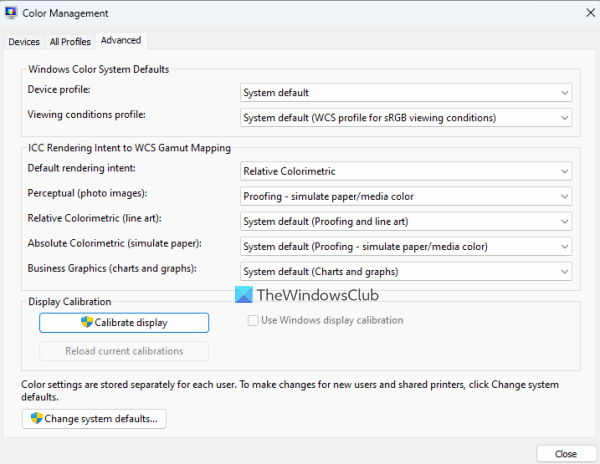
Next, let us recalibrate your computer’s color settings. Sometimes, the display itself is saturated, and once a game launches with a different color profile, colors appear really saturated. So, let us recalibrate color settings using the settings mentioned below.
- Search out “Color Calibration” from the Start Menu.
- Now, keep on clicking Next until the Adjust gamma screen appears.
- So, adjust the gamma and click on Next.
- Follow the on-screen instructions to complete the process.
- Now, search out “Color Management” from Start.
- Go to Advanced and then to Change System Defaults.
- Select an ICC profile and click on Set as Default Profile.
Finally, reboot your system, open the game, and check if the issue is resolved.
Read: How to configure the best HDR settings for gaming
4] Select a different color setting in the game
Many games have a built-in color setting that increases saturation. You can go into the game’s settings and check if there is a color profile that’s pleasing to your eyes.
Read: Color Calibration keeps resetting in Windows 11
5] Repair the game files
If nothing works, the last thing we need to do is repair the game files. You don’t have to reinstall the game to repair it; instead, verify the integrity of game files using your launcher.
We hope you can resolve the issue using the solutions mentioned in this post.
Read: Best Windows 11 Gaming Settings
How do I fix the color saturation on my monitor?
If your monitor’s color saturation is slightly off, you can pretty easily calibrate the screen. You can check the third solution mentioned earlier to learn how to calibrate your screen. In case, you don’t want to do that, restore default Display Color settings.
Read: Best Gaming Browsers for Windows PC
Is saturation good for gaming?
Some games increase saturation, while others increase the saturation of specific components. They do this to make it easier for our eyes to spot their targets. However, the developers do include various color settings. Go through the game settings to select a different one.
Also read: Windows computer shuts down while gaming.
