
Follow the procedure in this post to verify the integrity of the game files on Steam, Epic, GOG Galaxy, Ubisoft Connect, Origin, Battle.net, and Rockstar Games Launcher on your Windows PC.
What are game files?
Game files are essential to any computer game. The game files are the files for your video games and other games installed on your computer. These game files store all the essential data associated with a video or other game. The game data may include the game’s installation files, game ROMs, map files, character designs, dialogues, configurations, texture information, saved game progress, etc. It also includes the project files that developers used to create a video game.
Most commonly, the game files are saved in the following file extensions:
- GAM: It is a standard file format to store game “save” information which basically means saving the progress of a player in a game at a specific point of gameplay.
- DXT: This game file format is a generic format to store texture information in a compressed format using less disk space. It is also known as S3CT (S3 Compressed Texture) and BC (Block Compression).
- MAP: This game file format is used by most video games for debugging maps and other related purposes.
- ROM: These game files are used to save console-based video games on a PC. It is primarily used by Nintendo 64 games.
- VDF: VDF stands for Valve Data file. It is used by Valve’s Source game engine for saving the game’s metadata. It also stores data such as resources, scripts, and visualization elements.
All these and other files are responsible for a game running smoothly on a computer. Now, what happens if your game files are damaged or corrupted? Well, it basically degrades a game’s performance, causing it to crash, freeze, lag, or stutter on your PC. Your game might not even open if some important game files are broken. Because of corrupted game files, you may also experience different kinds of launch errors and other errors in a game.
Why do game files get corrupted?
Several factors can affect your game files, causing them to become corrupted. Here are some of the potential causes:
- Generally, it happens if your PC suddenly crashes while playing a game.
- If you experience a power outage and the computer shuts down while you are in the middle of gameplay, the game files might get corrupted.
- If your computer contains malware or virus, it may infect your game files along with your other system and data files.
- The problem might also be caused by a faulty hard disk. If your hard drive where you installed your game contains bad sectors, it will affect your game files and eventually damage them.
- Another reason for the same could be that you downloaded contaminated content from online sources while playing a game.
There may be other reasons that can corrupt your game files.
Now, if you want to fix the corrupted game files, you can verify the integrity of your game files and repair the bad ones. Most Windows PC game launchers include a dedicated feature to verify and repair game files.
The process of verifying the integrity of game files involves checking the game files stored on your computer against the clean, updated game files stored on online game servers and verifying whether any differences exist between the corresponding files. If the game files are modified, the game launcher will replace them with clean copies. If a game file is missing, it will be restored from the updated one.
Here, we will discuss how to verify and fix corrupted game files across different game launchers. We are going to cover all the popular Game Launchers for PC that include Steam, Epic Games Launcher, GOG Galaxy, Rockstar Games Launcher, Ubisoft Connect, Battle.net, and Origin. If you use any of these game launchers, you can easily check and fix your game files on Windows. All the steps to verify and repair game files are mentioned for each of these game launchers. So, let’s check out.
How to verify the Integrity of the Game files on PC
You can use the following game launchers to verify the integrity of game files on your PC:
- Steam
- Epic Games Launcher
- GOG Galaxy
- Rockstar Games Launcher
- Ubisoft Connect
- Origin
- Battle.Net.
How to repair Game files on Windows PC
1] Verify Integrity of Steam game files
Steam is one of the most popular game launchers for Windows. It allows you to download and purchase thousands of games in different categories. You can easily manage and organize your games library in it. Plus, if you are experiencing issues with a game, you can fix them by verifying the integrity of game files.
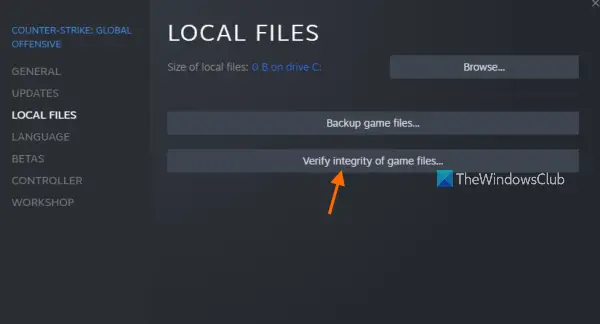
To verify the integrity of game files and repair them on Steam, you can use the dedicated feature called VERIFY INTEGRITY OF GAME FILES. It is present inside the properties of each game. You can right-click on the game, select properties, go to Local Files, and press the VERIFY INTEGRITY OF GAME FILES button. We have mentioned the exact steps in this post, so check them out.
Here’s how to verify and fix game files on Steam:
- Open Steam.
- Go to Library.
- Right-click on your game.
- Select the Properties option.
- Move to the LOCAL FILES tab.
- Press the VERIFY INTEGRITY OF GAME FILES button.
First, open the Steam app on your computer and click on its LIBRARY menu. It will take you to your game’s library where you can access and manage your installed or purchased games.
Now, locate the game with which you are experiencing an issue and right-click on its title. In the context menu that appears, click Properties to open the game’s Properties window.
Next, navigate to the LOCAL FILES tab and click on the VERIFY INTEGRITY OF GAME FILES button. Steam will initiate a game files verification process and start checking your game files. If there are corrupted or broken game files, it will replace and fix them. The process might take a couple of minutes to finish. So, let it run uninterrupted.
You can try relaunching your game after the process completes and see if the issue is fixed.
Read: Fix Game Controller not working in Steam on Windows PC.
2] Verify Integrity of Epic Games Launcher files
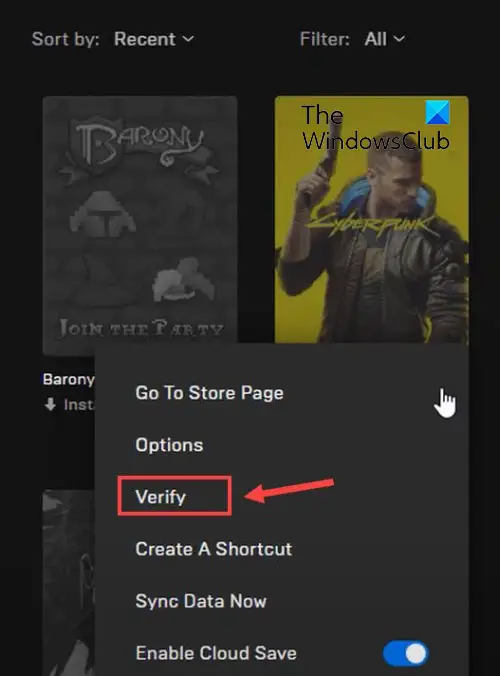
As the name suggests, Epic Games Launcher is used to play games by Epic Games, including Fortnite. However, you can also use it to play Unreal Engine creations. In it, you can verify your game files and fix them using its Verify feature. Here’s how to use it:
- Firstly, launch the Epic Games Launcher app on your desktop.
- Now, to access your installed games, navigate to its Library tab from the left pane.
- Next, choose the game whose files you want to verify.
- After that, click on the three dots menu button which is available next to it.
- Finally, tap on the Verify option from the appeared menu options. Epic Games Launcher will run a verification check on your game files and if there are corrupted game files, they will be repaired.
Let the process run and once done, you can relaunch the game and see if the issues you faced earlier are fixed.
You might also like to read: Can’t Uninstall Epic Games Launcher in Windows
3] Verify Integrity of GOG Galaxy game files
GOG Galaxy is another popular universal game launcher for Windows. It supports cross-platform games and offers features such as Custom views, Cloud Storage, Multiplayer & Matchmaking, and more. Here are the steps to fix corrupted data issues using GOG Galaxy:
- Firstly, open GOG Galaxy and move to your Library.
- Now, select the problematic game.
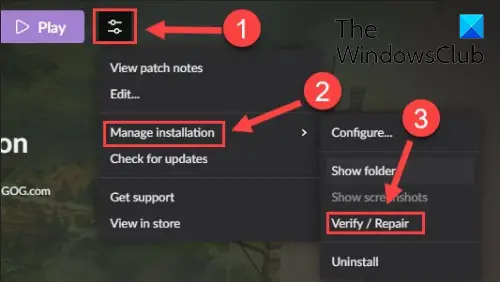
- Next, there will be a settings icon present next to the Play button on your game title; simply tap the Settings icon.
- It will show you some options; you need to press the Manage installation > Verify / Repair option.
- GOG Galaxy will start verifying and fixing the game files.
You can try relaunching your game once the process is finished. Hopefully, it will run smoothly now.
Read: How to fix GOG Galaxy Launcher Out of disk space error?
4] Verify Integrity of Rockstar Games Launcher files
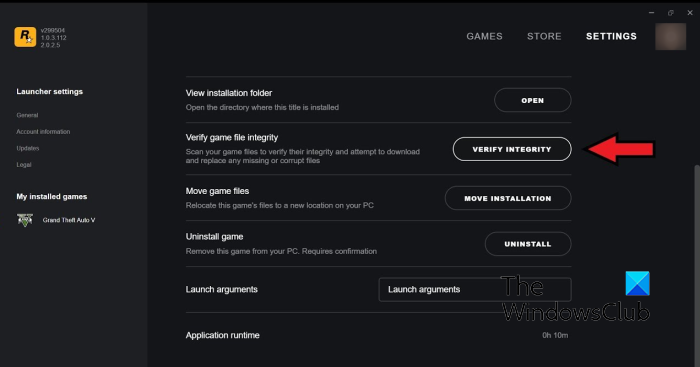
You can use Rockstar Games Launcher to verify the integrity of game files of video games by Rockstar Games, like Grand Theft Auto, Red Dead Redemption, L.A. Noire, and more. You can use it to fix your corrupted game files. Here’s how you can do that:
- Firstly, open Rockstar Games Launcher.
- Now, click on the Settings option from the home screen.
- Next, from the left side pane, move to the My installed games section and choose the problematic game to verify the integrity of the game files.
- After that, click on the Verify Integrity button that is present next to the Verify game file integrity option.
- As soon as you do that, it will start verifying and fixing your game files.
You can now try playing your game and see if the previous issue is still there.
See: Rockstar Games Launcher not working on Windows PC.
5] Verify Integrity of Ubisoft Connect files
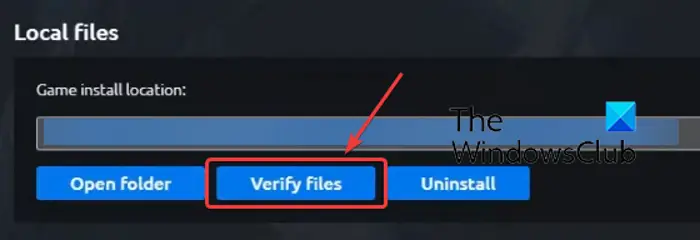
Ubisoft Connect is another popular game launcher, especially for Ubisoft games such as Far Cry, Tom Clancy’s Rainbow Six Siege, For Honor, and more. You can use it to verify your game files by following the below steps:
- Firstly, open your Ubisoft Connect app and navigate to its Games tab.
- Now, click on the game with which you are facing an issue and press the Properties option from the left-hand side panel.
- Next, click on the Verify files option which is available under Local files.
- Once verification is done, you will be prompted with a Repair option; click on it.
- Ubisoft Connect will fix all your infected or broken game files.
Now, you should be able to play your game without any issues.
See: Unable to start the game on Ubisoft Connect.
6] Verify Integrity of Origin game files
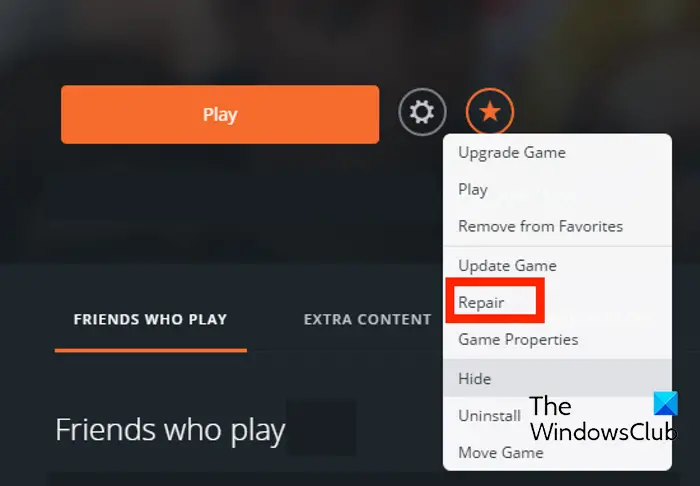
Origin is used as a game launcher for many popular games like Battlefield, The Sims etc. If you are experiencing performance issues or launch errors in your Origin games, you can verify the game files. You can follow the steps below to verify the integrity of game files on Origin:
- Firstly, launch the Origin client on your PC.
- Now, navigate to the My Game Library section.
- After that, fin the problematic game and press the right-click on it.
- Next, from the appeared context menu, choose the Repair option and let it verify and fix the game files.
- When done, check whether you can play your game without a problem.
7] Scan and Repair game files in Battle.Net
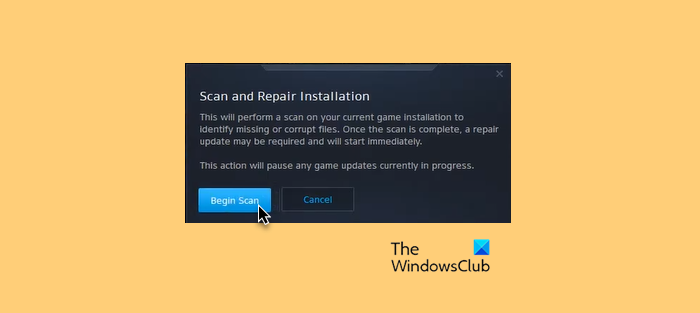
To verify the integrity of game files on Battle.net and repair them, follow these steps:
- Open Battle.net client and click on the game.
- Click on the Gear icon and select Scan and Repair.
- Now click on Begin Scan and wait for the process to complete.
- Close the Battle.net launcher, and restart your PC once done.
Read: Fix Origin Error while playing games on Windows PC.
I hope this post helps you verify the integrity of the game files on your PC using different game launchers.
What happens when you verify the integrity of game files?
When a game launcher verifies the integrity of the game files, it checks the game files stored on your computer system against the respective game files stored on the game servers. If the game files are modified or found to be different, they are considered corrupted or damaged. The game files are then fixed by replacing them with clean, updated versions from the game servers.
Related: Verify Game files stuck at 0, 1, 98, or 99%
How long does it take to verify game files?
The game file verification process depends on the size of your game file. If your game files are large, the game launcher may take several minutes to verify and repair them. However, if your game files are small, it will only take a couple of minutes to verify and fix them.
