
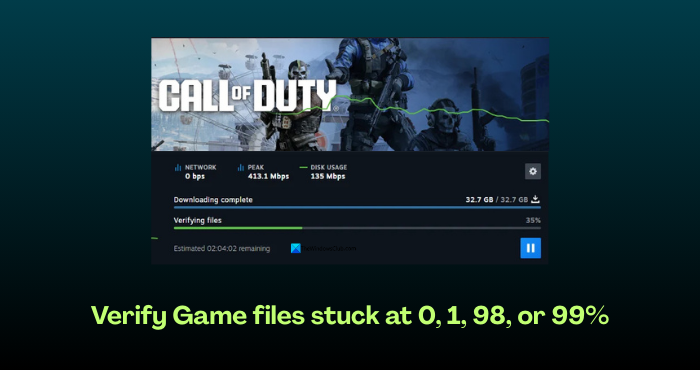
Gaming is a great stress reliever and a rigorous mental activity. When we open a game after a stressful day, and the game files fail to load or verify, it can be a daunting experience. All we need is for the game to install and load properly, and for us to be able to play for some time. If you are experiencing similar issues on your PC, where the Verify game files are stuck at 0, 1, 98, or 99% and take forever to initiate the game, this guide is for you. Follow the steps we show here to resolve the issue quickly and get back to your gaming.
Verify Game files stuck at 0, 1, 98, or 99%
When you find the progress bar of Verifying files on GOG, Steam, Fortnite, or other games on Windows PC stuck at 0, 1, 98, or 99%, the following methods will help you fix it.
- Check your internet connection
- Clear the cache and relaunch your gaming client
- Repair the installation folder on Steam
- Disable Antivirus temporarily
- Change download region
- Reinstall Steam or your gaming client
Let’s review the details of each method and address them. Before applying the fixes, run the gaming client as an administrator and verify whether it works.
1] Check your internet connection
To download, verify, and install games on Steam or other gaming clients, we need a stable internet connection. If the internet connection is unstable, randomly disconnects, or has low speeds, the process takes forever and feels stuck. You need to check if the internet connection is working fine by running a speed test, and fix the internet connection issues to continue gaming.
2] Clear the cache and relaunch your gaming client
The cache or download cache for the gaming client on your PC might be causing issues. The files could be corrupted, or there might be other issues with the cache. When you clear the cache, the gaming client or launcher creates a fresh cache, making it easy to verify game file integrity.
To clear the download cache on Steam, click the Steam icon and select Settings. Select the Downloads tab. Click Clear Cache beside Clear Download Cache.
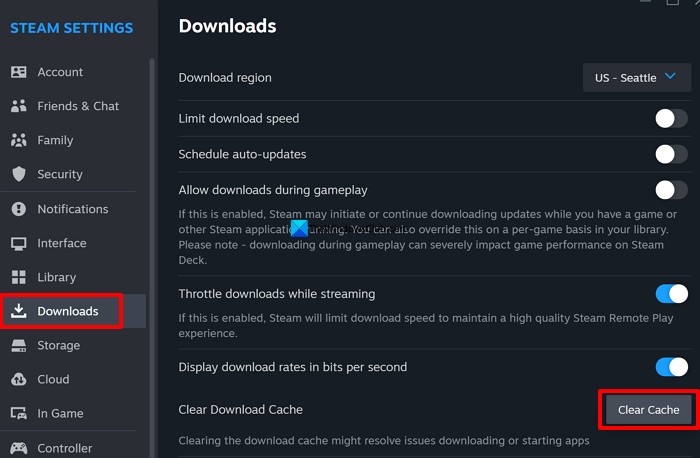
Click Confirm in the Clear Download Cache prompt that appears. You will be logged out of Steam now. Log in again using your credentials. Your issue should be resolved now.
To clear the cache on the Epic Games launcher on Windows PC, open the Run dialog box, type %localappdata%, and press Enter. Navigate to the Epic Games Launcher in the AppData folder that opens, and go to Saved. Now, delete all folders named “webcache”.
Read: How to clear Origin cache on Windows
3] Repair the installation folder on Steam
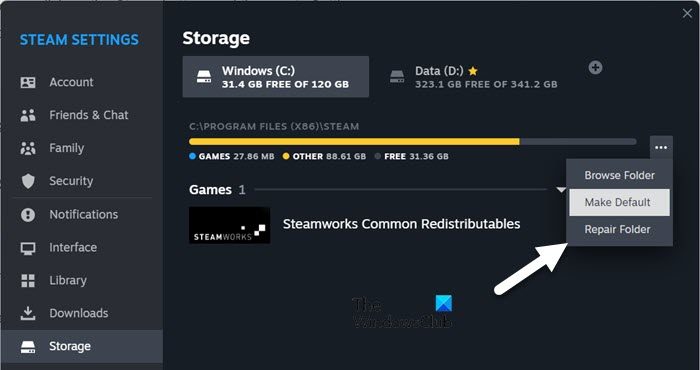
If any files are in the installation or downloads folder on Steam, you may see verification stuck for longer. We can repair the installation folder and resolve many issues, including game file verification. To repair the installation folder on Steam, open the Settings and select the Storage tab. Then, click on the three-dot icon beside the installation folder and select Repair Folder. Wait for the process to complete and see if the issue is fixed.
Read: Origin keeps verifying game files on Windows PC
4] Disable Antivirus temporarily
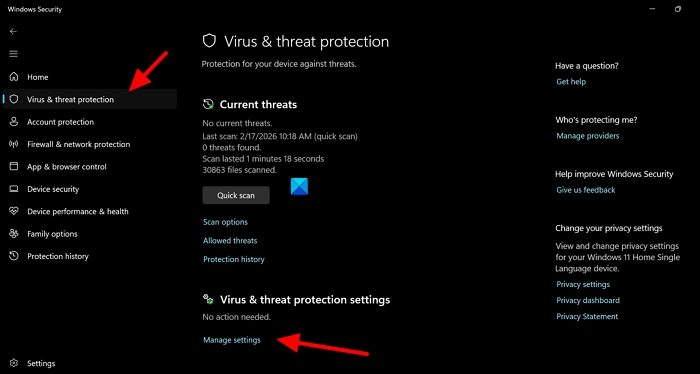
The antivirus’s real-time protection on your PC may be interfering with the verification of game files. When you are trying to install a game and launch it on your game client, you have to disable the antivirus temporarily until the process is completely done so as not to run into any issues. You can open the antivirus program on your PC, disable it, and then verify the game files. If you only use Windows Security, open Windows Security, click Virus & threat protection. Then, click Manage settings.
Under the Real-time protection, toggle the button to turn it off.
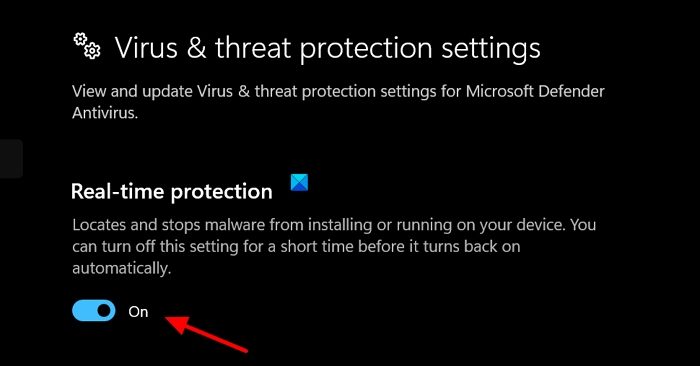
Confirm it in the prompt that appears. After successfully verifying the game files, remember to enable antivirus or real-time protection to protect your PC from threats.
Read: Validating Steam files is Stuck or Takes forever
5] Change download region
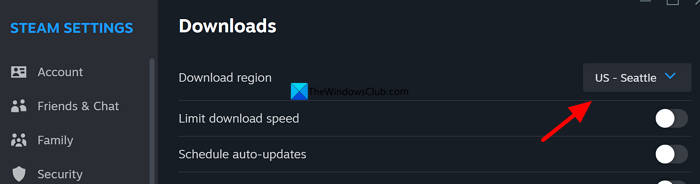
When game files are too large and the region where they are downloaded for installation, the game file verification takes forever and appears to be stuck midway. The only way to resolve this is to move to a region that is closer to you geographically. It will enable faster download and verification of game files than in a faraway region.
To change the download region in Steam, open Settings in the Steam launcher, then click Downloads. Click the dropdown next to Download region, then select a location closer to you. If you choose another country, Steam may ask you to make an additional payment to unlock the region, as licenses and permissions differ for each country.
6] Reinstall your gaming client
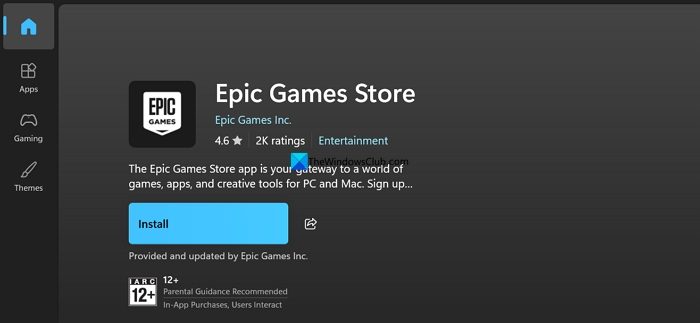
If the above methods did not resolve verification issues with game files on your PC, uninstall the game or launcher you’re having trouble with. After successful uninstallation, reinstall it from the official or trusted sources, such as the official website or the Microsoft Store. Then, sign in with your credentials and continue with your gaming session without any issues.
Read: Steam An error occurred while installing or updating game
How long do verifying game files take?
It depends on the size of the game, your storage space, and the internet speed. It roughly takes around an hour to verify and install a game. If the verification process remains at a percentage for more than 30 minutes, it may indicate an issue that must be resolved immediately to continue verifying the files.
How to speed up verifying game files?
To speed up verifying game files, you need to have a stable internet connection, free storage space to create new files, and cached data. You do not need to do anything other than address any issues that arise. Verification of the game files will take a few minutes to an hour.
Read: Files failed to validate and will be reacquired by Steam.
