
Is the Validating Steam Files process forever stuck in a loop for you? Here is a complete guide to fixing the issue. Steam provides a dedicated feature to verify and repair the corrupted game files. It is a very useful feature and it helps users to fix a lot of game errors on Steam. However, many Steam users have reported that the verification process gets stuck at a certain percentage indefinitely. And, the verification takes forever to complete. The issue could be caused due to several reasons. However, it could also be caused by an unstable internet connection. Please ensure there are no internet connectivity issues.
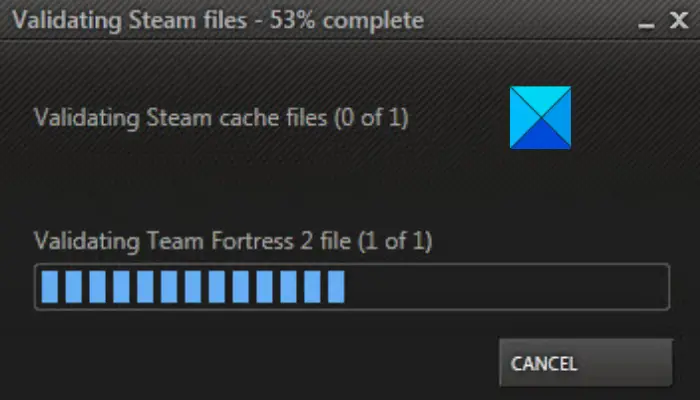
If you are experiencing the same issue on Steam even with a stable internet connection, this article is your go-to. In this post, we will share several fixes to help you resolve the issue. So, let us check out.
Why is Validating Steam Files stuck?
Here are the potential causes why the Validating Steam Files might get stuck:
- It could be caused due to some temporary app or system glitch. Hence, try restarting your app and PC to fix the issue.
- The problem might be caused if the Steam client or the game is missing the due administrator rights. If the scenario applies, try running the Steam client and the game as an administrator to resolve the issue.
- If the download cache in your Steam app is corrupted, you may encounter this issue. Hence, you can try clearing the download cache in Steam to resolve the problem.
- The problem might also be caused due to corrupted installation of the Steam app itself. In that case, uninstalling and reinstalling the app should resolve the issue.
Now that you know the scenarios that trigger the issue, let us get straight to the fixes.
Validating Steam files is Stuck or Takes forever
If the Validating Steam cache files process on the Steam client is stuck at 0% or takes forever to complete, follow these suggestions to resolve this issue:
- Relaunch Steam and PC.
- Run Steam and the game as an administrator.
- Clear Download Cache in Steam.
- Change Steam’s Download Region.
- Repair your Steam Library Folder.
- Reinstall Steam.
Let us discuss the above fixes in detail.
1] Relaunch Steam and PC
The first step is to restart your Steam client and check whether the issue is resolved. Before doing that, ensure no Steam-related processes are running in the background. So, open Task Manager using Ctrl+Shift+Esc hotkey and then close all the Steam processes. If that doesn’t work, reboot your system and check if the problem is resolved or not.
If restarting the app or system doesn’t resolve the issue, try the next fix.
Read: An error occurred while installing or updating the Steam game.
2] Run Steam and the game as an administrator
The Validating Steam Files process may be stuck in a loop due to missing administrator rights. If the scenario applies, try running the Steam app and the affected game with administrator privileges to resolve the issue. Here is how to do that:
- Firstly, press the Win+E hotkey to open File Explorer and move to the Steam installation directory. You are most likely to find it at the following location: C:\Program Files (x86)\Steam\
- Now, select the Steam application.exe file and press the right-click on it.
- Next, click on the Properties option from the appeared context menu.
- In the Properties window, navigate to the Compatibility tab and enable the Run this program as an administrator checkbox, and press the Apply > OK button.
- Then, go to the location where the affected game is installed. You will find the game at this location: C:\Program Files (x86)\Steam\steamapps\common
- Next, right-click the game’s application file and select Properties.
- After that, repeat step (4) for the game also.
- Finally, relaunch Steam and check whether the issue has been resolved.
If the problem persists, you can proceed to the next potential fix.
Read: How to repair Steam Client on Windows PC.
3] Clear Download Cache in Steam
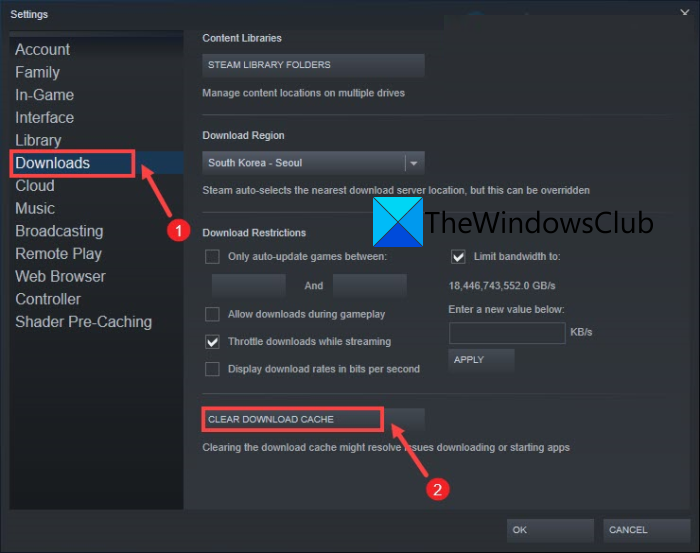
If the download cache and download files in Steam are corrupted, you might face the issue at hand. So, if the scenario is applicable, you can try relating the download cache on Steam to get rid of the problem. You can follow the below steps to do that:
- Firstly, open your Steam client and click on the Steam menu which is present at the top toolbar.
- Next, tap on the Settings option.
- After that, in the Settings window, go to the Downloads tab.
- Now, click on the Clear Download Cache option present in the right-side panel.
- Once the process is complete, close the Steam app and restart it to see if the problem is fixed or not.
If this method doesn’t work for you, try the next potential fix to get rid of the issue at hand.
See: Fix Steam stuck on Allocating disk space on Windows.
4] Change Steam’s Download Region
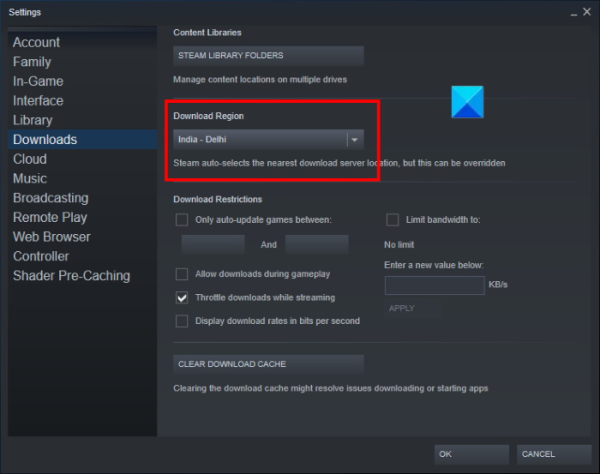
You can also try changing the Download Region in Steam to fix the issue. It is a kind of workaround that might fix the problem. This has proven to be effective for a lot of affected users and might just work for you as well.
Here is how to change the Download Region on Steam:
- Firstly, open the Steam Client and navigate to the Steam > Settings option from the top of the screen.
- Now, navigate to the Downloads tab from the left side pane.
- Next, tap on the Download Region drop-down menu and select a different region. You can play around with the location and see which one works for you.
- Finally, press the OK button to save the changes and restart your Steam client. Check if the problem is now resolved or not.
If changing the download region doesn’t work, try the next fix to resolve the issue.
Read: Fix Steam Corrupt Update Files error on Windows PC.
5] Repair your Steam Library Folder
If the problem is caused by corruption in the Steam Library folder, you can try repairing your Steam Library folder (where your game is installed) to fix the problem. Steam provides a dedicated option to repair the Steam library folder. Here is how to repair the Steam Library Folder:
- First, go to your Steam client and click on the Steam > Settings option.
- Now, simply navigate to the Downloads tab.
- In the Downloads tab, select Steam Library Folders.
- Next, press the right-click on your Steam Library Folder, and from the appeared context menu, click on the Repair Library Folder option.
- Steam will scan and repair problems with the selected folder.
- Once the repair is complete, relaunch the Steam app and check whether the “Validating Steam Files process is stuck” issue is resolved.
If you still face the same issue, we have one more fix for you. Proceed to the next potential fix.
Tip: How to Install Steam and Manage Steam Games.
6] Reinstall Steam
If none of the above solutions worked for you, the last resort is to reinstall Steam. The problem may be caused by corrupted Steam installation files. Therefore, uninstalling and reinstalling the Steam app should resolve the issue.
However, before uninstalling the Steam app, take a backup for all library folders and game data that you don’t want to lose. Then, you can uninstall the Steam app via the Settings app or a free third-party uninstaller. Once done, get the latest version of Steam from its official website and install the client on your system.
Open the Steam app and check whether the issue has been resolved.
That’s it.
Related: Verify Game files stuck at 0, 1, 98, or 99%
Why does Steam take forever to validate?
Steam may take a long time to validate files if Steam and the game lack administrator rights to run. Additionally, it could be caused by a corrupted download cache or a corrupted app installation. If you are encountering this issue, you can follow this guide to resolve it.
Read: Steam download stuck at 0 bytes
Does validating Steam files need internet?
Yes, validating the Steam files needs an active internet connection. This is because the Steam client analyzes the game files and compares them with those available on Steam servers. If it finds that the games’ files are corrupted or if there is a game file missing, it replaces such files with the new fresh & updated ones. So, before you go ahead with the below fixes, make sure you are connected to an active stable internet connection.
Read: Fix Not enough disk space – Steam error on Windows.
Does uninstalling Steam delete games?
Yes, uninstalling Steam from your system will delete your games, downloadable content, and save files. You may need to uninstall the Steam app and reinstall it to resolve installation corruption. But, before you uninstall the Steam app, make sure to take a backup of all the important data including games and save files.
Now read: Fix New Steam library folder must be writable error.
