
Steam is a platform where gamers can play games and communicate with other gamers worldwide. The Steam Store has more than 30000 paid and free-to-play games. Sometimes, Steam Client crashes unexpectedly or doesn’t launch. Such problems can be resolved by repairing the Steam Client. In this article, we will see how to repair Steam Client on Windows PC.
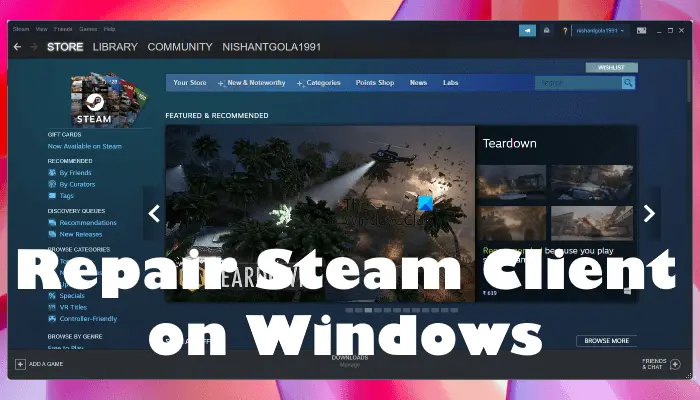
Apart from playing games, Steam Client also provides gamers with different services, like Steam Discussions, Steam Market, Steam Broadcast, etc.
- Steam Discussions lets gamers connect and interact with other gamers worldwide.
- Steam Market is a digital marketplace where gamers can buy and sell in-game items.
- If any gamer wants to stream their gameplay live, they can do so via Steam Broadcasts.
Steam also lets you add a non-steam game to the library. Users may encounter various issues with the Steam Client and the games installed on it. In most cases, verifying the integrity of the game files resolves the issue. Sometimes, we need to reinstall the Steam Client to resolve the issue.
Reinstalling the Steam Client fixes most of the problems, but it deletes all the data stored on your local disk. Hence, you lose all your progress in the games if you have not saved the game data on the cloud. There is one more way to fix the problems with the Steam Client instead of uninstalling and reinstalling it. You can try repairing the Steam Client.
How to repair Steam Client on Windows PC
If you do not want to uninstall and reinstall Steam Client, you can repair it. To repair Steam Client, you have to run a command in the Command Prompt. Follow these steps to repair the Steam Client on your Windows PC.
Click on the Windows Search and type cmd. Right-click on the Command Prompt and select the Run as Administrator option. Click Yes in the UAC prompt.
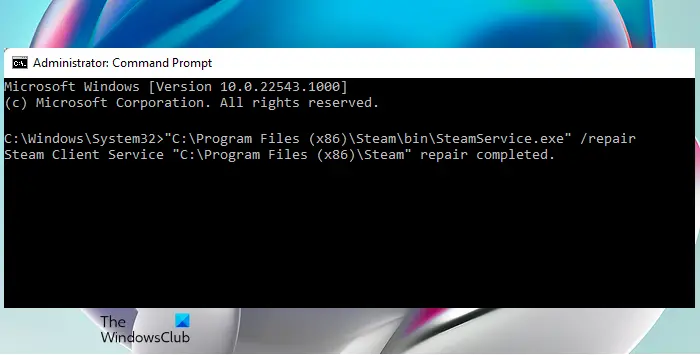
Now, copy the following command and paste it into the Command Prompt. After that, hit Enter.
"C:\Program Files (x86)\Steam\bin\SteamService.exe” /repair
Windows will take some time to repair the Steam Client. After the process gets completed, you will get the following message in the Command Prompt.
Steam Client Service "C:\Program Files (x86)\Steam" repair completed.
Hope this helps.
How do I reinstall Steam Client?
The reinstallation of the Steam Client is a three-step process:
- Uninstall the Steam Client from your computer.
- Visit the official website of Steam and download the latest version of Steam Client.
- Running the installer file to install the Steam Client again.
How do I repair Steam Client service?
You can repair the Steam Client service by executing a repair command in the Command Prompt. The repair process will take some time. Therefore, you have to wait till the process is completed. After the completion of the repair attempt, you will get a “repair completed” message in the Command Prompt.
How do I fix corrupted Steam games?
There are many ways to fix the corrupted Steam games. You can verify the integrity of game files, rename or change the download folder, delete the download cache, repair the Steam Library folder, etc.
Read next: Fix Steam Client Bootstrapper high CPU usage on Windows.
