
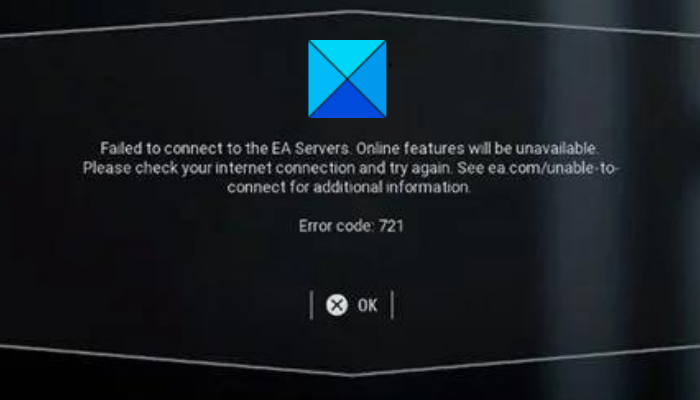
Are you receiving error code 721 on Star Wars Battlefront 2? Star Wars Battlefront 2 is a popular shooter video game in the Star Wars franchise. Millions of gamers love to play this game. However, error code 721 in Star Wars Battlefront 2 ruins the gaming experience for many players. The error is reported on both PC and Xbox consoles. When triggered, you will see the following error message:
Failed to connect to the EA Servers Online features will be unavailable. Please check your internet connection and try again. See ea.com/unable-to-connect for additional information.
Error code: 721
If you are one of the users experiencing this error, we got you covered. In this post, we are going to mention a full list of fixes that will help you get rid of the error 721 on Star Wars Battlefront 2. So, without much ado, let us check out the solutions now.
Can’t connect to EA servers error code 721?
If you are getting the error code 721 on Star Wars Battlefront 2 or other games, it could be because of EA servers facing technical difficulty. So, make sure the servers are up and running. The error could also be caused because of your slow or unstable internet connection. So, make sure you are using an active, stable internet connection with no connectivity issues. This article covers additional fixes you can follow to resolve the error.
Fix Star Wars Battlefront Error Code 721
Here are the solutions that you can try to fix error code 721 on Battlefront 2 on your Windows 11/10 PC:
- Check the current server status of EA servers.
- Make sure your internet is stable.
- Renew the IP configuration.
- Hard reset your Xbox console.
- Disable UPnP.
- Change to Google DNS.
- Reinstall Star Wars Battlefront 2.
1] Check the current server status of EA servers
EA’s servers have a history of facing DDoS attacks. This error might result from a widespread DDoS attack on EA’s servers. Or it could be general server issues, like overload or maintenance. So, you can check whether there is a server issue on EA’s end.
There are multiple free server-status detector tools that allow you to check the current status of online and gaming services. You can use Down Detector, Is The Service Down, Outage Report, or any other online tool to check that. You can also check the service’s official accounts on Twitter and other social networks for updates.
If you find the error is caused by a server issue, you will have to wait until EA resolves it on their end. If the server status is fine and running, move on to the next potential fix.
2] Make sure your internet is stable
As the error message suggests, check your internet connection and make sure you are using a stable, reliable connection. For online gaming and connecting to game servers, you need an active, reliable internet connection. If you can’t connect to the game servers, your internet connection may be the issue.
Try checking your internet speed and make sure you are using a good speed internet connection. There might also be some network and internet issues on your PC. So, you can try fixing your WiFi issues. Also, you need to make sure that you are having updated network drivers on your PC as out-of-date drivers are known to cause such issues.
If possible, it is also recommended to switch to a wired connection from a wireless connection. Gamers prefer a wired connection over wireless as it is more reliable for online gaming.
However, if you don’t have internet connectivity issues, move on to the next potential fix.
See: Fix Battlefront 2 slow or long load times on PC.
3] Renew the IP configuration
Another thing you can do to fix this error is to renew your IP address. This can fix any internet connection problem that might be triggering the error. Many affected users fix the error using this method. You can also try the same and see if it works.
You can follow the steps below to renew your IP address:
Firstly, open the Command Prompt with administrator rights on your PC. Next, type and enter the following commands into CMD one after one:
ipconfig /release
ipconfig /renew
Once the commands finish successfully, restart your PC and launch your game to see whether the error is fixed. If not, try the next solution.
See: Fix You have lost connection to the Destiny servers error.
4] Hard reset your Xbox console
If you are facing this error on an Xbox console, you can try power cycling on your console to fix the error. Before that, you can try restarting your device normally. Press and hold the Xbox button to enter the Power center. Then, select the Restart Console > Restart option and when the console is restarted, check if the error is fixed or not. If not, you can perform a power cycle on your console with the help of the following steps:
- First, press and hold the Xbox button for about 10 seconds, or until it turns off.
- Then unplug the console from the wall socket and leave it unplugged for at least 30-60 seconds.
- Next, reconnect the power cord and turn on your Xbox console as you normally would.
- Once the console is fully powered on, launch your game and see whether the error is fixed.
Read: Fix Disconnected due to transmission error on Modern Warfare.
5] Disable UPnP
Some affected users fixed the error by disabling UPnP (Universal Plug and Play) on their router. There is no explanation for why it works for users. However, it might be because of an issue with how the game is set up to use UPnP. Try disabling UPnP in your router settings to see if it works for you. Here is how to do that:
- Firstly, make sure you are connected to your router, and then run the Command Prompt from the taskbar search.
- Now, type and enter the ipconfig command and from the results, copy and paste the Default Gateway address in your web browser.
- After that, sign in with your login credentials including username and password.
- Then, find the UPnP setting; you will most likely find it under the Advanced (Expert) settings > Nat Forwarding category.
- Next, disable UPnP and save changes.
- Finally, check if the error is resolved or not.
If this causes issues with other games, you can re-enable UPnP in your router settings.
Read: Fix Star Wars Battlefront keeps crashing on PC.
6] Change to Google DNS
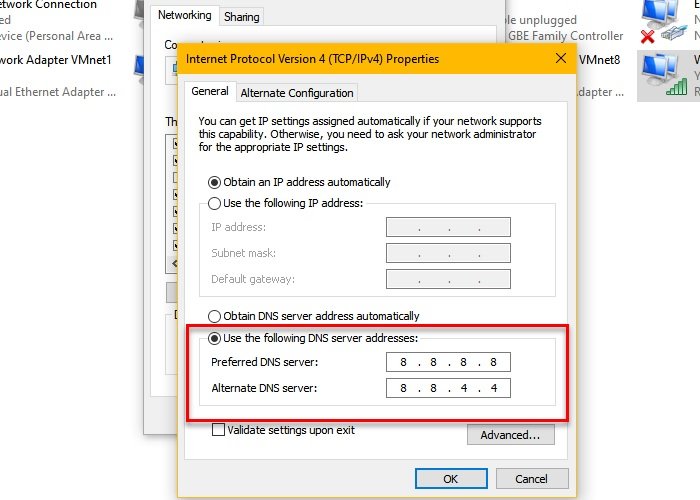
It is a popular fix and helps you get rid of the error if it is caused due to inconsistency with your default DNS server. So, you can try switching to the Google DNS server as it is more reliable for gaming. Here is how to switch to Google DNS Server on Windows PC:
- Firstly, press Win+R to open the Run dialog box and then enter ncpa.cpl in it to open up Network Connections.
- Next, select and right-click on the connection you are using, and tap on the Properties option from the appeared context menu.
- After that, click on the Internet Protocol Version 4 (TCP/IPv4) option and then hit the Properties button.
- Now, select the Use the following DNS server addresses option and enter the below addresses:
Preferred DNS server: 8.8.8.8
Alternate DNS server: 8.8.4.4
- Lastly, save changes by tapping on the Apply > OK button.
If you are facing this error on your Xbox console, here’s how to switch the DNS server:
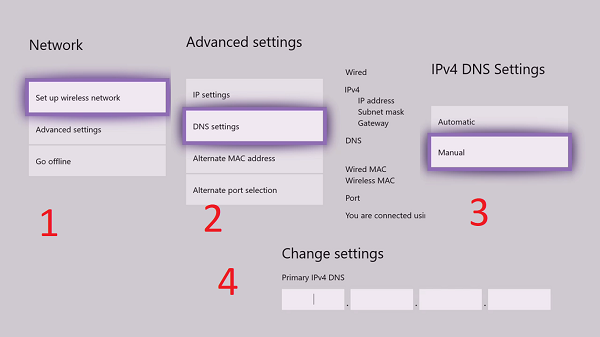
- First, tap the Xbox button on your controller to open the guide menu.
- Now, select the gear icon and then click on the Settings option.
- Next, navigate to the Network section and select the Network settings option.
- After that, go to the Advanced settings > DNS settings section.
- Then, press the Manual option to configure the Google DNS server manually.
- Now, you can type the following address in the respective fields:
Primary IPv4 DNS: 1.1.1.1
Secondary IPv4 DNS: 1.0.0.1
- Once done, submit the changes and close the Settings window.
- Finally, reopen your game and check if the error is resolved or not.
7] Reinstall Star Wars Battlefront
If none of the above solutions worked for you, the last resort is to reinstall the game. The error might be caused due to corrupted installation of the Star Wars Battlefront 2 game. Hence, uninstall the game from your PC, and once done, download and install the game from Origins or Steam. Hopefully, you won’t face this error after reinstalling the game.
Why can’t I connect online to Battlefront?
If you can’t connect to online services on Battlefront 2, it could be because of a connectivity issue. You can try restarting your router, checking your internet connection, updating your network driver, flushing the DNS cache, or switching to Google DNS to fix the problem.
Now read: Fix EA Error Code 524, Sorry this account is not able to play online.
