
DNS, or Domain Name System, is a service that resolves domain names to IP addresses. The latter is the physical address of the computer from which anything is served on the internet. A DNS that resolves domain names faster is better. There are many DNS that now offer privacy as well. In this guide, we will see how to change the DNS server settings on Xbox One to make it faster
What should be the DNS for Xbox One to make it faster
This is a tough question to answer, and there is no definitive answer. It depends on your location, the type of service you want to use it with, and so on. The best way is to try it and then figure out the answer. There is no best DNS for gaming, as services are scattered and they are heterogeneous.
However, DNS Benchmark is a tool that can help you with this. We have written extensively on how you can optimize your DNS for a faster internet experience You should read all about it, and then decide.
This tool keeps a record of public DNS services, including Google DNS and CloudFare DNS, which were recently added. When you check the list, you will see them sorted based on rank. Try some of the top recommendations to see which performs better for you.
Change Xbox One DNS server setting
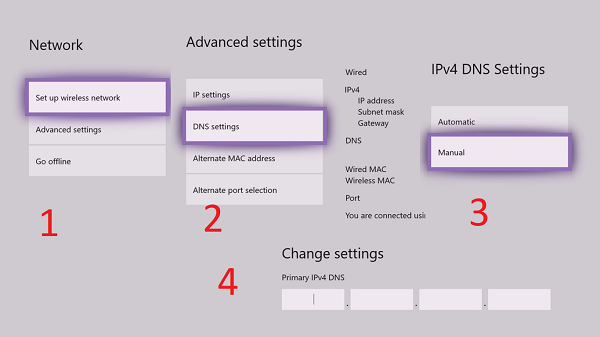
Now you know which DNS will work for you, and improve gaming speed and make the whole experience better. So, let’s take the next step, and change the DNS settings of the Xbox One.
- Open the guide by pressing the Xbox button on your controller.
- Move right to the System tab > Settings > Network > Select Network settings.
- Select Advanced settings.
- Make a note of your existing DNS servers on this screen on paper or on your phone. If things don’t go as expected, you can re-enter them again.
- Select DNS settings, and then select Manual.
- Enter your new DNS servers. You will need to enter both primary and secondary DNS settings to complete it.
- Press B to exit the menu when you are done.
Xbox will start connecting to the internet and Xbox Live services to ensure everything is working correctly. If you get a message that it can’t connect to the internet, time to recheck. Double-check the numbers you entered in the DNS settings, and if it still doesn’t work, fall back to the old settings.
While you can apply the settings in the Router as well, if your goal is just for Xbox, change them in Xbox Settings only. This way, other devices connected to your router remain unaffected by the change.
