
Cloudflare is a Global Network Service provider. They have their own DNS service that directly competes with Google’s OpenDNS Service. This Cloudflare service focuses on the privacy and security of users and their Internet connections. Cloudflare claims its 1.1.1.1 service does not keep your connection logs for more than 24 hours, which it says helps boost users’ privacy on the Internet.
Another plus point of using this DNS server is that it is faster than others. It takes 14ms for sites outside their network to be fetched and located. And it is even faster for those that are indexed by them.
Cloudflare’s service supports DNS over HTTPS (and DNS over TLS), which also protects your browsing information from your ISP. And the best part is, this service is 100% free for anyone. Also, Cloudflare claims it never uses the data for marketing or other purposes. This is demonstrated by KPMG auditing their code. For those who don’t know, KPMG is a well-respected marketing firm. They will be checking their code and practices annually, and a public report will soon be published when it is ready.
This service is now live and can be used by anyone now.
If you want to learn how to use it, please follow our tutorial below. Before you begin, you should know that Cloudflare’s 1.1.1.1 DNS is a fast, privacy‑focused public resolver, while 1.1.1.1 for Families adds built‑in filtering to block malware and adult content.
How to set up Cloudflare 1.1.1.1. DNS service
First of all, let me assure you that doing this is really a piece of cake. You need not be a professional or an expert to do this. Just a few clicks will lead you towards setting this up. Just follow our steps carefully.
To change the DNS server settings, you can right-click on the WiFi or the Ethernet connection icon in the system tray and then select Network and Internet Settings and then click on Change Adapter Options.
Then you will see a window pop up that will look something like this
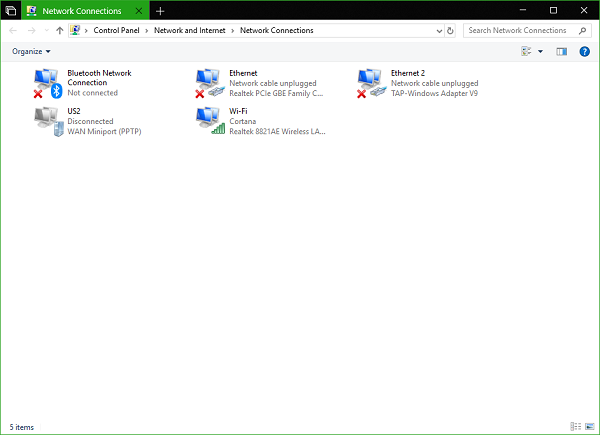
Now, select the network connection whose DNS server you wish to change. This connection could be an Ethernet Connection or a WiFi Connection.
Right-click on that connection and select Properties.
From the list of items, now select Internet Protocol Version 4 OR Internet Protocol Version 6 according to your requirement.
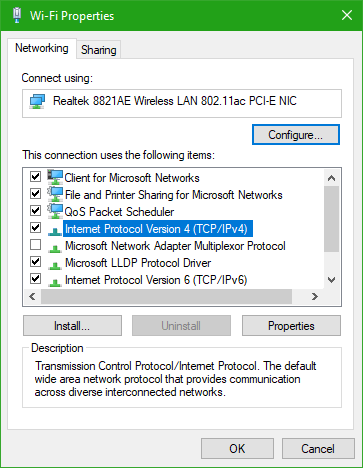
Now, click on the button that says Properties.
A new box will pop up, showing multiple fields to enter IP or DNS Addresses. Now, in the DNS Service section, click on the radio button that says Use the following DNS Servers.
Now if you selected the IPv4 server, enter 1.1.1.1 in the Primary DNS section AND 1.0.0.1 in the Secondary DNS section.
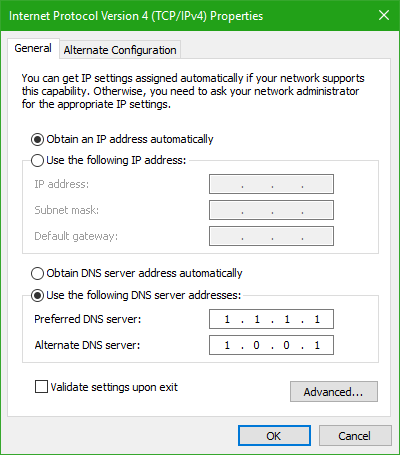
If you selected IPv6 server, enter 2606:4700:4700::1111 in the Primary DNS Server section AND 2606:4700:4700::1001 in the Secondary DNS Server.
Click on OK to close the configuration pop up and Close to finalize the settings.
Restart your browser for the changes to take effect.
You are all set now!
Here is a list of some good free and Public DNS Servers that may interest you.
How do I use a 1.1.1.1 DNS server?
In order to use the 1.1.1.1 DNS server on Windows 11 or Windows 10 computers, you need to open the Network Connections panel first. Then, right-click on the Internet source and select the Properties option. Next, double-click on the Internet Protocol Version 4 menu and select the Use the following DNS server addresses option. Finally, enter 1.1.1.1 in the Preferred DNS server and 1.0.0.1 in the Alternate DNS server box.
How do I change my DNS to 1.1.1.1 on my router?
Different routers come with different settings. To use the Cloudflare DNS server for faster browsing, you need to open the corresponding panel first. For that, your device must be connected to the Wi-Fi router. Next, you can enter 1.1.1.1 as the Preferred DNS and 1.0.0.1 as the Alternate DNS server.
Other DNS services you can check out: Comodo Secure DNS | Angel DNS | OpenDNS.
