
Some users report that Wildermyth keeps crashing or freezing on their computers. The problem occurs while you’re playing: the game suddenly crashes; however, some users also report crashes at startup. Whatever your case, we have a solution. In this article, we’ll show you what to do if the game keeps crashing or freezing on your computer.
Fix Wildermyth keeps crashing or freezing on Windows 11
If Wildermyth keeps crashing or freezing, try these solutions.
- Run the game on dedicated Graphics
- Repair Widermyth game files
- Update Graphics Drivers
- Try running the game at a lower Graphics Settings
- Install the latest version of Visual C++ Redistributable and DirectX
- Troubleshoot in Clean Boot
Let us talk about them in detail.
1] Run the game on dedicated Graphics
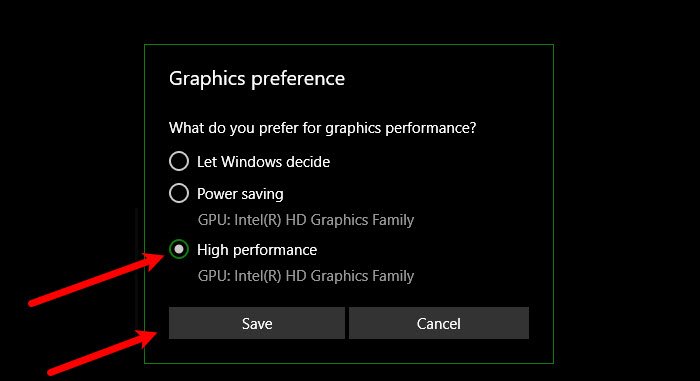
Wildermyth requires some power from your dedicated Graphics card. So, if it’s running on the integrated GPU, which isn’t very powerful, it may crash. What, we need to do is force the game to run on the dedicated GPU and see if that works. Follow the given steps to do the same.
- Launch Settings.
- Head to System > Display > Graphics.
- Click on Browse, look for the game, and select it.
- Now, select the game and click Options.
- Select High performance and click Save.
Hopefully, that does the job.
2] Repair Wildermyth game files
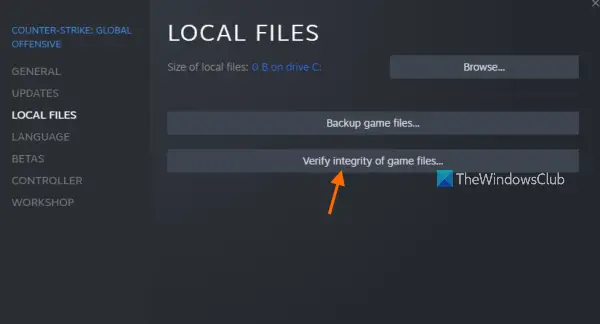
Next, scan and repair Wildermyth files. You can do this easily using your Steam launcher, with no hidden caveats. Follow the steps below to repair your Wildermyth game files.
- Open Steam.
- Go to the Library.
- Right-click on Wildermyth and select Properties.
- Go to the Local Files tab and select Verify integrity of game files.
It may take some time; once it’s done and your game files are repaired, they won’t crash again.
3] Update Graphics Drivers
As mentioned earlier, the GPU is very important for your game, and so are its drivers. If they are outdated, your game may crash due to incompatibility. Make sure to update them before starting the game. To do the same, you can pick any of the following methods.
- Download Driver and Optional Updates from Settings.
- Go to the manufacturer’s website and download the driver.
- Use free driver update software.
- Update the GPU driver from Device Manager.
Hopefully, this will do the job for you.
4] Try running the game at lower Graphics Settings
If you are constantly noticing that your game crashes after freezing for some time, then to its settings and turn down the Graphics Settings as your system is unable to render them. Once you do that, Wildermyth should work just fine. This issue occurs on systems that meet only the minimum system requirements.
5] Install the latest version of Visual C++ Redistributable and DirectX
Both DirectX and the Visual C++ Redistributable are required to create the environment needed to run the files. If these tools are missing or outdated, Wildermyth can’t create the required environment and will crash. Therefore, install the latest version of DirectX and Visual C++ Redistributable on your computer and check if the issue persists.
6] Troubleshoot in Clean Boot
A third-party app, such as an overclocking app, can interfere with your game and cause issues. Since we are not sure, we would recommend you perform Clean Boot and then try enabling processes one by one. This will be able to find the culprit, remove it and resolve the issue.
Hopefully, these solutions will work for you.
What are the system requirements of Wildermyth?
The following are the system requirements of Wildermyth that you need to meet in order to play the game
- OS: Windows 11/10
- Processor: i3 or better
- Memory: 3 GB RAM
- Graphics: Open GL 3.2
- Storage: 2 GB available space
If your computer is compatible, you shouldn’t have any problems playing Wildermyth.
Why does my game keep crashing on Windows 11?
A game usually crashes if it doesn’t meet your system requirements. Make sure the game is fully compatible before buying it. However, meeting the requirements doesn’t guarantee smooth gameplay, so keep tools like graphics drivers, DirectX, and the Visual C++ Redistributable updated. Every crash is different, so you may need to do all of this and check the game files to make sure they aren’t corrupted.
How do I fix Warzone crashing on Windows 11?
There are various things you can do to fix Warzone if the game crashes for various reasons. We have curated a separate guide to see what you can do if Warzone is freezing or crashing on your computer, so, do check that one out.
Also read:
