
Are you experiencing DirectX Error in Divinity Original Sin 2? Divinity Original Sin 2 is a popular role-playing video game developed by Larian Studios. While gamers have an amazing time playing the game, they also run into some errors here and there. One such error is a DirectX error that a lot of users have reportedly encountered. Some users have encountered the error while launching the game, while many have encountered the error during gameplay.
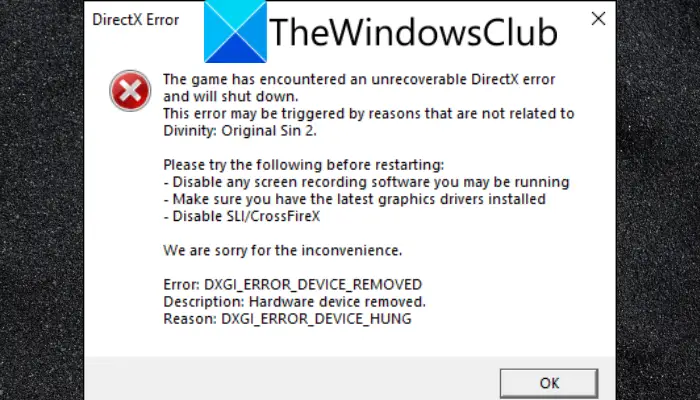
When triggered, you will get the following error message:
The game has encountered an unrecoverable DirectX error and will shut down.
This error may be triggered by reasons that are not related to Divinity: Original Sin 2.Please try the following before restarting:
-Disable any screen recording software you may be running
-Make sure you have the latest graphics drivers installed
-Disable SLI/CrossFireXWe are sorry for the inconvenience.
Error: DXGI_ERROR_DEVICE_REMOVED
Description: Hardware device removed.
Reason: DXGI_ERROR_DEVICE HUNG
Now, if you are one of the affected users, this post is for you. In this post, we’ll discuss several fixes to help you get rid of the DirectX Error in Divinity: Original Sin 2. But before that, let us try to understand the scenarios that might trigger this error.
What causes DirectX Error in Divinity Original Sin 2?
Here are the potential causes that might trigger DirectX Error in Divinity Original Sin 2:
- An outdated graphics driver could cause it. If your graphics drivers are outdated, update them to fix the error.
- Outdated Windows OS can be another reason for the same error. Make sure you have installed all pending Windows updates on your system.
- If you set your display resolution to something other than the recommended setting, it might cause issues with the game and trigger the error. So, change your display resolution to the recommended setting to resolve the error.
- Conflicting apps like screen recorders, live streaming applications, etc., can also trigger the error. If applicable, close these apps and see whether the error is fixed.
- Overclocking can also cause this error. So, try disabling overclocking software to fix the error.
- If the DirectX installation has become corrupted, you will face the error at hand. In that case, you can reinstall the DirectX package to fix the error.
Now that you know the reason behind DirectX Error in Divinity Original Sin 2, let us check out the fixes.
Fix DirectX Error in Divinity Original Sin 2
Here are the fixes you can try to resolve DirectX Error in Divinity Original Sin 2:
- Make sure your graphics driver is up-to-date.
- Update Windows.
- Try using the recommended resolution settings.
- Disable overclocking.
- Close conflicting apps.
- Disable Full-Screen Optimization and run the game in compatibility mode.
- Reinstall DirectX.
Divinity Original Sin 2 encountered an unrecoverable DirectX error
1] Make sure your graphics driver is up-to-date
You are likely to encounter a DirectX Error in Divinity: Original Sin 2 if your system drivers are outdated, especially your graphics drivers. Make sure you update your graphics and other device drivers to the latest versions.
The following methods can be used to update your graphics driver on Windows PC:
You can open your Settings app using the Win+I hotkey and go to the Windows Update > Advanced options section. After that, tap on the Optional Updates option and then download and install all the pending driver updates. If you want to use the Device Manager app, you can update graphics drivers through it.
Another method is to download and install the latest version of your graphics driver model from the device manufacturer’s official website. Apart from that, you can even try using a free third-party driver updater to automatically scan outdated device drivers and update them.
Once you update your graphics driver, reopen the game and see whether the error is resolved. If not, try the next potential fix.
Read: DirectX function GetDeviceRemovedReason failed with DXGI error.
2] Update Windows
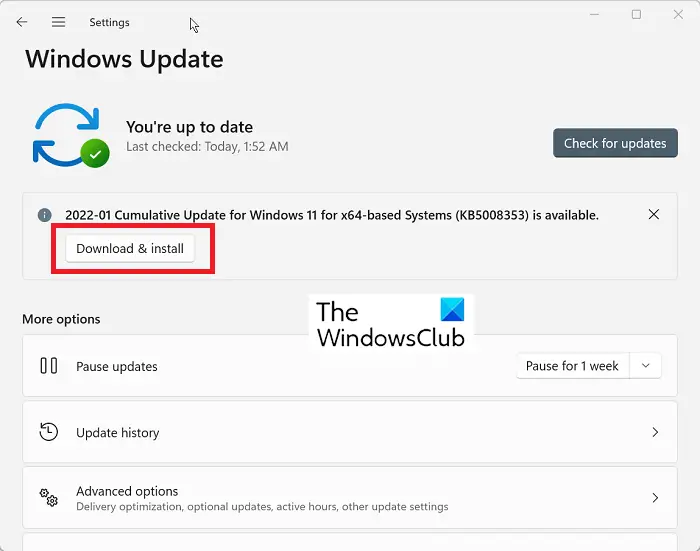
You may see this error if you are using an outdated version of Windows. If applicable, update Windows by installing all pending updates. Press Win+I hotkey to open the Settings app and then go to the Windows Update tab. Then click Check for updates and let Windows download and install the pending updates.
Once the updates are installed and your system is restarted, open the Divinity Original Sin 2 game and check if DirectX Error is fixed or not.
See: DirectX failed to initialize error on Windows.
3] Try using the recommended resolution settings
If you changed your default resolution settings, it could cause this error. Reset it to the recommended setting and see if the error is fixed. Here’s how to do that:
- First of all, launch the Settings app by pressing the Windows+I hotkey.
- Now, go to the System > Display section and click on the Display resolution drop-down option.
- Next, select the recommended display resolution from the appeared options.
- Once the settings are applied, relaunch the game and check whether the error is resolved.
If the problem persists, move on to the next potential solution.
Read: Fix microsoft.directx.directdraw.dll was not found or is missing error.
4] Disable overclocking
If you have overclocked your system, disable it and check whether the error is resolved. Overclocking helps enhance your PC’s speed. But in many cases, it can be problematic and trigger stability issues in games and apps. If applicable, try turning off overclocking and see whether the DirectX Error in Divinity: Original Sin 2 stops.
If the error keeps popping up, try the next potential fix.
5] Close conflicting apps
In a few instances, this error could be triggered due to conflicting apps like screen recorder apps, live-streaming apps, Xbox Game bar, Discord, etc. Try closing these apps and see whether the error resolves.
To close conflicting programs, open Task Manager using Ctrl+Shift+Esc. Then, in the Processes tab, select a process and click End Task. Close all conflicting apps, then check whether the error is fixed.
In case you still get DirectX Error in Divinity Original Sin 2, go ahead and try the next potential fix to resolve the error.
See: Origin DirectX Setup Error: An internal error has occurred.
6] Disable Full-Screen Optimization and run the game in compatibility mode
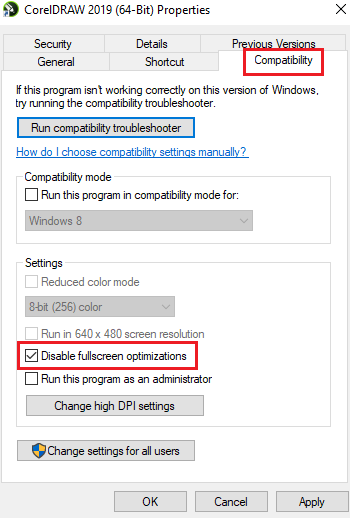
The error may be triggered by a compatibility issue or by Full-Screen Optimization being enabled for the game. If applicable, disable Full-Screen Optimization and run the game in compatibility mode to fix the error. Here’s how to do that:
- Firstly, open the Steam client, go to LIBRARY, and right-click the Divinity Original Sin 2 game.
- Now, select the Properties option, move to the Local Files tab, and tap on Browse Local Files to open the game’s installation directory.
- Next, right-click on the game’s executable file and press the Properties option.
- After that, go to the Compatibility tab, enable the Run this program in compatibility mode for: checkbox, and select a Windows version.
- Then, check the option called Disable fullscreen optimizations and press Apply > OK to save changes.
Now try relaunching the game to see if the error is fixed.
7] Reinstall DirectX
If none of the above solutions work for you, try reinstalling the DirectX package to fix the error. To do that, uninstall DirectX and then reinstall it. You can download the latest version of DirectX from the Microsoft Download Center. After that, install the package and reboot your system. Then, try relaunching the game and hopefully the error will be fixed now.
Read: DirectDraw Initialization Failed on Windows PC.
What causes DirectX error?
DirectX error like DirectX encountered an unrecoverable error is often caused due to outdated graphics. Other than that, it can also be caused due to your display settings, corrupted installation files, etc. To fix the error, try rebooting your computer, checking for Windows updates, checking the minimum requirements, restarting the game, checking Display scaling settings, or reinstalling the game or application. These are some basic troubleshooting methods. If the error persists, try disabling hardware monitoring software, updating or reinstalling GPU drivers, deleting game cache files or running the DirectX Diagnostic Tool.
That’s it.
How do I fix DirectX error?
If you’re seeing a DirectX error in Divinity: Original Sin 2, update your graphics driver to the latest version. Also, update Windows, use the recommended display resolution, turn off overclocking software, or close screen recorders and other conflicting apps to fix the error. If nothing works, try uninstalling and reinstalling the DirectX package. We cover these fixes in detail below.
Now read:
- Fix VALORANT DirectX Runtime error on Windows.
- Fix Resident Evil Village DirectX Error on Windows PC.
