
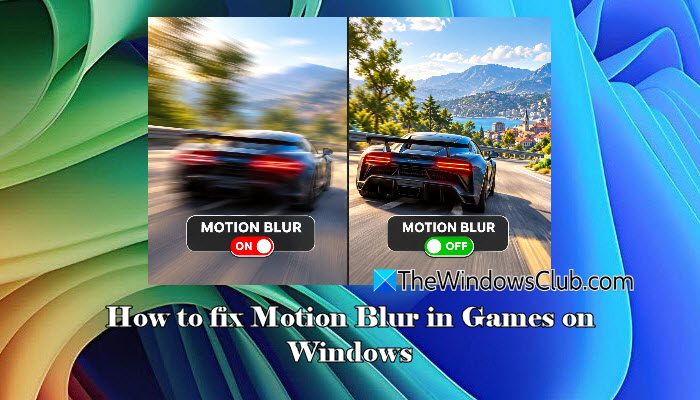
Motion blur is a visual effect game developers use to create a sense of speed, make camera movements feel more cinematic, and make fast-moving scenes look more natural. However, many gamers find that motion blur smears the screen instead of smoothing it. This can make it harder to spot enemies, recognize objects, or read on-screen information. If motion blur is affecting your gaming experience, you can minimize its effect. In this post, we will show you how to fix motion blur in games on Windows 11.
Types of Motion Blur
There are two common types of motion blur in games:
- Camera motion blur (full-screen blur): This effect appears when the in-game camera moves or rotates quickly. It can make much of the scene look blurred when you turn around, pan the camera, or look around a game environment. Depending on the game engine, the blur may affect the entire image or primarily the parts of the scene that appear to move relative to the camera.
- Object motion blur (per-object/per-pixel blur): This effect applies blur to individual moving objects, such as spinning wheels, a moving vehicle, or a character’s weapon, while other parts of the scene may remain relatively sharp. It helps convey the speed and direction of moving objects without necessarily blurring the entire view.
Motion blur can work well in cinematic adventures and racing games, where it emphasizes movement, but it may distract in competitive shooters, where clear visuals and accurate target tracking matter.
How to fix Motion Blur in Games on Windows 11
To fix Motion Blur in Games on Windows 11, use these solutions:
- Disable in-game motion blur
- Adjust monitor response time
- Check your display’s refresh rate
- Disable other visual effects
- Cap the game’s frame rate
Let us look at these solutions in detail.
1] Disable in-game motion blur
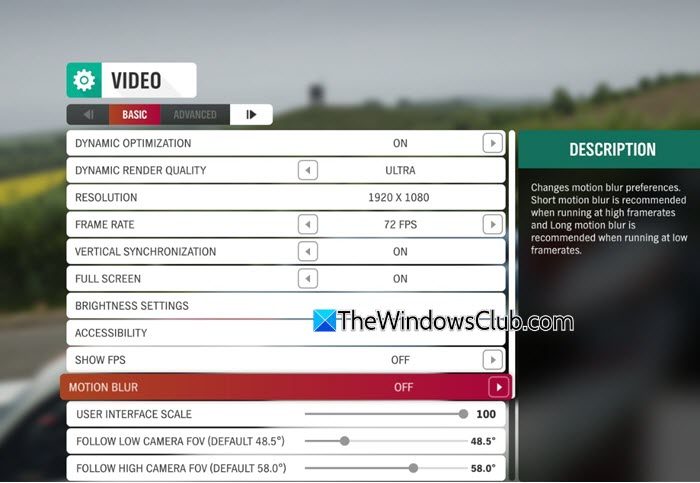
Most games that support motion blur provide a dedicated option in their graphics settings. Disabling it is the most direct way to remove blur added by the game engine.
Launch the game and open its Settings or Options menu. Go to the Graphics, Video, or Display section and find Motion Blur. Set it to Off. The exact menu location varies between games.
If the game offers a Blur Intensity slider, reduce it to zero.
For example, the image above shows Forza Horizon 5’s motion blur option under the Video settings. You can turn the effect on or off here. The menu also explains how short and long motion blur are suited to different frame rates.
Apply the changes and test the game by moving the camera quickly.
2] Adjust monitor response time
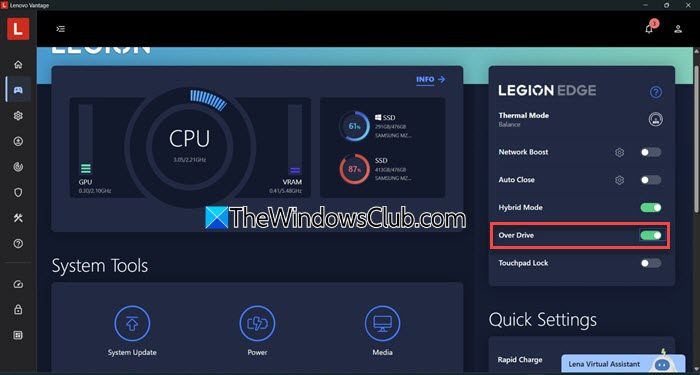
If you still notice blurry trails behind moving objects, your monitor’s response time may be responsible. Response time is the time a pixel takes to change from one color to another. It is measured in milliseconds (ms) and is different from the monitor’s refresh rate, which is measured in hertz (Hz).
For example, a 60Hz monitor refreshes its image approximately every 16.67 milliseconds. If a pixel takes longer than this to complete a color transition, it may still be changing when the next frame arrives. This can cause ghosting or smearing behind moving objects.
To reduce ghosting, open your monitor’s on-screen display (OSD) menu. Look for an option named Response Time. Try the Normal or Medium setting and check whether the trails become less noticeable.
If your device does not provide an OSD menu, the setting may be available in the manufacturer’s utility app.
Note:
- Some monitors offer an Overdrive setting to reduce ghosting by speeding up pixel transitions. Overdrive options vary by monitor. You may see presets such as Low, Medium, and High or Level 1, Level 2, Fast, and Ultra Fast. Some monitors offer a numerical scale, while others let you disable Overdrive completely. Try different Overdrive levels to find a balance between reduced ghosting and clear visuals. Setting it too high can cause inverse ghosting, which appears as bright or dark outlines behind moving objects.
- Some monitors support Black Frame Insertion (BFI), a feature that inserts black frames between displayed frames to reduce perceived motion blur. If your monitor supports it, try enabling it to see whether motion appears clearer.
3] Check your display’s refresh rate
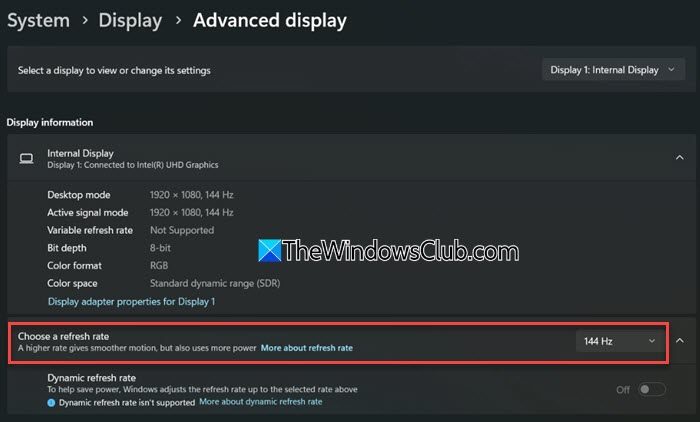
Refresh rate refers to how many times your display updates its image per second. It is measured in hertz (Hz). For example, a 60Hz display refreshes 60 times per second, while a 144Hz display can refresh 144 times per second.
A higher refresh rate can make fast-moving scenes look smoother and reduce perceived motion blur. This is especially useful in fast-paced games where you need to track moving objects or react quickly.
Press Win + I to open Settings. Go to System > Display. Scroll down and select Advanced display.
Under Choose a refresh rate, select the highest refresh rate supported by your display.
If you use multiple displays, make sure you select the correct one before changing the refresh rate. The available options depend on your display, graphics hardware, connection, and resolution.
4] Disable other visual effects
Some games include additional visual effects that can make the image appear blurry or make camera movement feel distracting. Disabling these effects may improve visual clarity, depending on the game.
Open the game’s Graphics or Display settings and look for the following options:
- Depth of field: This effect blurs areas outside the camera’s focus. Disable it if the background or foreground appears unnecessarily blurry during gameplay.
- Chromatic aberration: This effect adds colored fringes around objects, particularly near the edges of the screen. Disabling it can make image edges look clearer.
- Camera shake: Reduce or disable this setting if camera movement makes it difficult to follow the action. It does not directly cause motion blur, but it can make movement feel less clear.
The available options vary by game. Turn off one effect at a time and check whether it improves your experience. These settings do not directly remove motion blur, but they can help reduce other visual effects that may contribute to a blurry or distracting image.
5] Cap the game’s frame rate
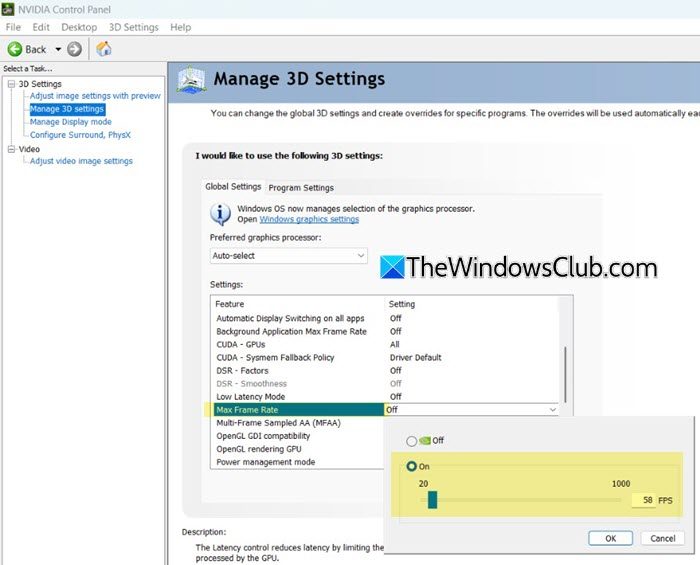
Demanding games can cause frequent frame-rate fluctuations, especially when graphics settings push your GPU to its limits. These fluctuations can make gameplay feel uneven, and camera movement appear less smooth. Capping the frame rate can help your system deliver frames more consistently.
To do this, open the game’s Graphics, Video, or Display settings and look for the Frame Rate or Max FPS option. Set a limit your system can maintain consistently. For example, if the frame rate frequently fluctuates between 45 and 80 FPS, try capping it at 45 or 60 FPS, depending on your system’s performance.
If the game does not offer a frame-rate limiter, you may be able to set one through your graphics card’s control panel or a supported third-party utility.
Test the game after applying the limit.
I hope this helps.
Read: How to enable Variable Refresh Rate for games in Windows.
What causes motion blur in games?
Motion blur can be caused by an in-game visual effect that simulates blur during camera movement or fast-moving action. Similar blurring can also result from slow monitor pixel response times, which cause ghosting.
Should I remove motion blur?
If motion blur makes it harder to track objects or spot enemies, disabling it can improve visual clarity. However, some players prefer the cinematic look it provides, so the choice depends on your preference and the game.
Read Next: Second Monitor lags when playing games.
