
Imagine you have a 144Hz monitor and an NVIDIA/AMD GPU that can produce 200 FPS in a game. The GPU is producing 200 frames, while your monitor has a refresh rate of 144Hz. Rendering more frames requires the GPU to work harder. Limiting FPS can prevent your GPU from rendering more frames than you need. This can reduce GPU usage, power consumption, heat, and fan noise, especially when a game is already running at a very high frame rate. In this guide, we will show you how to set an FPS limit on NVIDIA and AMD GPUs on a Windows 11/10 PC.
How to set FPS Limit on NVIDIA and AMD GPU
NVIDIA and AMD both provide built-in options to limit the frame rate, but the settings are available in different software. NVIDIA users can use the Max Frame Rate option in NVIDIA Control Panel, while AMD users can use Frame Rate Target Control (FRTC)/Radeon Chill in AMD Software: Adrenalin Edition.
Set FPS Limit on NVIDIA GPU
If you have an NVIDIA graphics card, you can use NVIDIA Control Panel to set a maximum frame rate for 3D games and applications. Follow these steps:
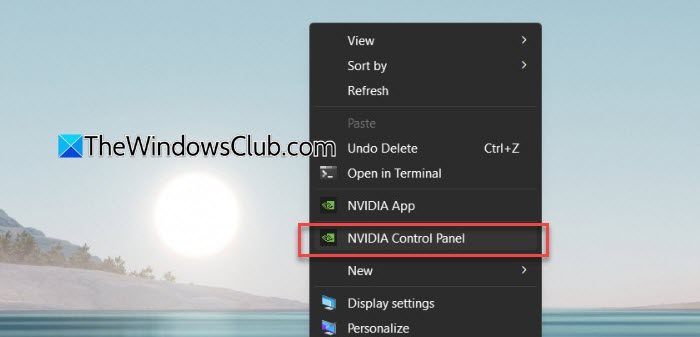
Open NVIDIA Control Panel. You can search for NVIDIA Control Panel using the Windows Search bar or right-click on your desktop and select Show more options > NVIDIA Control Panel from the context menu.
The NVIDIA Control Panel will open. Click Manage 3D settings under 3D Settings in the left pane.
In the right pane, select Max Frame Rate under the Global Settings tab and turn it on. Then move the slider to select your desired maximum FPS. You can also enter the value in the text box on the right side. The available range is 20 to 1000 FPS.
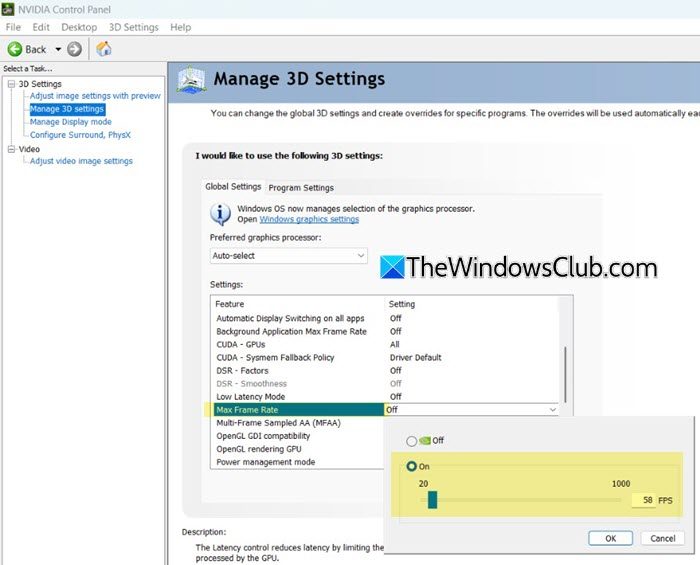
Click OK > Apply to save the changes.
Set FPS Limit for an Individual Game or App
If you want to limit FPS for a specific game or application, you can configure the setting under the Program Settings tab. Your global FPS setting will continue to apply to other applications unless you have configured a separate program-specific setting for them.
Open NVIDIA Control Panel > Manage 3D settings and select the Program Settings tab.
Under Select a program to customize, select the game or application for which you want to set the FPS limit. If the program is not listed, click Add and select the program from the list.
Under Specify the settings for this program, find Max Frame Rate. Turn it on, and then set your desired maximum FPS.
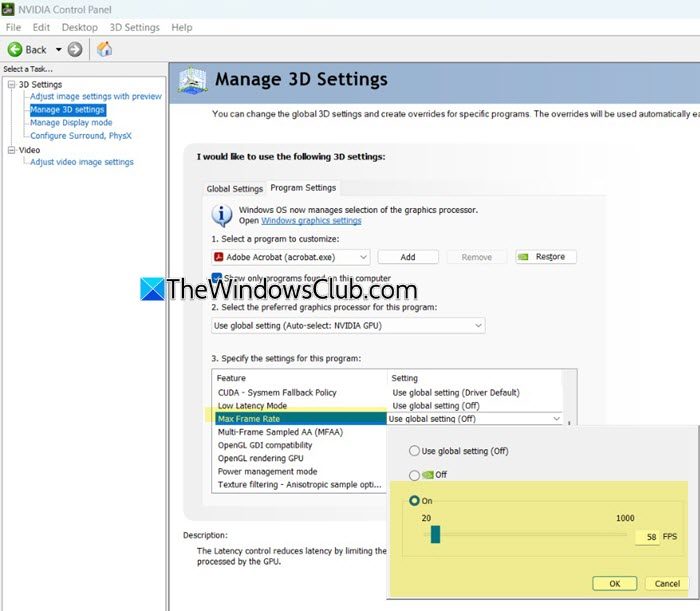
Click OK > Apply to save the changes. This setting will apply only to the selected game or application.
Set FPS Limit on AMD GPU
If you have an AMD graphics card, you can use AMD Software: Adrenalin Edition to control the frame rate of your games. AMD provides two relevant features: Frame Rate Target Control, which lets you set a fixed maximum FPS, and Radeon Chill, which dynamically adjusts the frame rate between a minimum and maximum value based on in-game movement.
Method 1: Use AMD Frame Rate Target Control
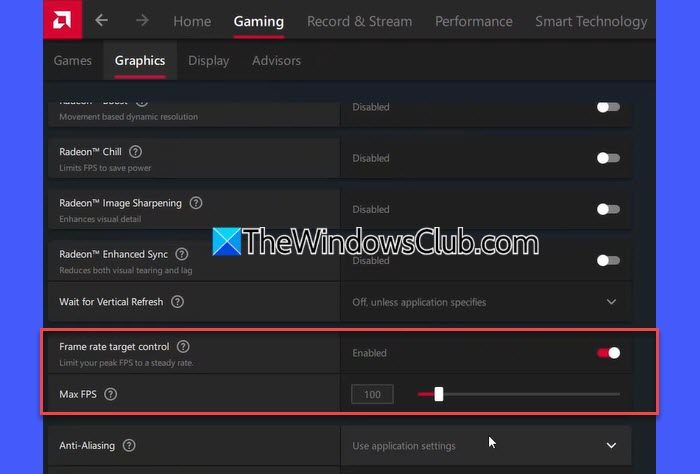
Frame Rate Target Control allows you to set a fixed maximum frame-rate target for supported games running in full-screen mode. It can help reduce GPU power consumption, heat, and noise when games are rendering more frames than necessary.
Right-click on your desktop and select AMD Software: Adrenalin Edition.
In the app window, go to the Gaming tab. Then switch to the Graphics tab.
Scroll down and locate Frame Rate Target Control. Enable the setting and set the desired Max FPS value.
Method 2: Use Radeon Chill
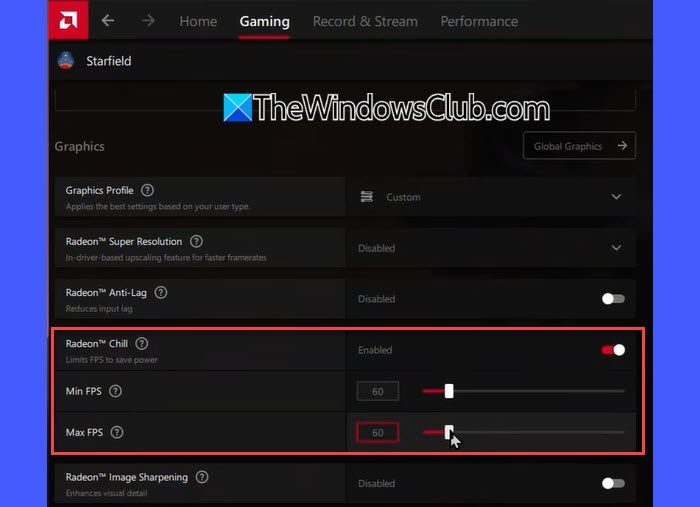
Radeon Chill dynamically adjusts the frame rate depending on what’s happening in the game. When there is a lot of movement, it can increase FPS up to the Max FPS you set. When there is little movement, it lowers FPS toward the Min FPS value to save power and reduce heat.
Open AMD Software: Adrenalin Edition. Go to the Gaming tab and find the game for which you want to limit FPS. If the game doesn’t show up in the list, click the three dots in the top-right corner and use the Add A Game option.
Once the game appears in the list, click on the title of the game (make sure you don’t launch it). On the next screen, scroll down and enable Radeon Chill under Graphics settings. Then set the Min FPS and Max FPS values using the available sliders.
Alternatively, you can use the in-game settings to limit FPS if the game provides the option. The exact settings and available FPS limits vary from one game to another.
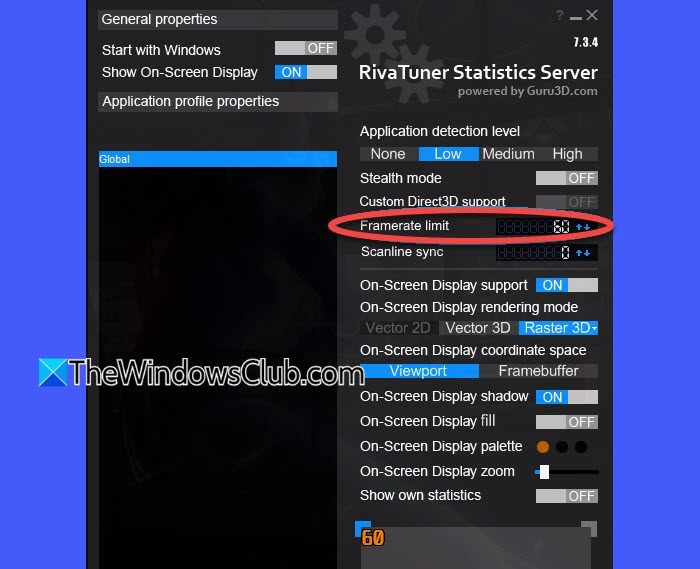
You can also use third-party tools such as MSI Afterburner and RivaTuner Statistics Server (RTSS) to set and monitor frame rates.
I hope you find this useful.
Read: How to configure the best FPS settings for gaming on a PC.
Why isn’t AMD Chill limiting my FPS?
If AMD Chill isn’t limiting your FPS, make sure it is enabled and the Max FPS value is set correctly. Also, check whether you have configured Radeon Chill under the correct game profile, as game-specific settings can override global settings.
Is 40 FPS ok for gaming?
40 FPS is playable, especially for slower-paced games. Fast-paced games, however, may feel less smooth at 40 FPS. For a smoother gaming experience, 60 FPS or higher is generally preferable when your hardware can maintain it consistently.
