
Some users cannot open Ryzen Master on their Windows 11 computers because of the “Ryzen Master does not support current processor” error. This error usually occurs after installing a new CPU. However, some users also encounter this error even though they have not changed their processor. If you encounter this error, the solutions provided in this article will help.
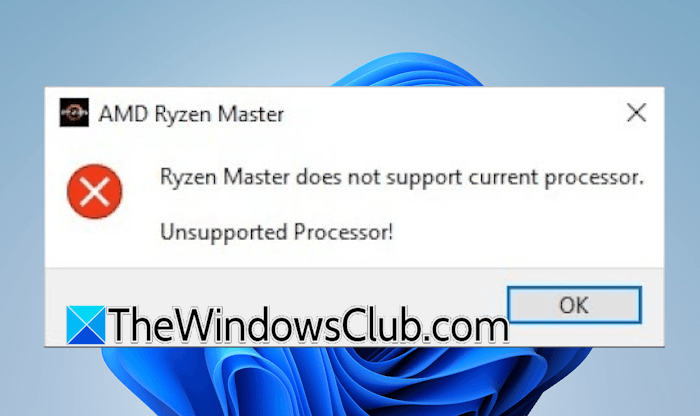
Ryzen Master does not support current processor
Use the following fixes if the “Ryzen Master does not support current processor: Unsupported Processor” error is preventing you from launching Ryzen Master on your Windows PC:
- Update Ryzen Master
- Update BIOS and chipset driver
- Completely uninstall and reinstall Ryzen Master
- Restore your system
All these fixes are explained in detail below.
1] Update Ryzen Master
This issue might be occurring due to an outdated version of Ryzen Master. Check this and update the software to the latest version. After updating, check if the issue persists.
2] Update BIOS and chipset drivers
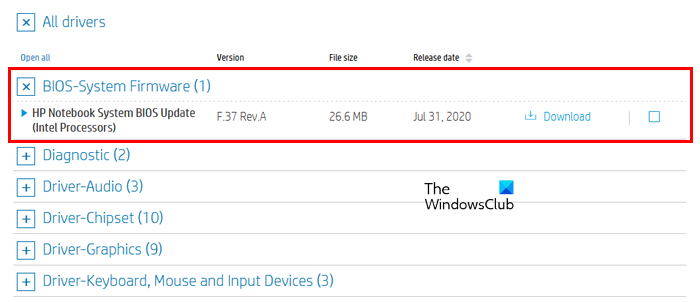
When you install new hardware, such as a CPU or RAM, you should update the BIOS to the latest version. On your Windows 11 computer, launch System Information and check the currently installed BIOS version. Visit your computer manufacturer’s official website and check if the latest BIOS version is available. If the new BIOS version is available, download and install it. While updating the BIOS, your system should have a continuous power supply. A power interruption during the BIOS update may brick your motherboard, and you may have to replace it.
We also suggest you update the chipset driver to the latest version.
3] Completely uninstall and reinstall Ryzen Master
If the issue persists, you should uninstall and reinstall Ryzen Master. After uninstalling the software, delete all its residual files. This will completely remove Ryzen Master from your system. You can also use a third-party software, such as Revo Uninstaller, to uninstall Ryzen Master and remove all its residual files. After uninstalling Ryzen Master and removing all its leftover files, restart your system. Now, visit the official AMD website and download the latest version of Ryzen Master. Run the installer file to install the software. This should fix the issue.
4] Restore your system
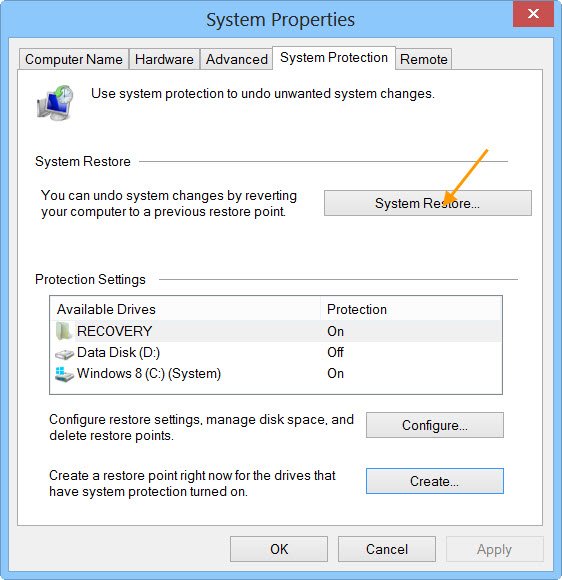
Some users encountered this issue even though they did not replace their CPUs. If you are facing this problem, you can use System Restore to take your system to the previous working state. When using System Restore, select the restore point created on the date after the problem started.
That’s it. I hope this helps.
What processors does Ryzen Master support?
Ryzen Master supports a wide range of AMD processors, including AMD Ryzen 9000 Series desktop processors for the AM5 platform, AMD Ryzen 9000 Series 65W and 120W desktop processors, Threadripper, and Threadripper Pro processors. Support for AMD Ryzen and AMD Ryzen Threadripper 1000 and 2000 Series has been discontinued.
How do I update the AMD Ryzen Master driver?
To update the AMD Ryzen Master driver, you need to download and install the latest version of AMD Ryzen Master. Visit the official AMD website to download the latest version of the software. Run the installer file to install the new version. Installing the new version automatically replaces and updates the older drivers on your system.
Read next: AMD Noise Suppression not working on Windows.
