
Uninstalling software & Microsoft Store apps in Windows 11/10 has come a long way, but Microsoft hasn’t been strict about what happens once an application uninstalls. Most of the classic desktop software uninstallations are inefficient and leave their footprint in the form of registry entries, folders, configuration files, and so on. So today, we are talking about Revo Uninstaller Free, which can help you completely remove desktop programs and Microsoft Store apps.
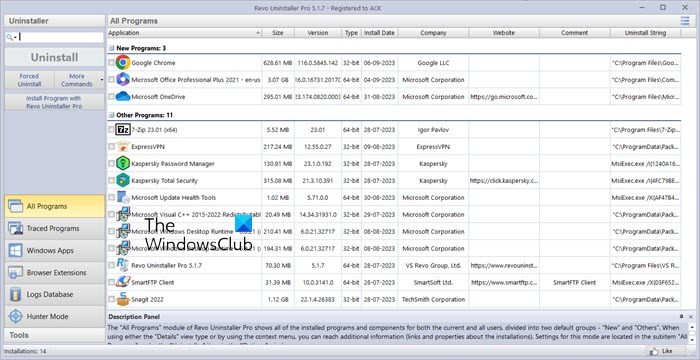
Revo Uninstaller Free for Windows PC
Here is a list of the features of the Revo Uninstaller Free version:
- Uninstall EXE based software
- Uninstall Microsoft Store apps
- Hunter Mode
- Clean Junk File, Microsoft Office, Browser, Windows, AutoRun manager
You can also use the portable version of the app if you do not wish to install it on the computer.
1] Uninstall EXE based software
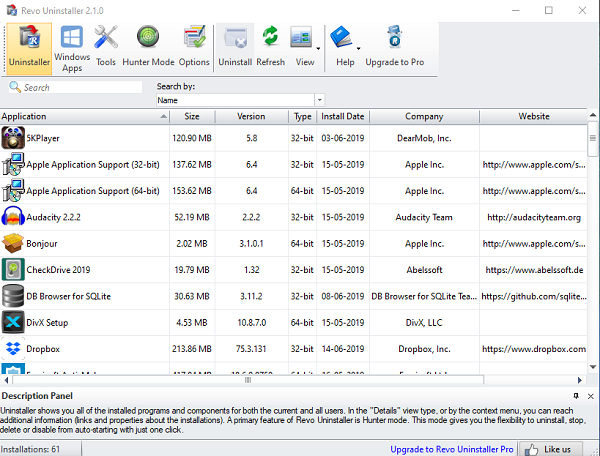
The interface is straightforward and displays a list of applications installed on the computer. Select the app and click on the uninstall button. It takes care of the rest.
If it’s an MSI app, then you can choose to force uninstall it. The option to do so is in the right-click. You can also start repair if you are having a problem with the software. Apart from that, you can also do the following when you right-click on any of the listings:
- Search Google for (Software & Developer Name)
- Open About, Help, Update links
- Open the location of the application, and registry key
All in all, it offers a solution that makes life a lot easier when you either want to fix via registry or remove unwanted files.
2] Uninstall Microsoft Store apps
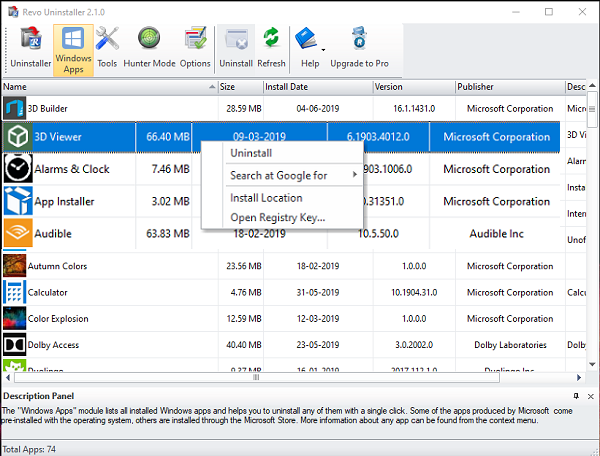
Microsoft Store apps installation is different from regular ones. The option to remove them was recently added to the Revo Uninstaller free version. Similar to EXE install, the app offers to find registry keys, install location, and so on.
3] Hunter Mode
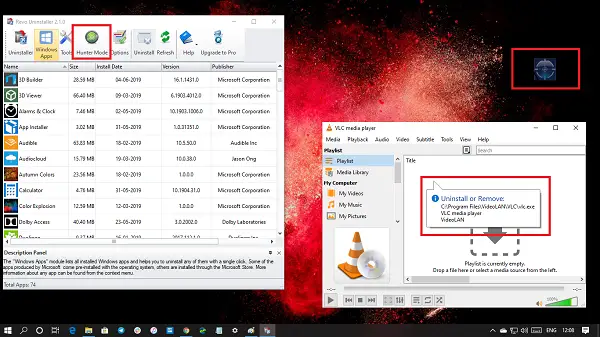
It’s an exciting option where a crosshair icon sits on the top right of the desktop. When you drag and drop the icon on any running application, it will uninstall it right away. When you drag and hover over the app, you will get a tooltip about uninstallation when you drop it.
4] Junk File, Microsoft Office, Browser, Windows Tools, AutoRun manager
Apart from uninstalling software and Windows apps, the application also offers these features to remove
- Junk File Cleaner.
- Microsoft Office application cleaner to remove original files and so on.
- Browser: Clear history, cookies, etc., of browsers, including Edge, Firefox, Chrome, etc.
- Windows Tools: Launch System features such as Services, Group Policy, etc.
- AutoRun Manager: Remove applications from Startup.
Revo Uninstaller Free is a great free uninstaller software to clean up many things on your computer and not just software. Download it here from its homepage.
Which is the best free uninstaller?
In our opinion, Revo Uninstaller is the best free uninstaller for Windows. It offers deep leftover scanning for files and registry entries and removes them. You can also force-remove stubborn programs.
Is Revo Uninstaller still safe?
Yes, of course! Revo Uninstaller is still considered safe. You should download it from the official website and use it carefully. The main risks come from fake installers on third-party sites or deleting registry entries you don’t fully understand.
