
Uninstalling apps from Windows 11/10 involves a simple procedure. All the user has to do is go to the ‘Start’ and right-click on an app. A menu slides up from the bottom of the screen, letting you uninstall the app easily. While this is simple and anybody can do it – can you imagine the trouble it could cause you? Anybody can delete your favorite apps without your consent. So, it’s always better to eliminate the chance rather than minimize it. The ultimate solution that comes to mind is to prevent users from uninstalling Microsoft Store Apps in Windows 11/10.
Prevent users from uninstalling Apps in Windows 11
Switch to Desktop mode and use the following sequence of keys simultaneously: Windows + R. This should open the Run box. Type gpedit.msc in it and press the ‘Enter’ key to bring up the Group Policy Editor.
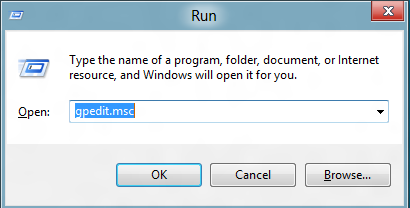
When done, navigate to the following location:
User Configuration\Administrative Templates\Start Menu and Taskbar
Then, on the right-hand side, look for the ‘Prevent users from uninstalling applications from Start‘ setting and check its state.
You will find the state as ‘Not Configured’.
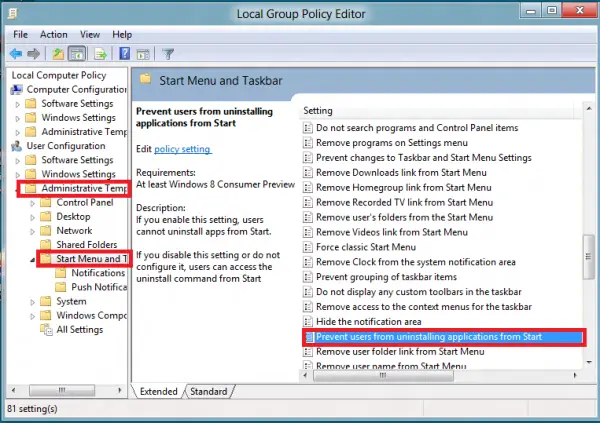
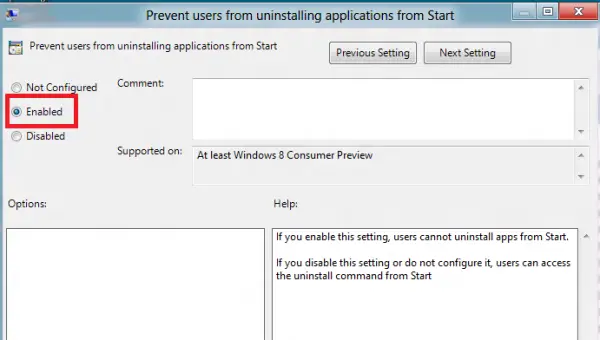
Double-click it to open a new window. Under the window, select the ‘Enabled’ option.
Now, in order to allow the updated policy to take immediate effect on your PC, press Windows+R key in combination and in the RUN box that will appear on your computer screen, type gpupdate /force.
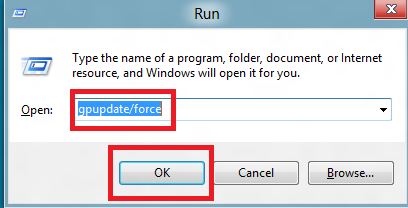
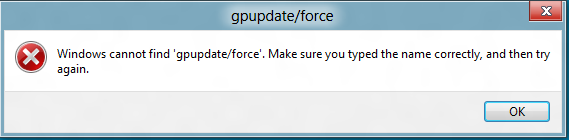
Please note that you need to give space before ‘/’ else, you will get the following error message “Windows cannot find ‘gpupdate/force’. Make sure you typed the name correctly, and then try.”
Once done, go to the Metro Start Screen and right-click on an app. You shouldn’t find the uninstall option now.
If you are having any problems installing apps from the Microsoft Store, check out our post – Unable to Install Apps from Microsoft Store.
These links may also interest you:
