
The VLC media player is one of the popular media players available across many platforms. Millions worldwide use it to play media on their devices. VLC can play almost any type of media on devices. This makes VLC a go-to media player for many. VLC is a third-party media player that you need to download and install manually on your device. You can uninstall it at any time easily. If you can’t uninstall VLC on your Windows 11/10, in this guide, we have solutions that can help you completely uninstall the VLC media player from your PC.
Can’t uninstall VLC from Windows PC
How to completely uninstall VLC Media Player from Windows 11
There are different ways that we can use to uninstall a program on Windows 11/10. If you cannot uninstall VLC Media Player and are wondering how to do it, the following methods can help you remove it completely from your PC.
- Using the Settings app
- Using the Control Panel
- From the Start menu
- Using the VLC Uninstaller.exe
- Using the Uninstall string
- Using PowerShell
- Using a third-party uninstaller program
- Using the antivirus
Let’s go through each method and remove VLC Media Player from our PC completely.
1] Using the Settings app
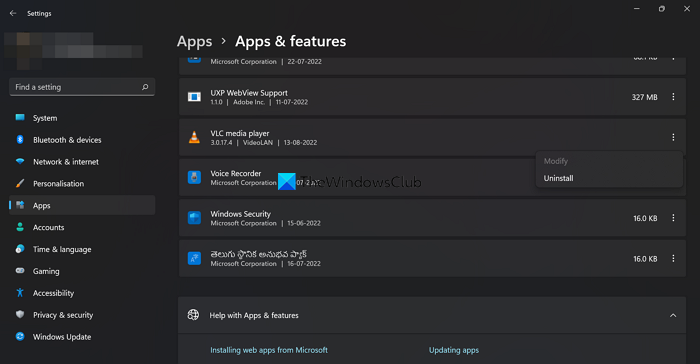
This is one of the simplest methods to remove VLC Media Player, or any other program, from our PC completely.
To remove the VLC media player using the Settings app,
- Press Win+I on your keyboard to open the Settings app
- Click on Apps from the left sidebar
- Then, click on the Apps & features tile
- Scroll down to find the VLC media player among the list of programs installed on your PC. Click on the three-dot button beside the VLC media player and click on Uninstall
- Now, follow the on-screen uninstall wizard and complete the uninstallation of the VLC media player
This will remove VLC completely from your PC. If it fails, try the methods below.
2] Using the Control Panel
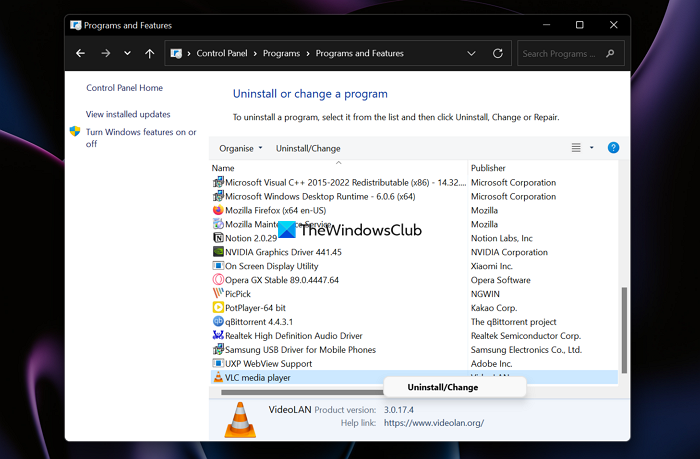
Control Panel also has features to uninstall programs. Before the Settings app, Control Panel was used to uninstall programs, mostly in previous versions of Windows.
To uninstall VLC Media Player using the Control Panel,
- Open the Start menu and search for Control Panel
- Open Control Panel from the results
- Click on Uninstall a program under the Programs section in the control panel
- Scroll down to find the VLC media player and right-click on it to see Uninstall/Change option to remove the program.
- Follow the on-screen wizard and remove the VLC media player from your PC completely.
3] From the Start menu
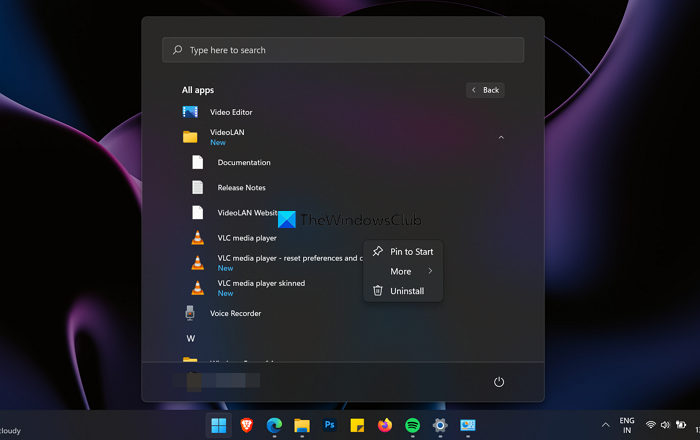
This is one of the straightforward methods to remove a program from our PC. You can remove VLC Media Player from the Start menu in a few clicks.
To remove the VLC media player from your PC using the Start menu,
- Click on the Start menu and search for VLC media player or click on All apps
- Scroll down to find the VLC media player and click on the Videolan folder
- You will find the VLC media player in the folder. Right-click on it and select Uninstall from the context menu
- Then follow the on-screen uninstallation wizard and remove VLC Media Player from your PC completely.
4] Using the VLC Uninstaller.exe
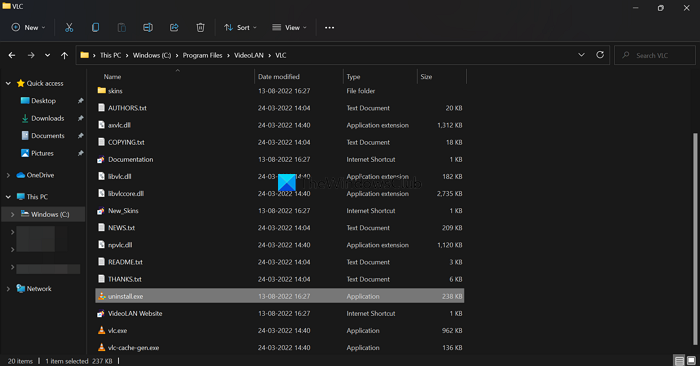
Every program we install on our PC has an uninstall file in its original folder. We can use it to uninstall the program. Similarly, we can find the uninstall.exe file in the VLC folder in the installation path. We can use it to remove VLC Media Player from our PC completely.
To remove the VLC media player using the uninstall.exe file,
- Go to the below path or find the Videolan folder in the installation directory or in the Program files folder in the C drive of your PC
- C:\Program Files\VideoLAN\VLC
- You will see the unistall.exe file there. Double-click on the file to open it. You will UAC prompt, and click on Yes to uninstall.
- Then, follow the on-screen wizard and remove the VLC media player
5] Using the Uninstall string
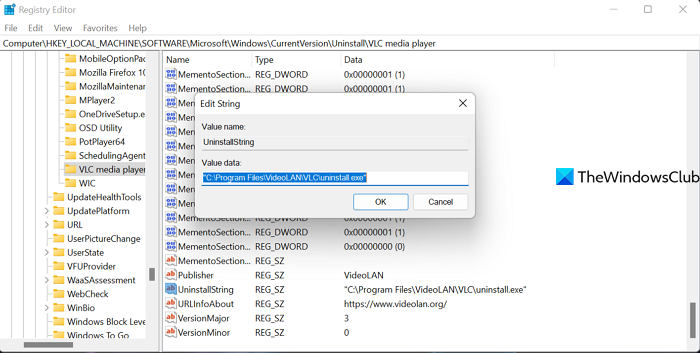
Every program we install on our PC has an uninstall string created in the registry. We can use it in the elevated Command Prompt and uninstall the program completely. VLC Media Player also has an uninstall string in the registry.
To uninstall the VLC media player using the uninstall string,
Press Win+R on your keyboard to open the Run command. Type Regedit and press Enter. It will open Registry Editor.
Navigate to the following path to find the VLC media player’s Uninstall String:
Computer\HKEY_LOCAL_MACHINE\SOFTWARE\Microsoft\Windows\CurrentVersion\Uninstall\VLC media player
You will find the UninstallString if you scroll down in that path. Double-click on it and copy the Value data
Now, click on the Start menu and type cmd or command prompt. Open it and paste the copied value. Click on Yes to the UAC prompt and complete the uninstallation process
6] Using PowerShell
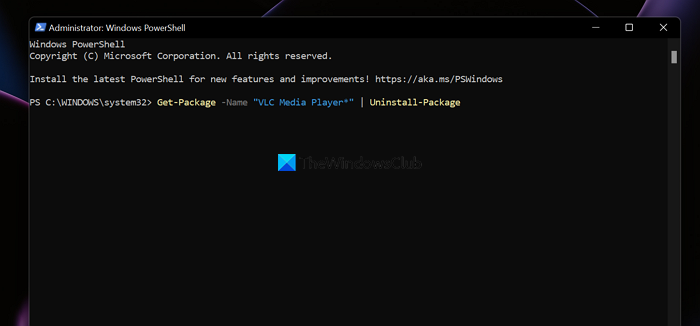
You can also uninstall VLC Media Player using Windows PowerShell. You only need to type a single command.
To uninstall the VLC media player from your PC using Windows PowerShell,
Click on the Start menu and type PowerShell. Click on Run as an administrator in the results.
Click Yes on the UAC prompt. Then, type the following command and press Enter to complete the process:
Get-Package -Name "VLC Media Player*" | Uninstall-Package
7] Using a third-party uninstaller program
There are many third-party uninstaller programs that can remove any program and wipe out their traces from our PC. You can use any of them, like BC Uninstaller or Geek Uninstaller, to remove VLC Media Player from your PC.
8] Using the antivirus
If the above methods fail to uninstall VLC Media Player from your PC, it may be infected with a virus or malware. You can eliminate it and remove it from your PC using an antivirus. Download and install free antivirus and run the scanner which will take care of the infected VLC.
Is VLC Media Player safe?
It was considered safe till recently. A China-backed hacking group, Cicada, was using it for cyberattacks. Just a few months ago, security experts discovered that Cicada used VLC Media Player to deploy a malicious malware loader as part of a long-running cyberattack campaign. VLC Media Player has now been banned in India.
Do I need VLC Media Player on my computer?
VLC Media Player is an optional media player that you can use to play various media formats easily. If you want to play different media formats or watch downloaded movies, videos, or audio, you can download and install VLC.
How do I completely remove VLC media player?
You can remove VLC Media Player from your PC using several methods. You can uninstall VLC Media Player using the Settings app, Control Panel, the Uninstall.exe file, Windows PowerShell, etc.
Related read: How to play a video with VLC using Command Prompt.
