
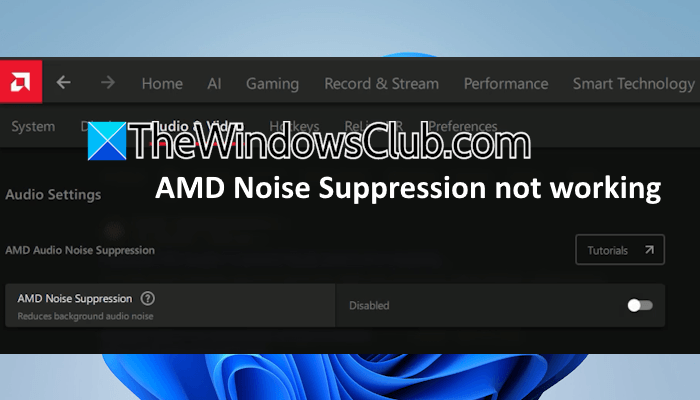
AMD Noise Suppression is a feature in the AMD Software Adrenalin Edition that uses a machine learning algorithm to reduce background noise in real time. According to reports, users cannot turn ON this feature in the AMD software. Some users also reported that they did not find it in the AMD software. If the AMD Noise Suppression is not working on your Windows 11 computer, the fixes provided in this article will help.
AMD Noise Suppression is not working on Windows 11
Use the following fixes if AMD Noise Suppression is not working on your Windows 11 PC.
- Check hardware requirements
- Update AMD Software Adrenalin Edition manually
- Perform factory reset
- Roll back the GPU driver
- Perform the clean installation of AMD software
- Roll back AMD software
All these fixes are explained in detail below.
1] Check hardware requirements
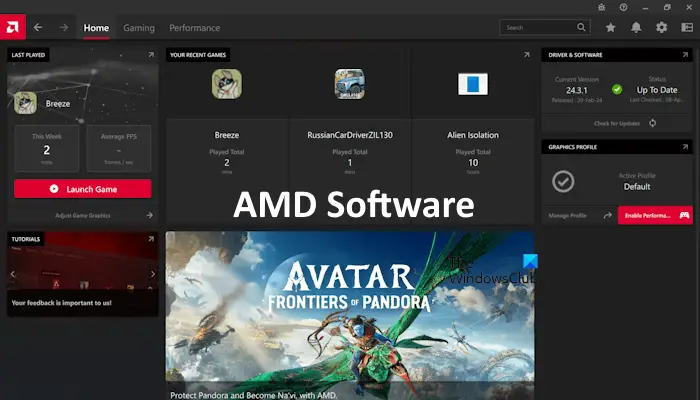
Some users reported that they do not see the AMD Noise Suppression option in the AMD Software Adrenalin Edition. AMD Noise Suppression works on AMD Ryzen 6000 Series or newer processors with integrated graphics and AMD Radeon RX 6000 Series or newer dedicated graphics cards. Therefore, if your dedicated or integrated GPU does not meet these hardware requirements, you will not see this feature in the AMD software.
2] Update AMD Software Adrenalin Edition manually
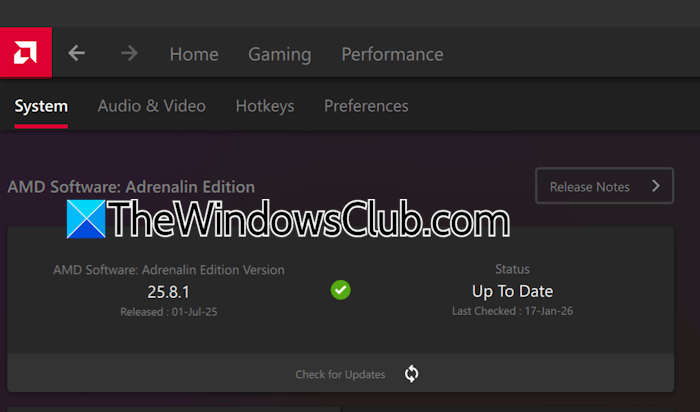
The Noise Suppression feature requires the AMD software version 22.7.1 or higher. Apart from that, it is always recommended to use the latest version of the software. You will see the currently installed version under the Home tab of the AMD software. Click the Check for Updates button to install the latest version. If you do not see the option to update the software under the Home tab, navigate to Settings > System.
3] Perform factory reset
Performing the factory reset can help fix this issue. This action will restore all user settings and profiles to their default values. Before proceeding, you can export all your user settings.
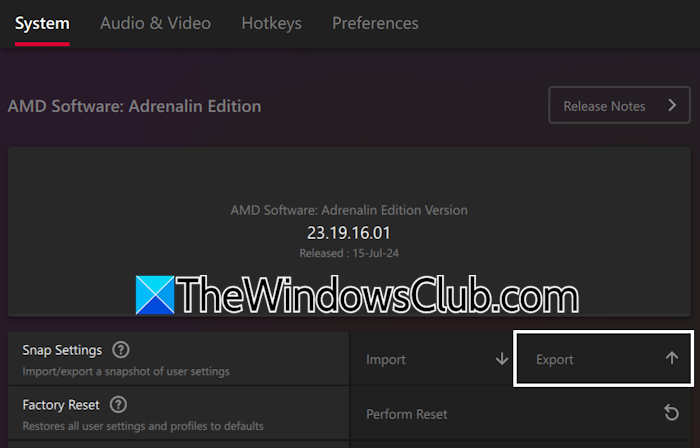
Follow these steps:
- Launch the AMD software.
- Click Settings.
- Select the System tab.
- Click Export next to the Snap Settings option.
- Save the file.
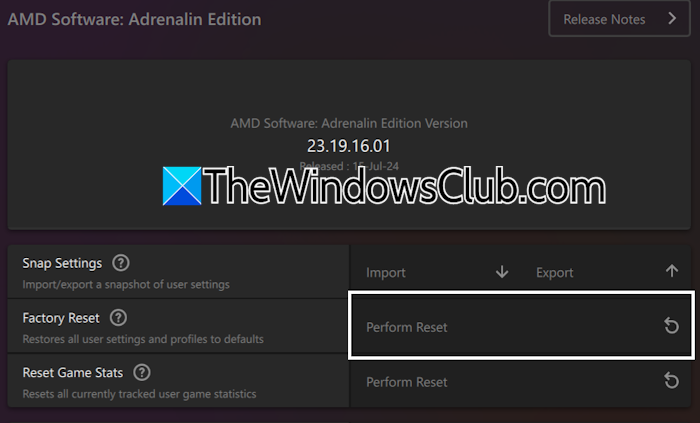
Now, click Perform Reset next to the Factory Reset option. After resetting the software, you can import the saved settings by clicking the Import button next to the Snap Settings option.
4] Roll back the GPU driver
If the issue persists, you can try rolling back the GPU driver. For this, follow the steps provided below:

- Open the Device Manager.
- Expand the Display adapters branch.
- Right-click on your graphics card driver and select Properties.
- Navigate to the Driver tab and click the Roll Back Driver button.
- Follow the on-screen instructions to roll back your GPU driver to the previous version.
After performing the above steps, check if the issue persists.
5] Perform the clean installation of AMD software
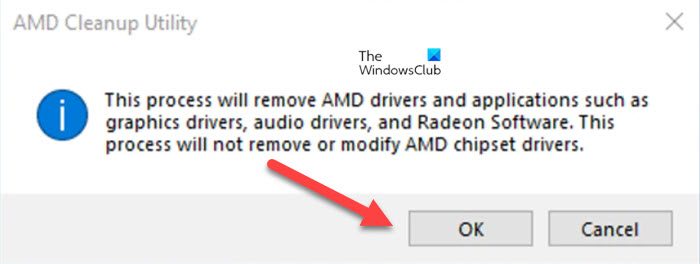
If you cannot roll back your graphics card driver, you can perform the clean installation of the AMD software. This step will also reinstall your graphics card driver from scratch. First, download the latest version of the AMD Software Adrenalin Edition for your graphics card. Now, download the AMD Cleanup Utility. When you run the AMD Cleanup Utility, it will automatically start your system in Safe Mode. Therefore, if BitLocker is active on your system, turn ot off and back up the BitLocker recovery key. The AMD Cleanup Utility will completely remove the AMD Software from your system. When the process is completed, your system will automatically boot in normal mode, or you will get a prompt to restart in normal mode. When you are in normal mode, install the AMD Software.
6] Roll back AMD software
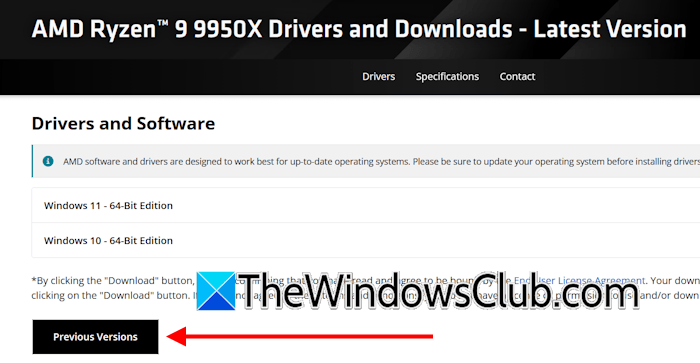
If the issue persists, you can try installing the previous version of the AMD Software. For this, visit the AMD website and search for the AMD Software compatible with your graphics card. Now, click the Previous Versions button to view all the earlier versions of the software. Download its earlier version. Now, run the AMD Cleanup Utility to completely remove the AMD Software and all its components from your system. After that, install the previous version of the software.
That’s it. I hope this helps.
Is AMD not compatible with Windows 11?
Windows 11 has some hardware requirements. Microsoft published a list of all supported AMD processors for Windows 11 on the official website. You can view that list to know whether your AMD processor is on the list. If your system has a supported AMD processor and it fulfills other hardware requirements, you can install Windows 11. There is a way to install Windows 11 on unsupported hardware. However, doing so is risky because you may encounter BSOD and other issues when running Windows 11 on a PC with unsupported hardware.
Why is AMD Noise Suppression not turning ON?
The most common cause of this issue is a faulty AMD Software update. If you recently updated AMD Software, the latest version may contain a bug. To fix this, rolling back the AMD Software can help. Another reason for this issue is corrupted AMD Software files. Performing a clean installation of the software can help in this case.
Read next: AMD Adrenalin not compatible with graphics driver.
