
If you receive the AMD Adrenalin not compatible with graphics driver error message when opening AMD Software Adrenalin Edition, this post offers step-by-step solutions to resolve this error.
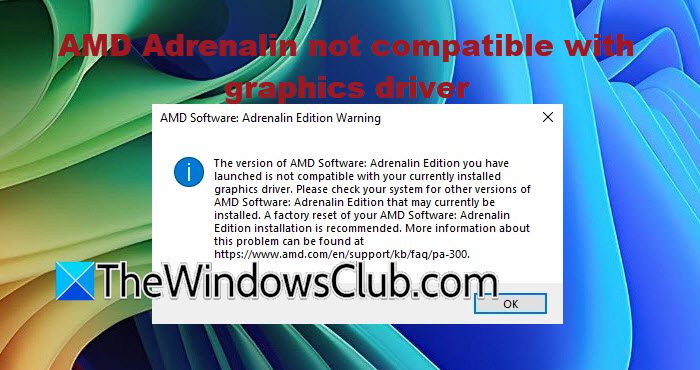
The version of AMD Software: Adrenalin Edition you have launched is not compatible with your currently installed graphics driver. Please check your system for other versions of AMD Software: Adrenalin Edition that may currently be installed. A factory reset of your AMD Software: Adrenalin Edition installation is recommended. More information about this problem can be found at https://www.amd.com/en/support/kb/faq/pa-300.
Why is my AMD Software not compatible with my AMD Graphics driver?
If you are seeing an error message stating the software is not compatible with the graphics driver, it may be because Windows Update replaced the AMD graphics driver with a Microsoft-approved or OEM-provided driver that is incompatible with the installed version of AMD Software Adrenalin Edition. This can also happen if users install the wrong driver for their GPU, creating a mismatch between the Adrenalin software and the driver and breaking their communication. Laptops are especially prone to this issue as they often require manufacturer-specific drivers.
AMD Adrenalin not compatible with graphics driver
If you receive an error message stating that the version of AMD software is incompatible with the currently installed AMD graphics driver when launching AMD Software in Windows 11/10, follow the solutions below.
- Run the AMD Auto-Detect and Install Tool
- Perform a clean installation using AMD Cleanup Utility
- Run Display Driver Uninstaller in Safe Mode
- Roll back or manually select the driver via Device Manager
Let’s get started with the troubleshooting guide.
1] Run the AMD Auto-Detect and Install Tool
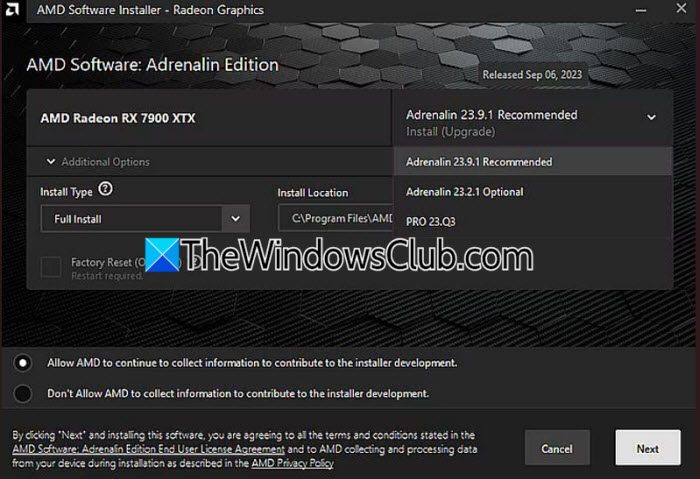
The error usually occurs because the wrong driver is installed for the GPU. The AMD Auto-Detect Tool scans the system and downloads the extracted driver for the specific graphics card. This eliminates the version mismatch that causes the Adrenalin compatibility error.
- Visit the official AMD Drivers and Support page, and download the AMD Auto-Detect and Install Tool.
- Open the downloads folder, double-click the downloaded file to begin setup, and click the Install button to unpack the setup files. The AMD Software Installer will automatically launch and check the system for hardware compatibility.
- Once the scan is complete, select the driver to install from the list of available driver packages, then choose the Install Type.
Note: Default is recommended for full features. - Click Accept and Install, wait for the installation to complete, and click Close to finish.
Restart the device when prompted, and then verify the status. If this doesn’t resolve the error message, see the next solution.
2] Perform a clean installation using AMD Cleanup Utility
Corrupted files or leftover driver remnants are also a factor causing the compatibility error. The AMD Cleanup Utility removes all AMD driver components and registry entries. We are going to perform a clean installation using it to restore proper communication between Adrenalin and the graphics hardware.
- Download the latest AMD graphics driver package from the AMD website, then disconnect from the Internet to prevent Windows Update from interfering during installation.
- Run the downloaded AMD installer. If the AMD installer extracts its files first, allow it to complete extraction before continuing.
- Download AMD Cleanup Utility separately and launch it as an admin.
- Click Yes to reboot and restart Windows into Safe Mode, and once there, click OK to begin the uninstallation process. Wait for the utility to remove all AMD driver files, registry entries, and software components. Once the uninstallation is complete, click Yes to reboot the system.
- After reboot, open the graphics driver package downloaded earlier, execute Setup.exe, and click Additional Options.
- Tick the Factory Reset check box, and click the Install button. Once the cleanup process is complete, click Restart to reboot.
After the restart, the installation will continue automatically, so follow the on-screen prompts to complete the installation and hit the Finish button once done. Reconnect to the Internet and check if the issue persists. If it does, go to the next solution.
3] Run Display Driver Uninstaller in Safe Mode
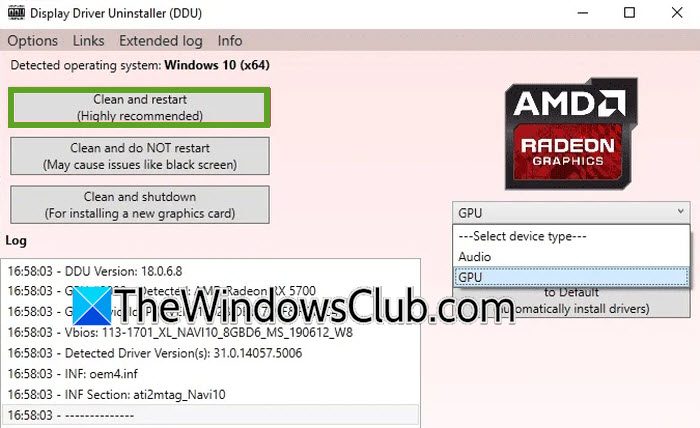
Display Driver Uninstaller is a specialized third-party tool that completely removes all traces of graphics drivers from the system. We are going to run it in Safe Mode to perform the most thorough possible removal to ensure no old components are left to cause a version mismatch or conflict when we reinstall the AMD driver.
- Download DDU and extract the downloaded file to a local folder.
- Download the latest AMD Driver from AMD’s website, save it, and disconnect from the Internet and boot into Safe Mode.
- Once in Safe Mode, open the extracted DDU folder, right-click on Display Driver Uninstaller.exe, and select Run as administrator.
- Use the drop-down menu to select the AMD GPU manufacturer, and click the Clean and restart button. DDU will automatically remove all driver traces and reboot the PC.
- After the computer boots into using the basic Microsoft display driver, run the AMD driver installer, and enable the Factory reset option for maximum cleanliness.
Complete the installation, restart the device, and reconnect to the Internet. Check if the error message persists. If it does, try the next solution.
4] Roll back or manually select the driver via Device Manager
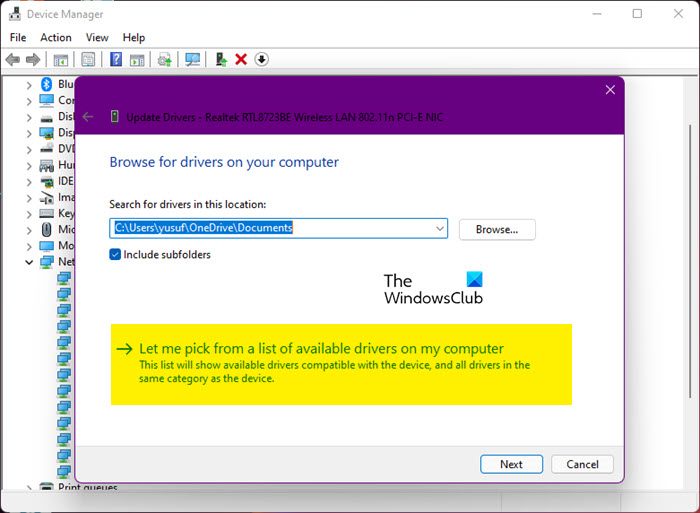
Windows updates often automatically replace the manually installed AMD driver with its own generic or older version. This breaks compatibility with Adrenalin and is frequently the direct cause of the error. We are going to roll back the graphics driver or manually select it to force Windows to use the correct AMD driver to address the issue.
- Click Win + X, select Device Manager, and expand the Display adapter drop-down.
- Right-click on the AMD Graphics card, select Properties and go to the Driver tab.
- If the Roll back driver button is available, click it, follow the onscreen instructions, and restart the device. If Roll back is greyed out, click Update Driver, and select Browse my computer for drivers.
- On the next screen, click Let me pick from a list of available drivers on my computer, and select the latest AMD driver that matches your graphics card. Click Next, follow the on-screen instructions, and restart the PC.
After restarting, try launching AMD Software Adrenaline Edition to verify that the error is resolved. Go to the next solution if the issue persists.
Hopefully, with these solutions, your issue will be resolved.
Read: How to use AMD Software Adrenalin Edition on Windows 11
How to fix AMD GPU driver issues?
It’s quite frustrating to have driver issues, but the good news is they’re fixable. Users can start by using AMD’s Auto-Detect or Compatibility Tool to ensure that the software matches the driver. If that fails, they can try a clean installation with AMD Cleanup Utility. Check out the article above for more details.
Also Read: AMD Adrenalin is not detecting games on Windows 11.
