
AMD Adrenalin software is developed by AMD for computers with AMD graphics. You can manage your graphics and system’s performance using it. It also provides many useful features to gamers. Some gamers noticed that AMD Adrenalin is not detecting the games installed on their Windows 11 computer. If you encounter the same issue, the solutions provided in this article will help you.
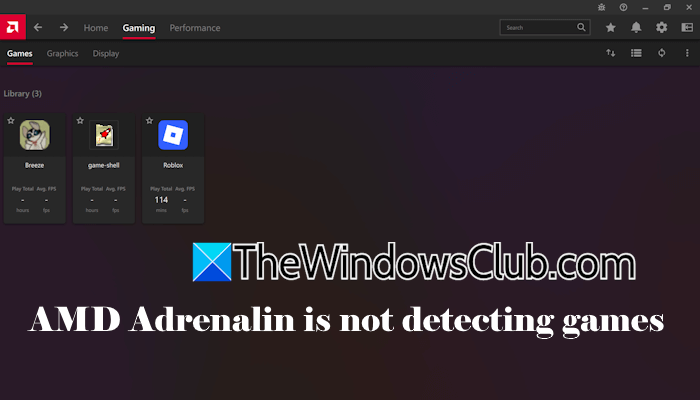
AMD Adrenalin is not detecting the games on Windows 11
Use the following fixes if the AMD Adrenalin software is not detecting games on your Windows 11 computer:
- Check for updates
- Launch AMD Adrenalin as an administrator
- Add the game manually
- Clear AMD cache
- Reset the AMD Adrenalin software
- Uninstall and reinstall AMD Adrenalin.
1] Check for updates
Your system might have an outdated version of AMD Adrenalin. Check for updates manually.
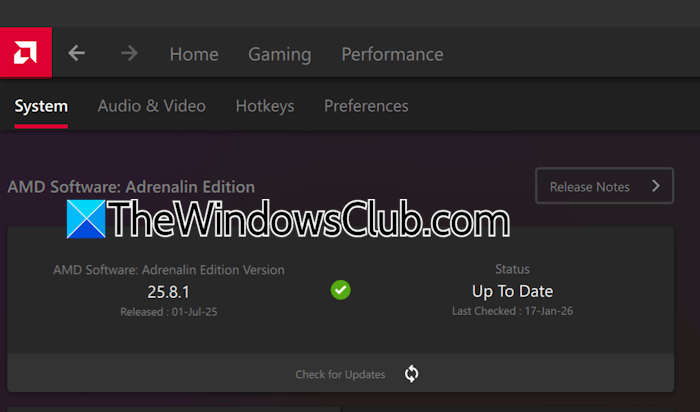
- Launch AMD Adrenalin
- Open its Settings.
- Select System.
- Click Check for Updates.
2] Launch AMD Adrenalin as an administrator
Launch AMD Adrenalin software with administrative rights and see if it works. Right-click on AMD Adrenalin and select Run as administrator. If this works, you can make AMD Adrenalin always launch as an administrator.
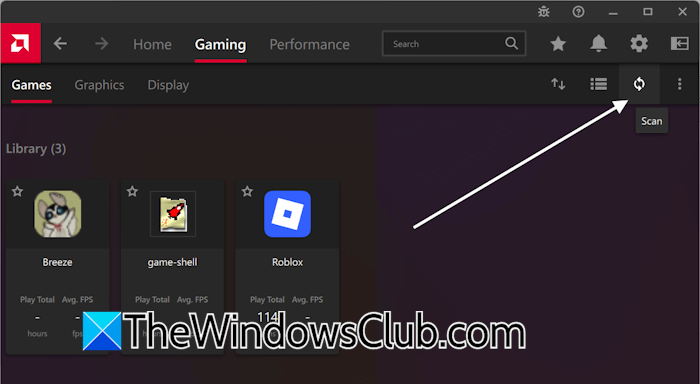
AMD Adrenalin also offers an option to manually scan for games. In AMD software, navigate to the Gaming tab and then select the Games tab. Now, click Scan on the right side.
4] Add the game manually
You can also add games manually in AMD Adrenalin software. For this, go to the game’s installation location. If you do not know the installation location, click Windows Search and type your game’s name. Now, right-click on your game and select Open file location.
Windows will open File Explorer, showing you the game’s .exe file. If you see the game shortcut, right-click it again and select Open file location. Windows will show the game’s .exe file this time. Now, click on the address bar in the File Explorer and copy the path.
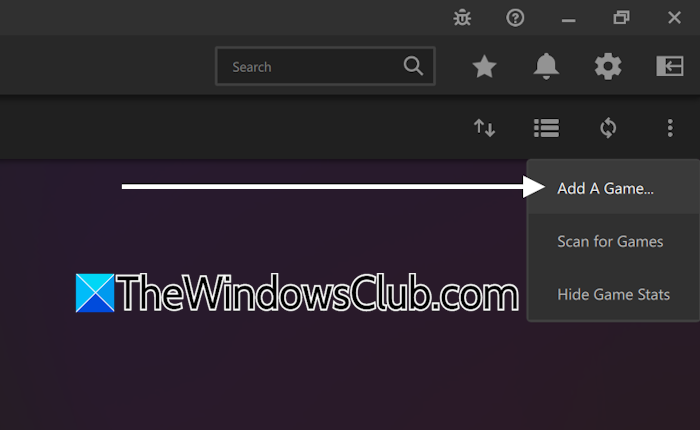
Launch AMD Adrenalin and navigate to the Gaming > Games tab. Click on the three dots on the right side and select Add a game. The File Explorer window will appear as a pop-up. Click on the address bar and paste the path of the game you just copied. Press Enter after that. Select the exe file and click Open. This will add that game to AMD Adrenalin.
4] Clear AMD cache
Corrupt AMD software cache might be causing this issue. We suggest clearing the AMD cache and seeing if that helps. First, you need to clear the shader cache using AMD software.
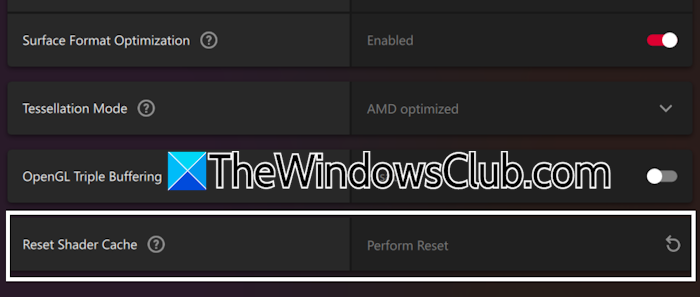
- In AMD Adrenalin, navigate to Gaming > Graphics.
- Scroll down and expand the Advanced tab.
- Scroll down to the bottom and click Perform Reset next to the Reset Shader Cache.
Now, restart your system, and open the Run command box. Type the following command and press Enter.
%localappdata%
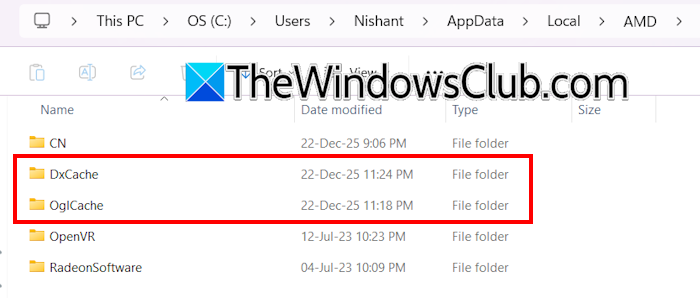
The Local folder will open in File Explorer. Now, open the AMD folder and delete all the files inside all the cache folders. If you cannot delete some of the cache files, boot your system in Safe Mode and then delete them.
5] Reset the AMD Adrenalin software
If the issue persists, reset AMD Adrenalin to the factory default settings. Before proceeding, export your AMD software’s current settings. For this, open AMD settings and select the System tab. Now, click Export next to the Snap Settings option. Save the file. The file will be exported as a zip file. Do not extract it.
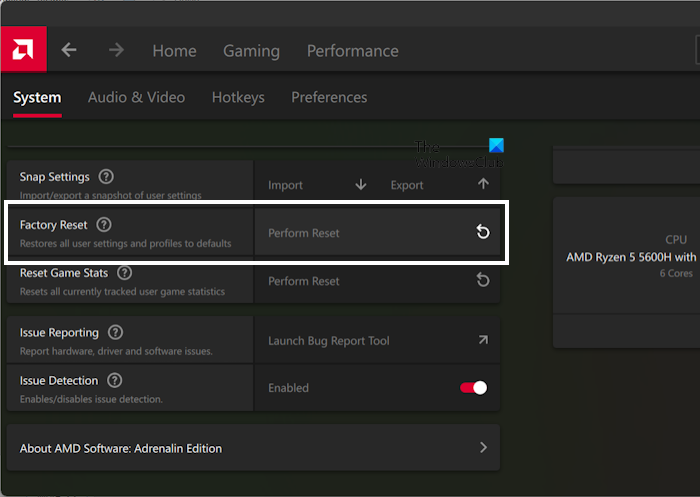
Now, click Perform Reset next to the Factory Reset option. After resetting the software, restart your computer. Now, you can import the AMD settings.
6] Uninstall and reinstall AMD Adrenalin
If nothing helps, uninstalling and reinstalling the AMD Adrenalin software can help. Uninstalling the AMD software also uninstalls the AMD graphics driver from your system, but your display won’t lose its functionality because Windows will restore the default Microsoft Display Adapter.
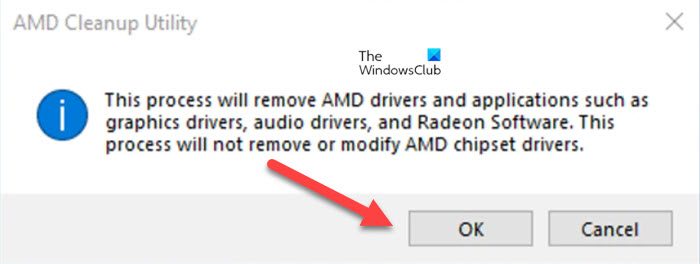
Use the AMD Cleanup utility to remove the AMD software from your system. After doing that, restart your system. Now, download the latest version of the AMD software and install it.
That’s it.
Is AMD Adrenalin compatible with Windows 11?
Yes, AMD Adrenalin is compatible with Windows 11. If you encounter any issues with AMD Adrenalin, download and install the AMD Software Compatibility Tool. When you run this tool, it will automatically find and install the AMD software compatible with your AMD GPU.
Does AMD have issues with Windows 11?
AMD software is compatible with Windows 11. However, you may sometimes encounter issues for several reasons. Sometimes Windows Update overwrites the AMD driver, which is the most common cause of issues with AMD software. In such a case, you can disable automatic driver downloads and updates for Windows 11.
Read next: AMD Adrenalin keeps opening when I right click.
