
If AMD Adrenalin keeps opening on right-click, the solutions provided in this article will help you. This is a very annoying issue because whenever you use the right-click of your mouse, the AMD software appears on your screen.
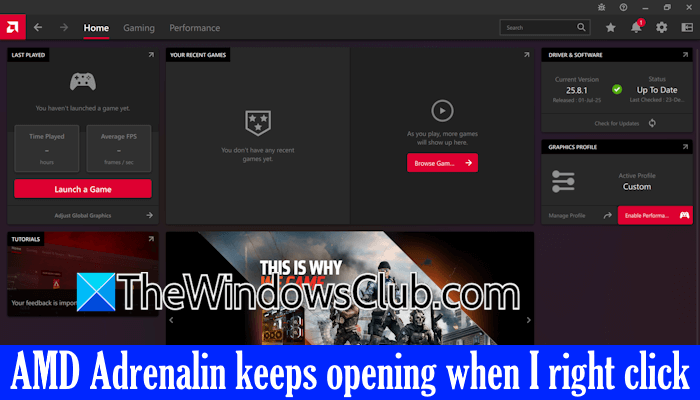
AMD Adrenalin keeps opening on right click in Windows 11/10
Use the following solutions if the AMD Adrenalin software keeps opening on right click on your Windows computer:
- Clear AMD cache
- Disable the AMD hotkeys in the AMD software settings
- Rename the AMD exe file
- Remove the AMD Shell extension
- Perform the clean installation of the graphics card driver
All these fixes are explained in detail below:
1] Clear AMD cache
Corrupt AMD cache can cause this problem. In such a case, clearing the AMD cache can help. To clear the AMD cache, follow these steps:
- Launch the AMD Adrenalin software.
- Select the Gaming tab and then select the Graphics tab.
- Scroll down and expand the Advanced tab.
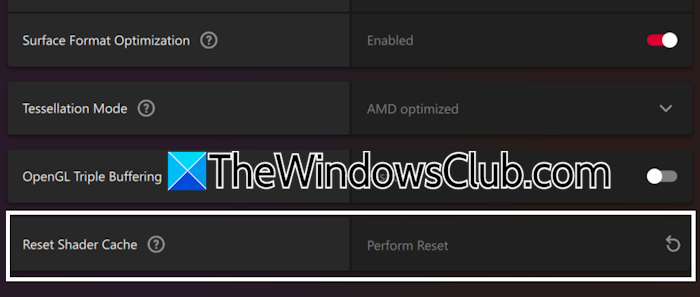
- Now, scroll down to the bottom and click Reset Shader Cache.
- Click OK in the confirmation box.
- Close the AMD software completely.
Now, open File Explorer and go to the following location:
C:\Users\<username>\AppData\Local
Replace username with your user name on your computer. The AppData folder remains hidden by default. Therefore, enable the Show hidden files and folders setting in File Explorer.
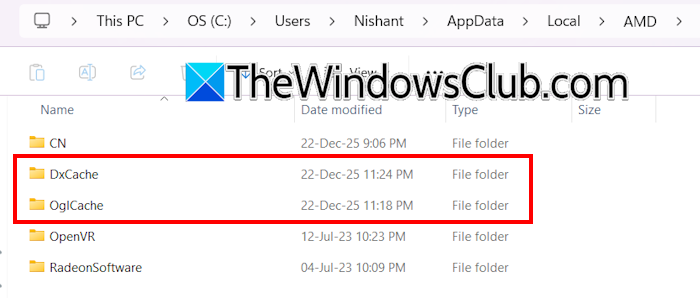
Open the AMD folder. You will see different cache folders there. Open each cache folder and delete all the files inside it. If you cannot delete the files due to the “File in Use” error, boot in Safe Mode to delete all the cache files.
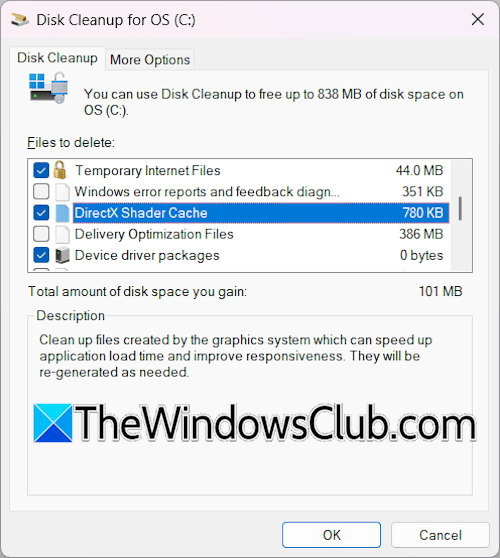
After deleting all the cache files, launch the Disk Cleanup tool as an administrator and scan the C drive. Select the DirectX Shader Cache and click OK. Disk Cleanup also has other temp files for deletion. Review all the pre-selected files and uncheck those you do not want Windows to delete.
2] Disable the AMD hotkeys in the AMD software settings
The AMD software hotkeys might be interfering with your mouse right-click, causing the AMD software to launch every time you use the right click. To check this, disable the hotkeys in AMD software settings.
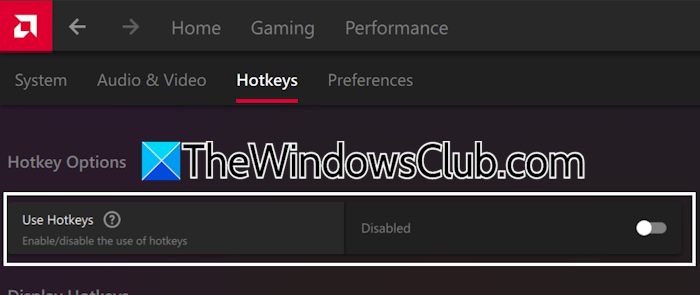
Open AMD software settings and go to the Hotkeys tab. Turn off the Use Hotkeys button. If this fixes the issue, reset all AMD software settings to default. Before proceeding, note down the current settings of your AMD profile.
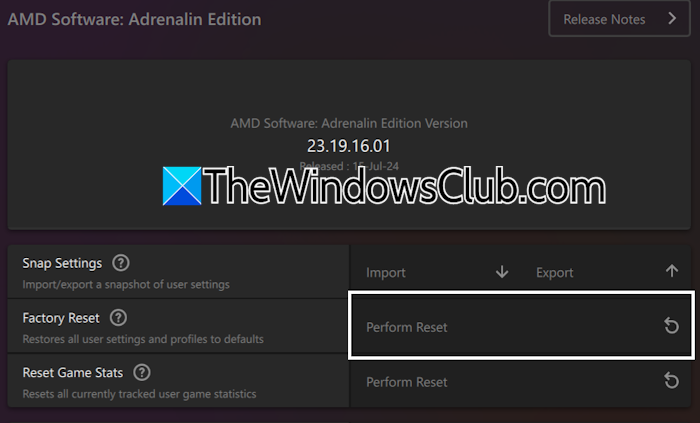
Follow these steps:
- Open AMD software settings.
- Select the System tab.
- Click the Perform Reset button next to the Factory Reset option.
- Click Proceed in the confirmation box.
This action will remove all your user settings and profiles. After that, the AMD default settings will be restored.
3] Rename the AMD exe file
You can also try renaming the AMD exe file. Completely close the AMD Software, then open File Explorer, and navigate to the following location:
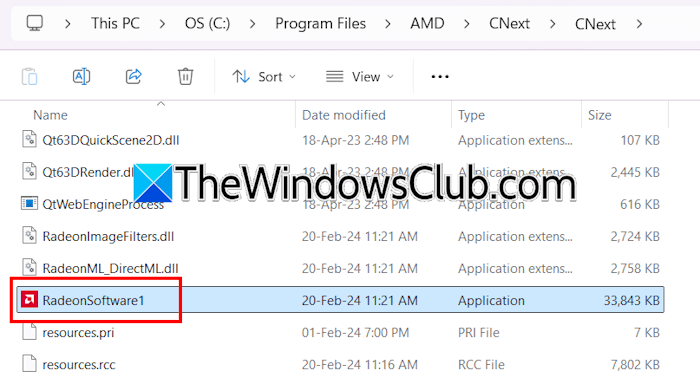
C:\Program Files\AMD\CNext\CNext
Find the RadeonSoftware file and rename it. This action requires administrative permission. Therefore, you have to log in with your administrator account to rename the AMD Software.
4] Remove the AMD Shell extension
You can try removing the AMD Shell Extension and see if it helps. This action will remove the option to open AMD software from the right-click context menu. After removing it from the context menu, you can open AMD software through Windows Search.
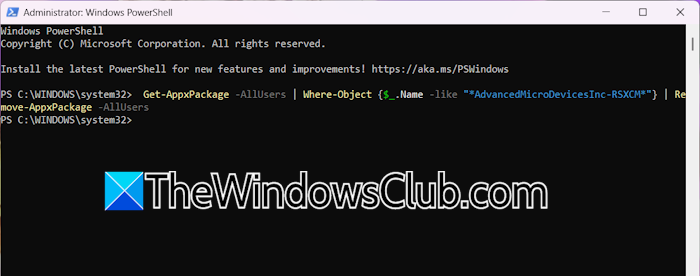
Open Windows PowerShell as an administrator, copy the following command, and paste it into Windows PowerShell. After that, hit Enter.
Get-AppxPackage -AllUsers | Where-Object {$_.Name -like "*AdvancedMicroDevicesInc-RSXCM*"} | Remove-AppxPackage -AllUsers
If you want to add the option back to the right-click context menu, you have to reinstall the AMD software.
5] Perform the clean installation of the graphics card driver
If the issue persists, you can perform a clean installation of your graphics card driver. To install the AMD graphics driver, you need to install the AMD software. Therefore, this step will also reinstall the AMD software on your system.
Before proceeding, export your current AMD software settings by following the steps provided below:
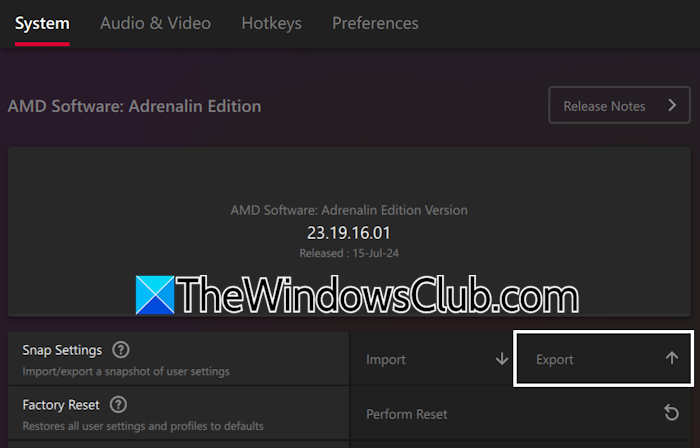
- Open AMD software settings.
- Select System.
- Click Export next to the Snap Settings option.
Now, visit the official AMD website and download the AMD software and AMD Cleanup Utility. Launch the AMD Cleanup Utility. It will automatically boot your system in Safe Mode and remove the graphics card driver completely. After the completion, your system will boot in normal mode. Now run the AMD software to start installing the AMD software and your GPU driver.
That’s it. I hope this helps.
How to get rid of AMD software Adrenalin?
You can uninstall the AMD software Adrenalin from your computer. It will not affect your display. Open Windows 11/10 Settings and go to Apps > Installed apps. Search for the AMD software and uninstall it. After uninstalling, restart your system.
Does AMD Adrenalin start automatically?
By default, the AMD software is configured to start automatically on system startup. You can change this in the Task Manager. Open the Task Manager and navigate to the Startup apps tab. Select the Radeon Software from the list of startup apps and click Disable.
Read next: Disable Radeon Software Press ALT+R to open Overlay.
