
This post features different solutions to get rid of Resident Evil Village DirectX Error on Windows PC. Resident Evil Village is a popular survival horror game available for Windows PC. The game has gained immense popularity since its release. However, Resident Evil Village isn’t free from problems like any other game. Many users have reported facing a DirectX error in the game. Fortunately, there’s nothing to worry about if you are struggling with the same problem. Just try the solutions below to resolve the issue.
What is DirectX?
Developed by Microsoft, DirectX is a suite of technologies or application programming interfaces that come in handy for many applications and programs on a Windows OS. It helps in offering hardware acceleration for heavy multimedia applications like high-graphics games and high-definition videos. The latest DirectX version is DirectX 12, and DirectX 13 is expected to be released by the end of 2022.
Resident Evil Village DirectX Error on Windows PC
Below is the list of all the working solutions you can try if you encounter a DirectX Error in Resident Evil Village on a Windows PC.
- Download the latest Graphics Driver update
- Update DirectX
- Change the config file
- Verify integrity of game files
- Run DirectX Diagnostic Tool (DxDiag)
- Reinstall the game
Now, let’s check out all the solutions in detail.
Fix D3D12CreateDeviceFailed or Fatal D3D Error
1] Download the latest Graphics Driver update
One of the first solutions to try in this situation is to download the latest graphics driver update. If you don’t remember updating the installed graphics driver, it’s no surprise you are coming across the problem in the question. Below are the steps you need to follow to download the latest graphics driver update on your Windows PC.
There are a couple of ways by which you can download the graphics driver update.
- You can download the graphics driver update by visiting the manufacturer’s official website.
- You can check for available graphics driver updates via Windows update.
- You can even use either of the free-to-use graphics driver updating software tool.
- If your system already features an INF driver, follow the below steps.
-
- Open Device Manager.
- Tap on the Display Adaptors to expand the menu.
- Right-click on the installed driver and choose Update Driver.
- Follow the on-screen instructions to complete the update process.
Once the update process is complete, reboot your system. Launch the game and check whether the problem is fixed.
See: Fix VALORANT DirectX Runtime error
2] Update DirectX
The next solution you can try is to update the installed DirectX version. As it turns out, most of the DirectX issues on different games are often caused due to outdated DirectX version. So, updating the DirectX can be an effective solution in the situation.
3] Change the config file
If you are running the game on the latest DirectX version and are still experiencing the mentioned problem, you will need to make some changes to the config file to resolve it. Below are the exact steps you need to follow.
- To begin with, go to the place where you have installed Resident Evil Village on your system.
- Locate and right-click on the dmc5config.ini file and click on the Open with option.
- Open the file using Notepad.
- Locate TargetPlatform.
- Change TargetPlatform value from DirectX 12 to DirectX 11.
- Save the changes by pressing the Ctrl + S shortcut key.
Now reboot your system and check whether the problem is fixed. If not, continue with the guide.
See: Resident Evil Village keeps crashing on launch
4] Verify integrity of game files
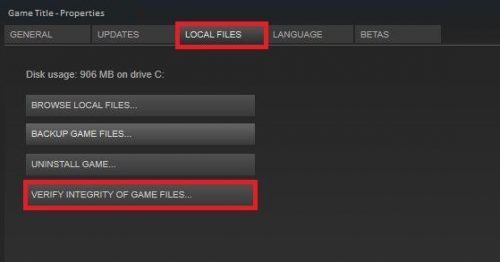
The problem in the question can occur due to missing or corrupted game files. Game files can become corrupted over time due to sudden crashes or power outages. If this is the case for you, you will face different issues, including the one you are currently facing. You can get rid of the problem using the Steam Verify integrity of game files option. Here’s how to do it.
- Open Steam on your Windows PC.
- Go to the Library.
- Right-click on Resident Evil Village.
- Choose Properties from the context menu.
- Click on Verify Integrity of game files.
Wait until the process is complete. Once done, relaunch the game and check for the problem. If it persists, try the next solution on the list.
Read: Resident Evil Fatal Application Exit
5] Run DirectX Diagnostic Tool (DxDiag)
If you’re having problems getting a game or movie to play properly, the DirectX Diagnostic Tool can help you point out the source. This post will show you how to use DirectX Diagnostic Tool (DxDiag) for Troubleshooting.
6] Reinstall the game
If none of the steps was helpful, you could go with the reinstallation process. There can be an issue with the installation process that has caused the issue. Reinstall the game to fix the problem permanently.
How do I fix Resident Evil Village not launching on Windows PC?
Resident Evil Village not launching issue is mainly common among a system that isn’t compatible to run the game. So, make sure your system can run the game without any problems. Additionally, you can download the latest graphics driver update to fix the problem.
