
Resident Evil is a popular game, and that’s probably why they have released its 8th version, with the 9th planned soon. But this doesn’t mean that the game is free of errors. A lot of gamers are seeing the following error message
re8.exe – Fatal Application Exit.
C:\Program Files (x86)\Steam\steamapps\common\RESIDENT EVIL 8 biohazard\re7.exe “d:\\reengine\\reengine\\builder\\modules\\render\\os\\renderdevicedx11.cpp” 5042 createComputeShader failed. HRESULT=0x80070057, The parameter is incorrect.
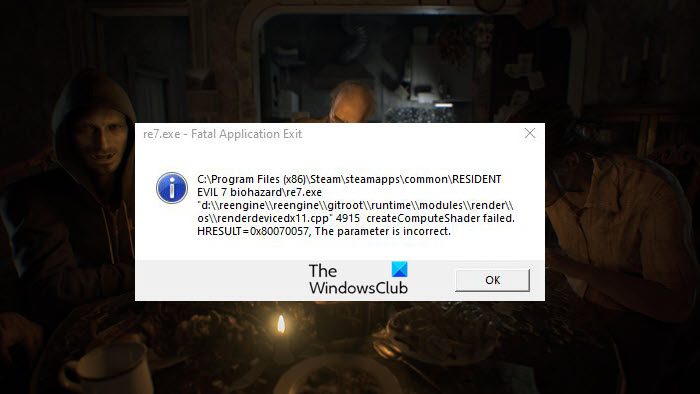
Note: The error code may differ slightly.
Your computer should be compatible with running the game. Even if your game is compatible, you should check whether other applications are eating up resources. This error is stopping users from launching the game. However, the error can be resolved, and we will show how. If you are seeing the Resident Evil Fatal Application Exit error, check out this article to resolve it.
Fix Resident Evil Fatal Application Exit error on PC
If you are experiencing Resident Evil Fatal Application Exit, then check out these solutions to resolve the issue.
- Install or Update Visual C++ Redistributables
- Update your Graphics Driver
- Verify the Integrity of Game Files
- Allow the game through Firewall
Let us talk about them in detail.
1] Install or Update Visual C++ Redistributables
You should start by installing or updating Visual C++ Redistributables. Most games usually use the feature to create an environment to run in. If it’s missing on your computer, then you may see the error code in question. Also, if it’s outdated due to a compatibility issue, you can see the error message in question. So, go ahead and install the latest version of Visual C++ Redistributables, and hopefully, your issue will be resolved.
2] Update your Graphics Driver
After updating Visual C++ Redistributables, you should update the Graphics Driver as well. It’s quite simple, there are many ways, and you can choose the best one for you.
- Use Freeware to update the drivers
- Update your Windows as that will automatically install the driver.
- Go to Device Manager to update your Graphics Driver.
Hopefully, your issue will be resolved.
3] Verify the Integrity of Game Files
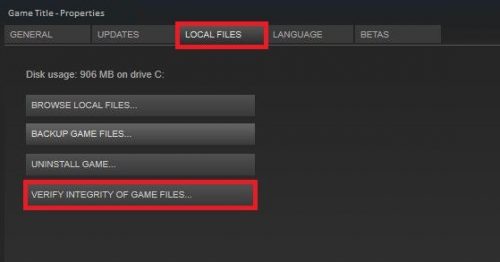
If your game files are corrupted, try verifying them to see if that fixes the issue. You can follow the given steps to do the same.
- Open Steam and go to your Library.
- Right-click on your game and select Properties.
- Go to the Local Files tab and select Verify the Integrity of Game Files.
Let it do its job, and hopefully, your issue will be resolved.
4] Allow the game through Firewall
You should make sure that your Firewall is not blocking your game. Most will ask you to disable Firewall, however, you can do that temporarily, but in that particular time window, you are making your computer vulnerable. That’s why we would recommend you to allow the game through Firewall and see if that works.
If you have a third-party antivirus, then try whitelisting the game, as that will allow Resident Evil to make files on your system or access your system’s files.
Hopefully, you can enjoy Resident Evil with the help of the provided solutions.
Read: Resident Evil Village keeps crashing on launch on Windows PC
How do I fix Resident Evil crash?
There could be many reasons why Resident Evil crashes on your Windows 11/10 PC. There might be an interfering third-party application. Some users reported that a third-party audio or video codec is the culprit. Hence, uninstall the audio or video codec (if applicable). The issue also occurs if you have overclocked your CPU.
Resident Evil 8 System Requirements
To run Resident Evil Village on PC, you’ll need a minimum of an Intel i5-7500/AMD Ryzen 3 1200, 8GB RAM, and an Nvidia GTX 1050 Ti/AMD RX 560 for 1080p/60fps. The recommended specs for better quality are an i7-8700/Ryzen 5 3600, 16GB RAM, and a GTX 1070/RX 5700, with Windows 11/10 64-bit and DirectX 12 required for both, plus sufficient storage.
Also read:
