
Here is a guide that shows you how you can fix the problem if you are unable to launch the Resident Evil Village game. Resident Evil Village is a popular survival horror game among millions of gaming enthusiasts. However, many players have reported being unable to launch the game on their Windows 11 or Windows 10 PC. Now, if you also love to play Resident Evil Village but are unable to launch the game, this post is for you. In this article, you can find out multiple fixes that will help you resolve the launching problem with Resident Evil Village.
Why am I unable to launch Resident Evil Village?
There are different scenarios in which you might be unable to launch the Resident Evil Village game. Here are some of the possible causes:
- Outdated or faulty graphics drivers are known to cause launching and other problems with the game. Therefore, ensure you have up-to-date graphics drivers to resolve the issue.
- The game may not launch if you lack administrator rights to run it. If the scenario is applicable, you can try running the game with administrator privileges.
- In-game overlays can also cause problems with your game. Hence, disable the in-game overlay option and see if you are able to launch the game or not.
- The problem might also occur if you are dealing with corrupted game files. In that case, you can try verifying the integrity of game files to fix the problem.
- Your antivirus software might also be the cause of the game launch problem. Try disabling your antivirus and see if that resolves the issue.
- An outdated Windows system or software dependencies like DirectX, VCRedist, and .Net Framework can also trigger the same problem. If the scenario applies, try updating all the software to resolve the issue.
Resident Evil Village not launching on Windows PC
If the Resident Evil Village game is not launching or starting on your Windows 11/10 PC, follow these suggestions to fix the issue:
- Update to the latest graphics driver.
- Relaunch the game as administrator.
- Disable in-game Overlay.
- Verify the integrity of game files on Steam.
- Temporarily disable your antivirus.
- Run the game in windowed mode.
- Update DirectX, VCRedist, and .Net Framework.
1] Update to the latest graphics driver
One of the main causes behind video games like Resident Evil Village not working properly or launching is outdated or faulty graphics drivers. Graphics drivers play a vital role in heavy-duty video games. So, if you don’t have updated or proper graphics drivers, it can cause problems when launching extensive games like Resident Evil Village. If the scenario applies, update your graphics driver to resolve the issue.
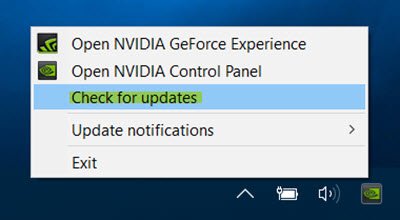
Here are some methods to update your graphics driver to its latest version:
- Launch the Settings app using Windows + I hotkey and navigate to the Windows Update > Advanced options. Then, you can install updates for your graphic driver using the Optional Updates feature.
- You can also get the latest graphics drivers from the device manufacturer’s official website.
- Another method to update your graphics driver is to use Device Manager.
- You can also use a free third-party driver updater that lets you update all your drivers automatically.
After updating the graphics driver, reboot your PC and then attempt to launch the Resident Evil Village game. Check if the launching problem is now fixed. If not, you can try the next potential fix to resolve the problem.
Read: Far Cry Not launching, Working, or Responding.
2] Relaunch the game as administrator
You might not be able to launch the game due to a lack of administrator rights. In that case, try launching the Resident Evil Village game as an administrator and see if you can launch it successfully. Right-click on the executable of the Resident Evil Village game and select the “Run as administrator” option. See if the game launches or not. If yes, you can make the game launch as an administrator always. Here are the steps to do that:
- Firstly, go to the Resident Evil Village game’s executable.
- Now, right-click on the executable and press the Properties option.
- Next, in the Properties window, go to the Compatibility tab.
- After that, check the Run this program as an administrator option and press the OK button to save changes.
- Finally, relaunch the game and see the problem is fixed now.
In case you are still unable to launch the Resident Evil Village game, try the next potential fix to resolve the issue.
See: Wolcen Lords of Mayhem crashes and not launching on PC.
3] Disable in-game Overlay
Overlays are handy, but they can cause issues with the game’s normal functioning. So, if the scenario applies, you can try disabling in-game overlays to fix the issue.
On Discord, you can disable in-game overlay using the below steps:
- Firstly, start the Discord app and go to the Settings icon,
- Now, navigate to the Overlay tab.
- Next, disable the toggle associated with the Enable in-game overlay option.
To disable the GeForce Experience in-game overlay, try the below steps:
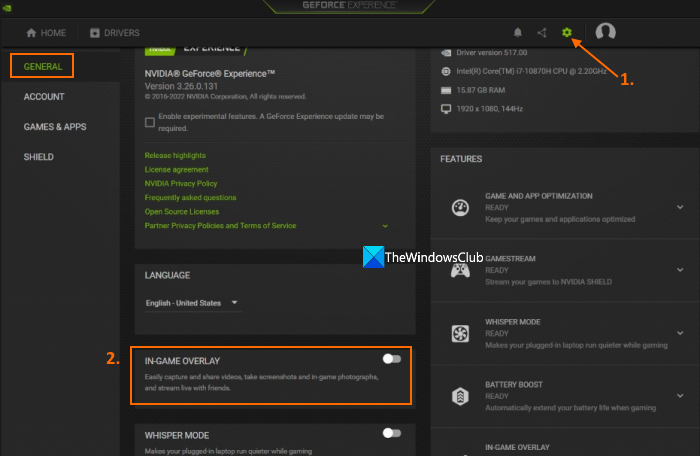
- Firstly, open the GeForce Experience app and tap on the Settings icon.
- Now, go to the GENERAL panel and disable the SHARE setting.
Here are the steps to disable the Steam Overlay:
- Firstly, launch the Steam client.
- Now, move to the Steam > Settings/Preferences and then go to the In-game tab.
- Next, uncheck the Enable the Steam Overlay while in-game option.
Similarly, you can disable overlays for other applications like AMD Radeon ReLive, Nvidia, Overwolf, Xbox Game DVR, Twitch, etc.
If this resolves the issue for you, that’s great. If that doesn’t work, you can try the next potential fix to resolve the issue.
Read: Generation Zero not launching, freezing, or crashing at startup on PC.
4] Verify the integrity of game files on Steam
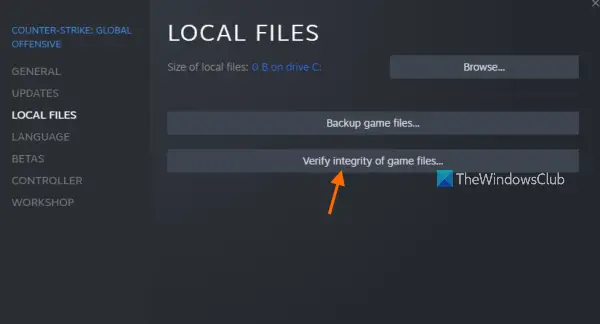
You might not be able to launch the game in case you are dealing with corrupted, broken, or missing game files. If the scenario applies, you should be able to fix the problem by verifying the integrity of the game files for Resident Evil Village. Here is how to do that:
- Firstly, start the Steam client and go to the LIBRARY menu.
- Now, look for the Resident Evil Village game and right-click on it.
- Next, select the Properties option.
- After that, navigate to the Local files tab and then press the Verify integrity of game files… button.
- Let Steam verify and fix the game files. When done, exit the Properties window.
- Finally, try relaunching the game and see if the issue is fixed or not.
If the problem persists, proceed to the next potential fix.
See: Rockstar Games Launcher not working on Windows PC.
5] Temporarily disable your antivirus
The issue might also occur if your overprotective antivirus suite blocks the game. In that case, you can try disabling your antivirus temporarily and then analyze whether or not you are able to launch the Resident Evil Village game. If the game launches without any problem, you can be sure that your antivirus was the main culprit. Now, if you want to resolve the problem permanently without turning off your antivirus, add the Resident Evil Village game to the exception or exclusion list in your antivirus settings.
See: FIFA won’t launch EA Desktop on PC.
6] Run the game in windowed mode
You can try relaunching the game in windowed mode to fix the problem. This method has worked for some affected users and may also work for you. For that, you can follow the below steps:
- Firstly, open the Steam client and go to Library.
- Now, right-click Resident Evil Village and tap on the Properties option.
- Next, from the General tab, click SET LAUNCH OPTIONS.
- After that, enter -windowed -noborder and press the OK button.
- Finally, relaunch the game and see if the problem is fixed or not.
If this doesn’t help, we have one more fix for your that should enable you to get rid of this problem.
Related: Resident Evil Village keeps crashing on launch.
7] Update DirectX, VCRedist, and .Net Framework
You can also try updating DirectX, VCRedist, and .NET Framework to the latest version to make sure the game works properly. Also, ensure that you are on the newest build of Windows OS. So, update Windows by going to Settings > Windows Update.
Read: Hitman on’t launch on Windows PC.
How do you fix the black screen on Resident Evil Village?
To fix the black screen issue on Resident Evil Village on Windows 11/10, you can try verifying the integrity of game files and repairing the corrupted ones. Other than that, you should also update your Windows, make sure you have an updated graphics driver, try running the game as an administrator, and disable HDR.
Now read:
