
Dungeon Defenders 2 is an Action Tower Defense game developed by Chromatic Games. Some users get a Fatal Error message when launching Dungeon Defenders 2. Some have also experienced crashes after this message appears. If you are getting the Fatal Error message in Dungeon Defenders 2 game, the solutions provided in this post may help you fix it.
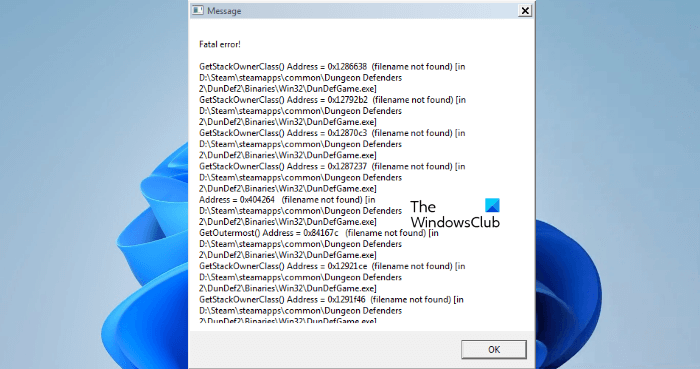
Fix Dungeon Defenders 2 Fatal Error on Windows PC
The following solutions may help you get rid of this Fatal Error message in Dungeon Defenders 2 when playing the game on your Windows 11/10 PC.
- Launch the game as an administrator
- Verify the integrity of the game files
- Turn off your Bluetooth
- Disconnect your headset
- Disable your antivirus temporarily
- Turn off VSync
- Roll back your graphics card driver
- Uninstall and reinstall the game
Let’s see all these fixes in detail.
1] Launch the game as an administrator
Some game files may require administrative privileges. If those files don’t have administrative privileges, the game may show errors. This might be the case with you. To check this, launch the game as an administrator and see if it helps.
If launching the game as an administrator works, you can make Dungeon Defenders always run as an administrator.
2] Verify the integrity of the game files
This solution is for Steam users. Sometimes, corrupted game files cause the problem. If so, verifying the integrity of the game files will fix the problem. Follow these instructions to verify the integrity of your game files.
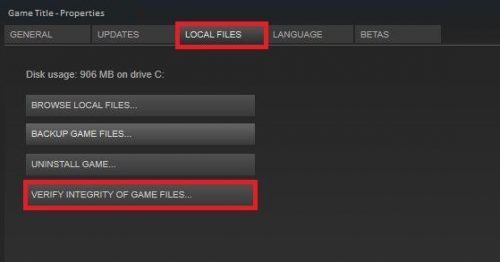
- Open Steam.
- Right-click on your game and select Properties.
- Select the LOCAL FILES tab.
- Now, click on the VERIFY INTEGRITY OF GAME FILES button.
This process will take some time. After it completes, check whether the problem persists.
3] Turn off your Bluetooth
Some users have confirmed that the Bluetooth on their Windows 11/10 was causing the problem. The error disappeared when they launched the game after turning off the Bluetooth. You can also try this. The steps to turn off Bluetooth on Windows 11 and Windows 10 are listed below:
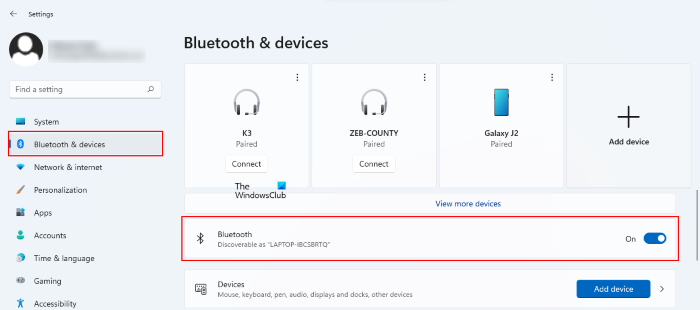
- On Windows 11, open Settings, then select Bluetooth and devices from the left side. Turn off the button next to Bluetooth.
- On Windows 10, open Settings, then go to “Devices > Bluetooth & other devices.” Turn off the Bluetooth button.
4] Disconnect your headset
Some affected gamers said the issue was caused by a hardware conflict. They found their headset causing the Fatal Error in Dungeon Defenders 2. After disconnecting the headset from their Windows device, the error was gone. If you have your headset connected (USB or wireless), disconnect it first, then launch the game. See if it helps.
5] Disable your antivirus temporarily
Sometimes, antivirus software flags genuine applications or games as false positives and blocks them from working properly. We suggest temporarily disabling your antivirus and seeing if that fixes the problem. For some users, temporarily disabling the antivirus did not work. But when they uninstalled their antivirus, the issue was fixed. If the issue persists after disabling the antivirus, try uninstalling it. Before you uninstall your antivirus, make sure you have its product activation key. If you purchased the antivirus online, the key was sent to you by email. You will not be able to activate your antivirus after reinstalling it without its product activation key.
If disabling the antivirus works, you can add the executable file of Dungeon Defenders 2 as an exception to your antivirus. Refer to your third-party antivirus user manual or visit its official website to learn how.
Read: How to clear Origin cache on Windows 11/10.
6] Turn off VSync
VSync, or Vertical Sync, is a technology that eliminates tearing in video games. Sometimes, VSync causes problems in video games. If you have this feature enabled, the error might be caused by it. To check this, disable VSync and then launch the game.
7] Roll back your graphics card driver
For some users, the problem started appearing after updating their graphics card driver. In that case, uninstalling the latest graphics card driver version can fix the problem. Open the Device Manager and see if the Roll Back Driver option is available for your graphics card driver. If so, uninstall the latest version and see if that helps. The steps for the same are written below:
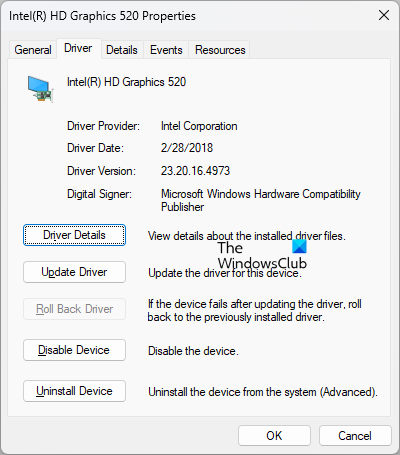
- Press the Win + X keys and select the Device Manager.
- In the Device Manager, expand the Display adapters node by double-clicking on it. You will see your graphics card driver there.
- Right-click on the graphics card driver and select Properties.
- Now, click on the Driver tab and see if the Roll Back Driver option is available. If yes, click on it and follow the on-screen instructions.
This will restore the previous version of your graphics card driver. When the rolling back process is completed, launch the game and see if the error appears this time.
8] Uninstall and reinstall the game
If none of the above fixes helped you, uninstall and reinstall the game.
Read: Teardown keeps crashing or freezing on Windows PC.
How can I fix Dungeon Defenders 2 Connection Timed Out error?
If you are getting the Connection Timed Out error in Dungeon Defenders 2, first check your internet connection. An unstable internet connection causes several errors in games. Sometimes, connection issues happen because of game server issues. So, wait a while and try launching the game later.
You can try some fixes like changing your server in your game settings, connecting your computer to your router via an Ethernet cable, etc.
Dungeon Defenders 2 stuck on the loading screen
If Dungeon Defenders 2 is stuck on the loading screen, open the Task Manager and kill the game. Then wait a few minutes and relaunch the game. Sometimes, this happens because of an unstable internet connection. Hence, check your internet connection. If your internet connection is stable and working fine, restart your modem and see if it fixes the problem.
Read next: Diablo Immortal keeps crashing and is not launching or working on PC.
