
If you are unable to start the game or unable to locate the game on Ubisoft Connect then here is a complete guide that shows you multiple fixes to resolve the error. Ubisoft Connect is a game launcher to run Ubisoft games. A lot of users have recently reported experiencing the Unable to start the game error when trying to launch a game. The error prompts the following message when triggered:
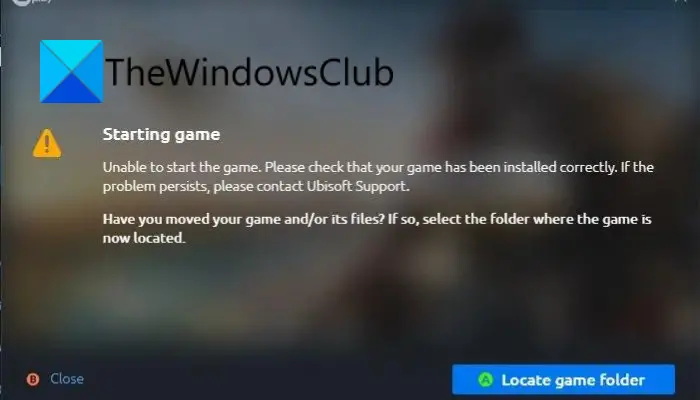
Starting game
Unable to start the game. Please check that your game has been installed correctly. If the problem persists, please contact Ubisoft Support.
Have you moved your game and/or its files? If so, select the folder where the game is now located.
Now, if you are facing the same error, this guide will help. Try out the fixes we have mentioned and get rid of the error.
Why doesn’t my game start on Ubisoft Connect?
There can be different reasons why your game doesn’t start on Ubisoft Connect and you receive Unable to start the game error. For example:
- It can be caused by insufficient administrator privileges to run the game. Hence, try launching the launcher with administrator rights to fix the error.
- The error can be triggered due to a compatibility issue with a particular game. So, you can run the launcher in compatibility mode to resolve the error.
- It can also be triggered by outdated or faulty graphics drivers. So, make sure you have updated your graphics drivers to the latest version.
- It can also occur if you are dealing with corrupted game files. In that case, verify the game files to fix the error.
- Another potential cause is that your antivirus is blocking the game from launching. So, disable your antivirus and see if the error is fixed.
- Another reason could be a corrupted Ubisoft Connect cache. If applicable, clear the cache files to fix the error.
- If the installation of the Ubisoft Connect client is corrupted, you might encounter this error. Hence, try reinstalling the launcher application and see if the error is resolved.
Unable to start the game on Ubisoft Connect
Here are the methods you can try to fix the Unable to start the game or Unable to locate game error on Ubisoft Connect (UPlay or Ubisoft Game Launcher):
- Launch Ubisoft Connect as an administrator.
- Run Ubisoft Connect in Compatibility mode
- Update GPU card drivers.
- Verify the game files.
- Temporarily disable your antivirus.
- Clear the Ubisoft Connect cache.
- Reinstall the Ubisoft Connect client.
Let us discuss the above solutions in detail now!
1] Launch Ubisoft Connect as an administrator
The error “Unable to start the game” might be triggered due to Ubisoft Connect missing the due administrator rights to launch the game. If the scenario applies, you should be able to fix the error by launching the Ubisoft Connect client as an administrator. This is the first thing you should do before trying any advanced fix.
To run Ubisoft Connect with admin rights, simply locate the Ubisoft Connect executable file and right-click on it. Next, select the Run as an administrator option from the context menu and then try launching the game. See if this fixes the error for you. If yes, you can make Ubisoft Connect run as an administrator always using the below steps:
- Firstly, go to the Ubisoft Connect’s shortcut icon on the desktop or open its installation directory in File Explorer.
- Now, right-click on the Ubisoft Connect executable file, and from the appeared context menu, select the Properties option.
- Next, move to the Compatibility tab and then enable the checkbox associated with Run this program as an administrator option.
- After that, press the Apply > OK option to save changes.
- Finally, try relaunching the Ubisoft Connect client to see if the error is fixed.
If the error still persists, you can try the next potential fix.
2] Run Ubisoft Connect in Compatibility mode
If the above solution doesn’t work, you can try running Ubisoft Connect in Compatibility mode in addition to the above fix. This might work for you if the error occurs due to a compatibility issue when launching a particular game. So, try running the launcher in compatibility mode and see if the error is fixed. Here is how you can do that:
- Firstly, right-click on the Ubisoft Connect application in File Explorer and then select the Properties option.
- Now, navigate to the Compatibility tab and enable the checkbox associated with the Run this program in compatibility mode option.
- After that, select Windows 8 operating system from the drop-down.
- Next, press the Apply > OK button to apply changes.
- Finally, run the launcher and see if the error is fixed or not.
In case the error still shows up, we got some more fixes for you. So, move down to the next potential solution to get rid of it.
Related: Ubisoft Connect Launcher not launching on Windows PC
3] Update GPU card drivers
Gamers are aware that graphics drivers play a vital role in playing video games on PC. It is extremely important to keep your graphics drivers up-to-date to avoid running into a launch error and other errors for games. Now, if this error is caused by outdated or corrupted graphics drivers, you should be able to fix it by updating your graphics drivers.
You can try one of the following methods to update graphics drivers on Windows 11/10:
- You can try using the Optional Updates function that is present in the Settings > Windows Update section. It offers all the optional updates including drivers updates. You can check for available updates and download and install the latest graphics driver updates.
- If you prefer installing the driver directly from the official source, you can visit the official website of the device manufacturer. Go to the website, search for your graphics driver with the model, download the latest driver installer, and then install the driver on your PC.
When done updating GPU card drivers, run the launcher and then try launching the game that was previously giving your the error. See if the error is fixed or not. If not, you can move on to the next solution to resolve the issue.
4] Verify the game files
The error at hand may occur if you are dealing with corrupted game files. If you are encountering this error with a specific game, you can try verifying the game files to resolve it. Here are the steps to do that:
- Firstly, launch Ubisoft Connect PC and navigate to the Games tab.
- Now, choose the problematic game, and from the left-side panel, select the Properties option.
- Next, under Local files and click on Verify files.
- On the next prompt, press the Repair button.
- When the process is complete, try launching the game to see if the error is fixed.
5] Temporarily disable your antivirus
Your antivirus might be preventing the game from launching, and thus causing the error at hand. If applicable, try disabling your antivirus and see if the error is resolved. If the error is fixed, you can be sure your antivirus was causing it. So, you can try adding the Ubisoft Connect executable to your antivirus’s exception or exclusion list.
5] Clear the Ubisoft Connect cache
If the error is caused due to corrupted temporary configurations and preferences (cache files) associated with Ubisoft Connect, you can try clearing the cache to fix the error. Here is how to do that:
- Firstly, open File Explorer using Win+E and then navigate to the installation directory of Ubisoft Connect.
- Next, double-click on the Cache folder to open it up.
- Now, press Ctrl+A to select all the files and then press the Delete button to clear all the cache files.
Note: Do take a backup of all the files in some other location to be on a safer side. - Finally, reboot your PC and see if the error is resolved.
If the problem persists, you can try the next potential fix.
6] Reinstall the Ubisoft Connect client
This error might be a result of the corrupted installation of the Ubisoft Connect client. If the scenario applies, you should be able to fix the error by reinstalling Ubisoft Connect. For that, first, uninstall Ubisoft Connect by going to Settings > Apps > Apps & features. Then visit Ubisoft’s official website and download the game launcher. You can run the installer and follow the onscreen guide to install the Ubisoft Connect client on your PC.
How do I launch Games on Ubisoft Connect?
To launch a game on Ubisoft Connect, make sure you have activated it. To activate a game, jump to the Ubisoft+ tab in Ubisoft Connect PC. Look for your game and tap on the down arrow icon of the game. This will activate the game and add it to your library so that you can download and install it. Once done, access the Games tab in Ubisoft Connect PC. There, in the My Games list, select your game for playing.
Now read: Fix Ubisoft Connect app not working on Windows PC.
