
If deleting files gets stuck at 99 % on your Windows computer, this article will help you. This issue can be caused by several factors, including corrupted system image files, bad sectors on the hard drive, very large files or folders, hard drive health issues, conflicts with antivirus or other third-party programs.
Deleting files stuck at 99% on Windows 11
Use the following fixes if deleting files gets stuck at 99 % on your Windows 11/10 computer:
- Restart your computer
- Clear File Explorer cache
- Temporarily disable antivirus
- Run a Chkdsk scan
- Use the Command Prompt to delete
- Force delete files using a third-party tool
- Delete in Safe Mode
- Repair your system image files.
When the process is stuck at 99%, it usually indicates that the system has completed most of the data processing but is still in the final cleanup steps, such as updating indexes, clearing file handles, or verifying the integrity of the operation.
1] Restart your computer
Restarting a computer usually fixes the most common Windows issues, as it resets the Windows processes. Additionally, it refreshes File Explorer and clears temporary glitches. In short, it resets the system’s state and starts all the processes from scratch. Therefore, the first step is to restart your computer and see if it helps.
2] Clear File Explorer cache
Corrupt File Explorer cache files can cause this problem. Clear the File Explorer cache and see if it helps. To do this, follow these steps:
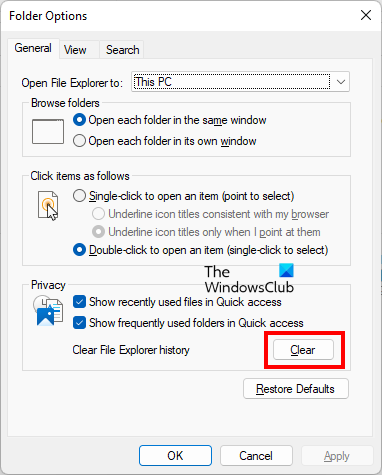
- Open File Explorer and click on the three dots on the ribbon.
- Select Options.
- Click Clear in the Privacy section under the General tab.
3] Temporarily disable antivirus
Your antivirus might be slowing down your system, which is why deleting files gets stuck at 99%. To check this, temporarily disable your antivirus and then delete the files. If this works, you may need to upgrade your hardware, especially your RAM. This is because antivirus software continuously scans your files in real time, and insufficient memory can slow this process, ultimately affecting your overall system performance.
4] Run a Chkdsk scan
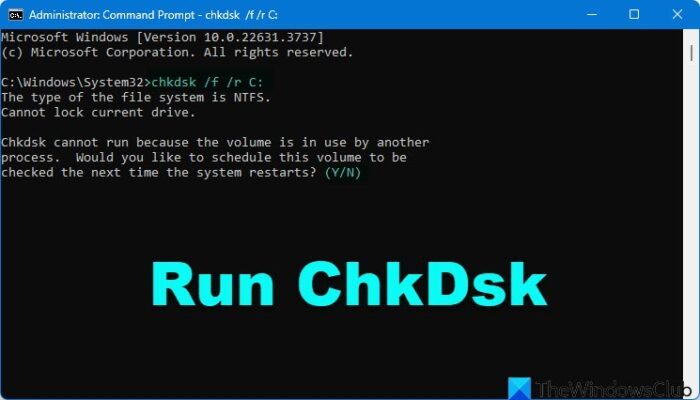
Your hard drive might have some logical errors or bad sectors, due to which this problem is happening. Chkdsk is a built-in tool in Windows 11 that helps fix disk errors. Run this tool to scan and repair your hard drive.
5] Use the Command Prompt to delete
Use the following command to delete the data and see if it works:
del /f /q "C:\<path-to-file>"
In the above command, the parameter /f stands for Force Delete, and /q stands for Quiet Mode. When the Quiet Mode is active, Windows does not show you the confirmation prompt before deleting the file. Additionally, this command permanently deletes the file from your PC instead of sending it to the Recycle Bin.
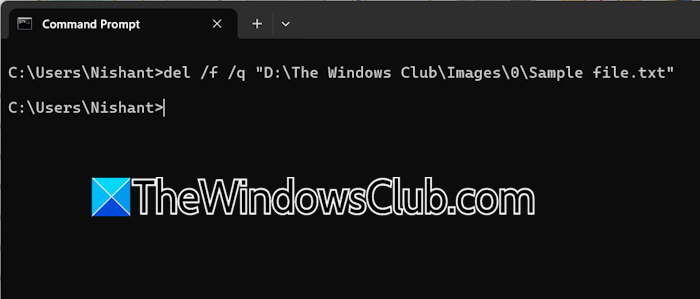
Use the command correctly; otherwise, you will get an error. For example, the file is a text file, and its name is Sample file. The location of the file is:
D:\The Windows Club\Images\0
The complete command to delete the file is:
del /f /q "D:\The Windows Club\Images\0\Sample file.txt"
6] Force delete files using a third-party tool
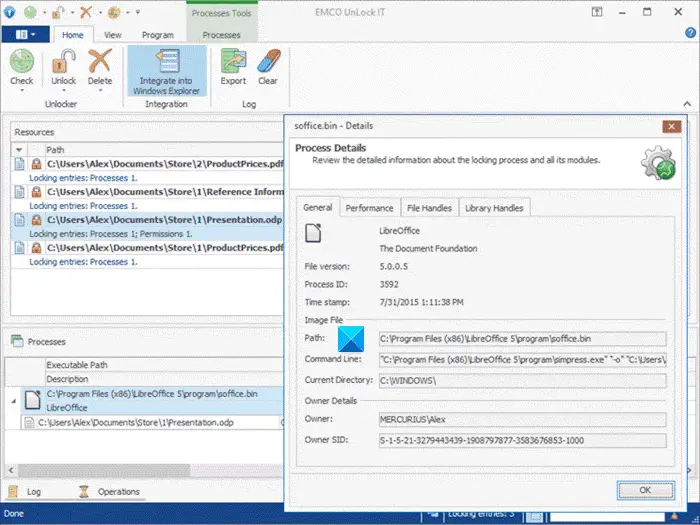
You can also use third-party file deletion software to delete your files quickly. Such file deletion tools are also helpful when you cannot delete files or when the files are locked.
7] Delete in Safe Mode
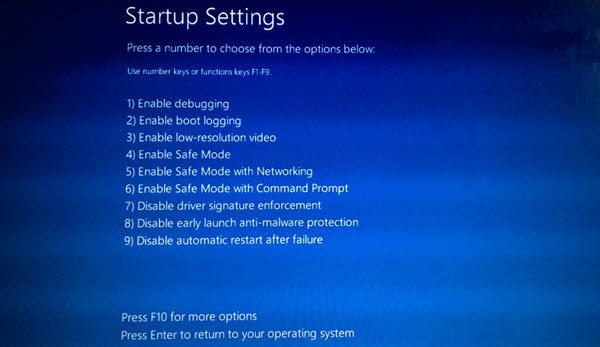
Safe Mode is a troubleshooting mode that loads Windows only with the necessary drivers. Sometimes, files cannot be deleted because a program is using them. In such a case, you can delete them in Safe Mode. Use MSConfig or Windows Recovery Environment to boot in Safe Mode and then delete the file.
8] Repair your system image files
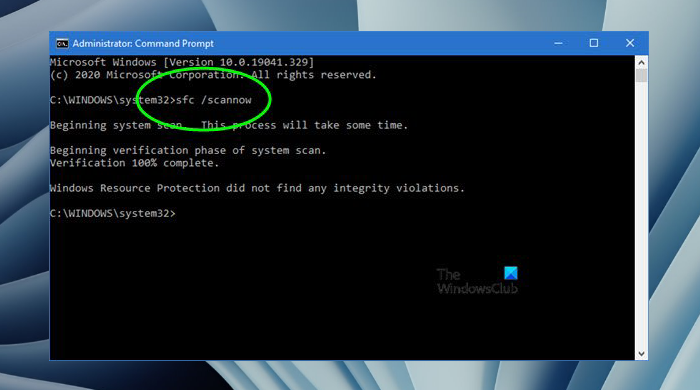
Corrupted system image files can also cause this issue. Windows 11 has built-in tools to scan for and fix the corrupted system image files. Run System File Checker and DISM tools to scan and fix your computer for system image file corruption.
That’s it. I hope this helps.
How do I delete a file that won’t delete in Windows 11?
If you cannot delete a file, this means a program is using it. To fix this, boot in Safe Mode, and then delete that file. Another cause is insufficient permission to delete that file. In such a case, you can take ownership of that file to delete it. Alternatively, you can use free file-deleter software to force-delete such files.
Is it safe to delete C:\Temp?
The Temp folder contains all Temporary files created by different programs. These files are the cached files that take up space on your C drive. Deleting all these temporary files is completely safe. However, the Temp folder will populate automatically after you clean it. Therefore, it is necessary to clear it periodically to free up space on the C drive.
Read next: Files are getting deleted automatically when clicked.
