
If files are being deleted automatically when you click on them on your Windows 11/10 computer, this article will help you resolve the issue. This is a serious issue because you can’t select files on your system. Additionally, this may also result in the loss of important data.
Files are getting deleted automatically when clicked on Windows 11
If files are automatically deleted when you click them on your Windows 11/10 computer, these suggestions will help you fix the issue. Before proceeding, check for Windows Updates manually. If an update is available, download and install it.
- Check your keyboard
- Reinstall your mouse and keyboard drivers
- Repair your system image files
- Troubleshoot in a Clean Boot state
- Create a new user profile
- Restore your system or reset your PC
All these fixes are explained in detail below:
1] Check your keyboard
The first step is to check your keyboard. The Delete key on your keyboard might be stuck, causing files to be deleted automatically when you select them. To check this, connect another keyboard to your computer.
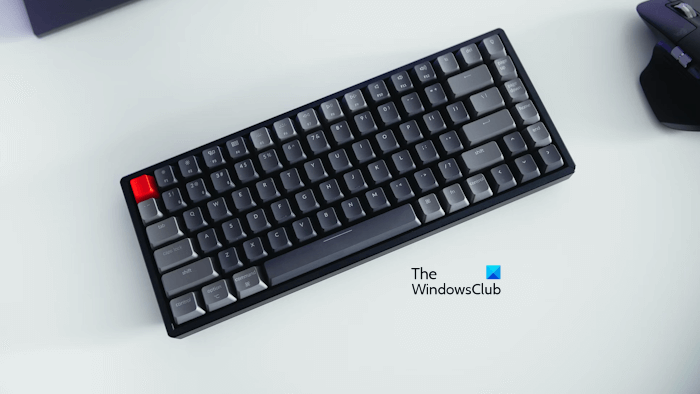
If you have a laptop and you do not use an external keyboard, you can try disabling your laptop keyboard.
2] Reinstall your mouse and keyboard drivers
Corrupt keyboard and mouse drivers can also cause this problem. Reinstall your mouse and keyboard drivers and see if it helps.
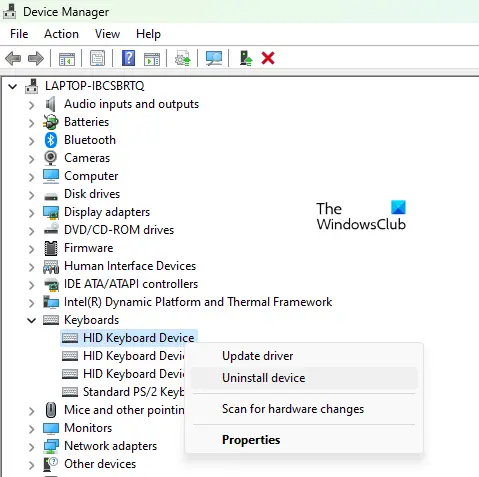
Follow these steps:
- Open the Device Manager.
- Expand the Keyboards branch.
- Right-click on your keyboard driver and select Uninstall device.
- Restart your system or perform a scan for hardware changes to reinstall the keyboard driver.
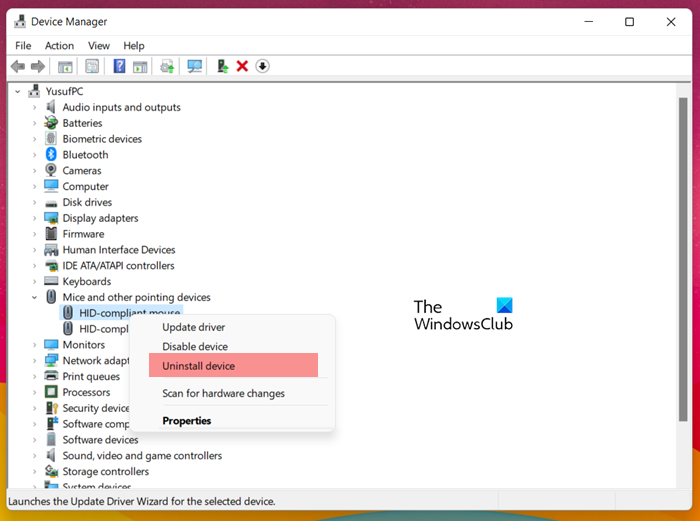
Similarly, reinstall the mouse driver. The mouse drivers are available under the “Mice and other pointing devices” branch in the Device Manager.
3] Repair your system image files
One possible cause of this problem is the corrupt system image files. Repair your system image files using the built-in command line tools, System File Checker, and DISM.
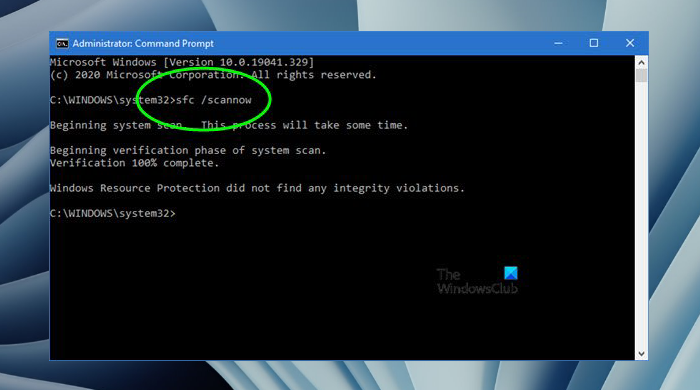
Please do not interrupt the scan; it will take some time. After the scan is completed, check if the issue persists.
4] Troubleshoot in a Clean Boot state
A third-party software or service might be causing this problem. Startup apps start automatically on system startup and keep running in the background.
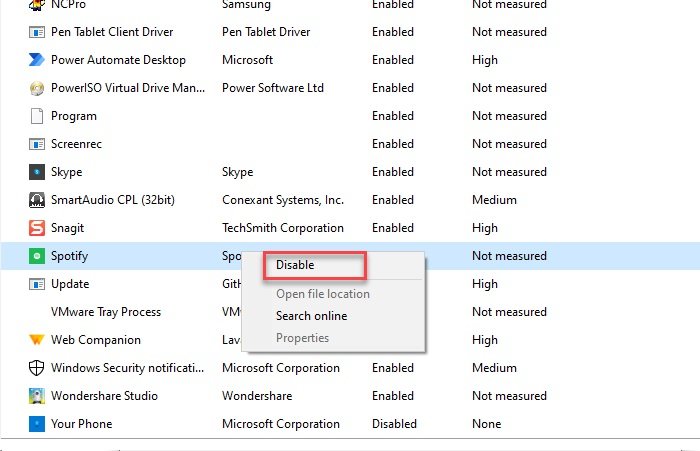
First, check if a startup app causes this issue. Open the Task Manager and navigate to the Startup apps tab. Disable all startup apps and restart your computer. If the problem disappears after a restart, you can easily find which startup app is causing this issue.
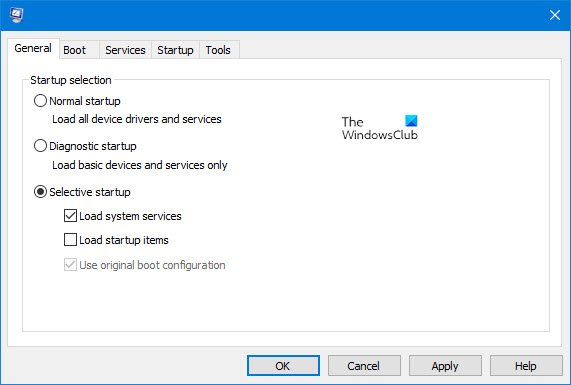
However, if this does not help, you have to troubleshoot in a Clean Boot state. To enter the Clean Boot state using MSConfig, you have to disable all third-party services. Be careful while doing this, as disabling all the services by mistake will make your system unstable and put you in trouble. Once you are in the Clean Boot state, check if the issue persists. If not, the next step is to find out the problematic third-party service.
To find the culprit, enable some disabled services and restart your system. If the issue reappears, one of the services that you have just enabled is the culprit. Now, disable third-party services one by one, then restart your computer after disabling each. This process will take time, but it will help you identify the problematic service. When you find it, check which application it is associated with. Uninstall that application.
5] Create a new user profile
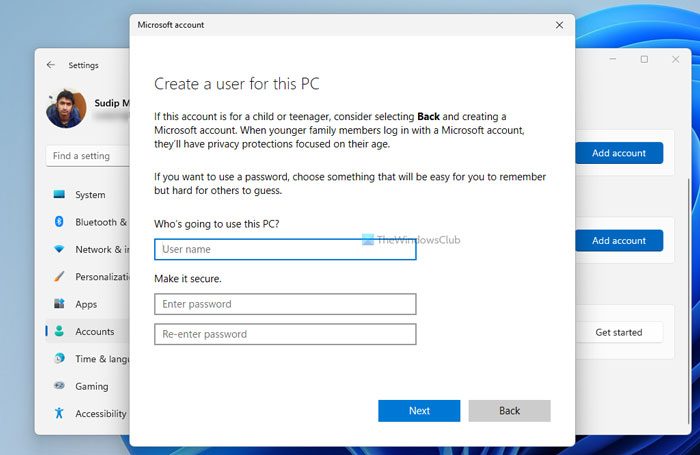
The problem might be with your current Windows 11 user profile. To check this, create a new user profile and log in to that profile. Now, open File Explorer and select a file. If the file is not deleted automatically this time, your previous user profile might have been corrupted.
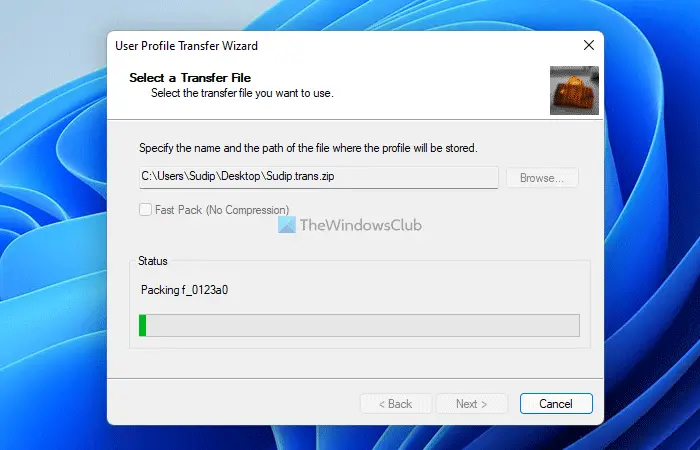
You can repair the corrupted user profile using a third-party tool, such as ReProfiler. If you cannot fix your user profile, you can transfer all your data to the new user profile using a third-party tool, like Transwiz. After transferring all your user profile data to the new profile, you can delete the previous profile.
6] Restore your system or reset your PC
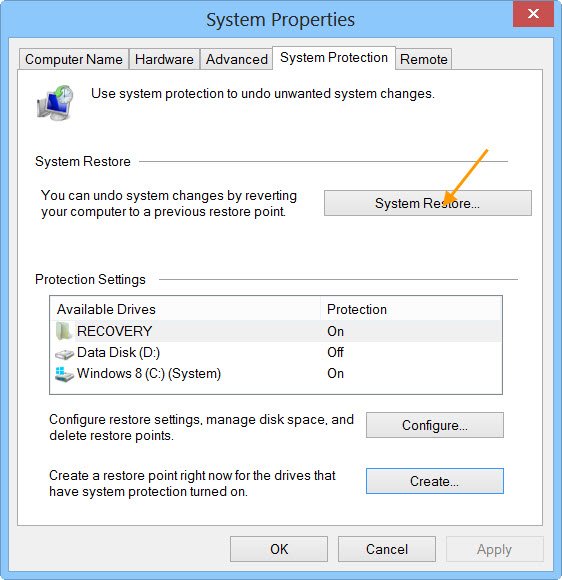
If nothing helps, restore your system to the previous working state. Run System Restore and select the restore point created before the date when this problem started occurring.
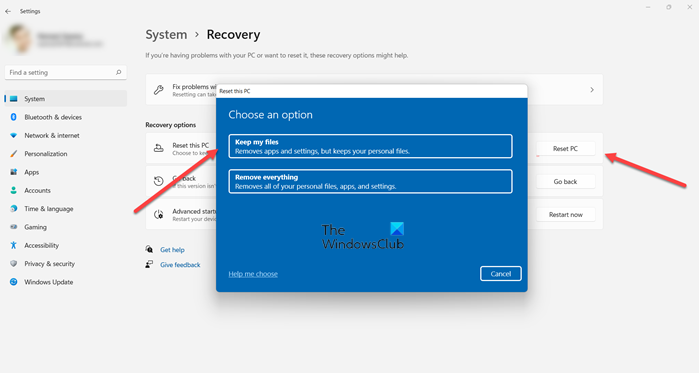
If this does not help or you do not have restore points, the last resort is to reset your computer to the factory default settings. The Keep my files option resets your PC without deleting your data. However, all the installed programs will be uninstalled.
That’s it. I hope this helps.
Read: Deleting files stuck at 99 on Windows 11
Why are my files getting deleted automatically in Windows 11?
If your files are getting deleted automatically on Windows 11, your system might be infected with a virus or malware. Scan your system with a good antivirus program. Another cause of this problem is a malfunctioning keyboard or a corrupted keyboard driver.
Will Windows 11 erase my files?
Windows 11 does not delete your files by itself. However, if such a thing happens, you should immediately scan your system with an antimalware program. If you are talking about Factory Reset, there is an option named Keep my files. Selecting this option resets your PC without deleting your data.
Read next: Deleted files keep coming back or reappearing in Windows.
