
It may sometimes happen that when you delete files from Windows 11/10 and empty the Recycle bin, they may reappear in the Recycle Bin, Desktop or Explorer again. It could be a straightforward case of a corrupted Recycle Bin folder in some cases. While it may not sound like a big deal, their space is not released unless files are removed from the bin. In this post, we will explain how to resolve the issue.
Deleted files keep coming back in Windows 11
There is no reason the Recycle Bin folder would get corrupted, but system files tend to get corrupted all the time (hence the DISM and SFC tools).
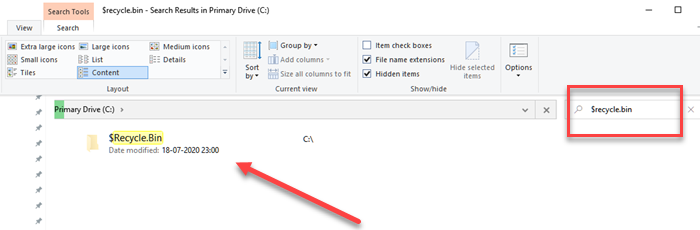
We will need to delete a specific folder— $Recycle.Bin, a system folder – but it is not straightforward since it’s a hidden file. Also, you will need admin permission to fix this.
Locate and Delete Hidden $Recycle.Bin folder
- Open File Explorer, and click on View Tab.
- Check the box that says—Hiden items.
- Open the primary drive or the partition in which Windows is installed.
- Then click on the search box, and type $recycle.bin
- Please wait for it to appear in the search result, and when it does, right-click on it, and choose to delete.
- It will ask you to confirm the permanent deletion; click Yes.
- It will also ask you to confirm; click the Continue tab.
- When the UAC prompt appears, click the Continue button.
- It will ask you for the permanent deletion; click Yes.
- Delete File dialogue box will appear; check the Do this for all current items and click Yes to save your time.
After completing this process, restart your system and once it has restarted, go to the Folder Options again and change the viewing of hidden files to their default settings.
Try deleting some files, emptying them from the recycle bin, and check if they reappear after a restart.
Similar: Desktop icons keep reappearing after deletion
If this does not help, try the following suggestions:
- Refresh the Desktop and see.
- Turn off Cloud sync: If you use a Cloud service like OneDrive, we recommend you turn off sync for OneDrive and see. If you can delete it, you know this was causing the issue. In this case, you can then Uncheck the folders you don’t want to sync.
- Delete files in Safe Mode: Boot Windows 11 in Safe Mode and then delete the files.
- Run an antivirus scan: Maybe malware is regenerating files, and so in this case, it is best to check your PC for viruses.
- Use third-party Data Delete software: Use a free Deleter software to delete the files permanently.
Hopefully, this should resolve the problem.
