
You may see excessive DMP files in the System32 folder of Windows 11 when a setting or a misbehaving component redirects memory dumps there. These .dmp files consume a lot of space and eat up your drive, making the folder a mess. In this post, we will talk about this issue and see what you can do to fix it.
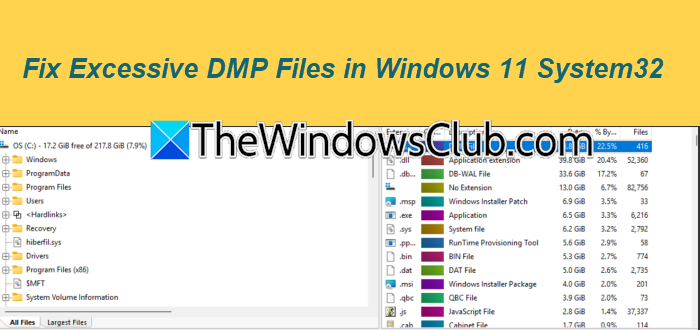
Windows creates a dump file whenever there is a system crash (blue screen) or a critical application crash. Full kernel memory dumps are saved in C:\Windows\MEMORY.DMP, while smaller minidumps go to C:\Windows\Minidump.
If the dump path in the system’s startup and recovery settings is mistakenly set to %SystemRoot%\System32, every bugcheck will create a large .dmp file directly in System32.
When a system service, like a driver host or anti-malware engine, crashes and its executable is in System32, user-mode crash dumps can also be stored there. This folder can fill up quickly with .hdmp or .dmp files from Windows Error Reporting for certain critical processes, making problems from unstable drivers or frequently crashing components even worse.
Fix Excessive DMP Files in Windows 11 System32 folder
If you see excessive DMP Files in the System32 folder of Windows 11, follow the solutions mentioned below.
- Move future kernel dumps out of System32
- Disable automatic memory dumps
- Purge Windows Error Reporting clutter with Disk Cleanup
- Look for unstable drivers
Let us talk about them in detail.
1] Move future kernel dumps out of System32
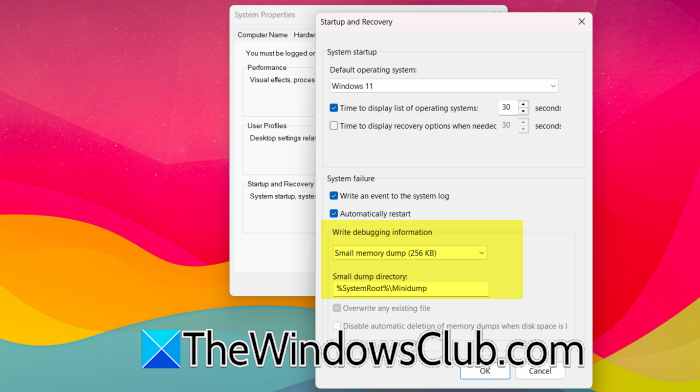
The Startup and Recovery dialog sets where full, kernel, and minidumps are written. If it points to System32, every blue screen drops a dump there. Therefore, switching the path back to the standard location stops new files from landing in the folder while keeping crash data if you need it. Follow the steps below to do the same.
- Press Windows + R, type sysdm.cpl, and hit Enter.
- Go to the Advanced tab, click Settings under Startup and Recovery.
- In the Write debugging information dropdown, pick either Small memory dump (256 KB) (minidump) or Kernel memory dump.
- Make sure the Dump file or Small dump directory field shows: %SystemRoot%\Minidump (for small dumps) or %SystemRoot%\MEMORY.DMP (for kernel/full dumps).
- Click OK, then restart the PC.
- After the restart, open File Explorer, navigate to C:\Windows\System32, sort by file type, select all .dmp files, and delete them.
If a file refuses to delete, skip it, as it may be a legitimate system file with a .dmp extension that you shouldn’t touch.
2] Disable automatic memory dumps
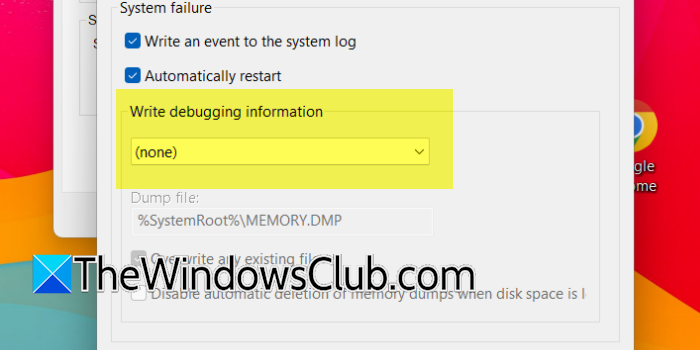
If you don’t debug crashes yourself, you have no reason to keep big dump files. Hence, turning off the feature entirely prevents Windows from writing any .dmp files, stopping the flood at the source. You can follow the steps mentioned below to do the same.
- Open sysdm.cpl again, go to Advanced > Startup and Recovery Settings.
- Set Write debugging information to (none).
- Hit OK, reboot.
Afterward, delete any leftover .dmp files from System32 using the same method above.
Read: Change number of Memory Dump Files Windows creates and saves.
3] Purge Windows Error Reporting clutter with Disk Cleanup
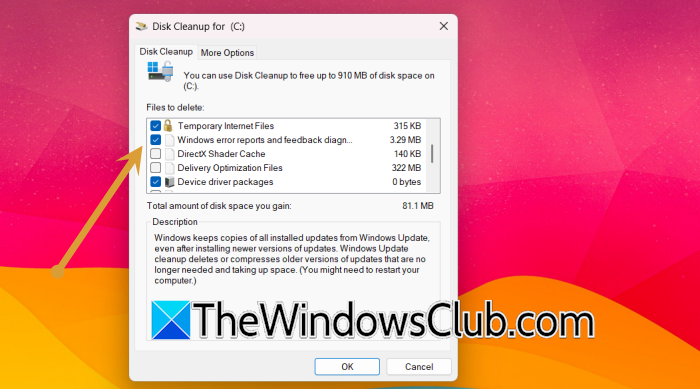
Windows Error Reporting saves crash reports in hidden system folders, but sometimes they can end up in the System32 folder due to a misconfiguration. You can use a system cleanup tool to remove all error dump files, including those that might have gone into the wrong folder, in one easy step. To purge Windows Error Reporting clutter with Disk Cleanup, follow the steps mentioned below.
- Open the Start menu, type Disk Cleanup, and run it as administrator.
- Select your system drive (usually C:) and click OK.
- Click the Clean up system files button, choose C: again.
- In the list, check the Windows error reports and feedback diag… option.
- Click OK and confirm deletion. This won’t remove personal files.
Now, check if the issue persists.
Read: How to change Memory Dump Settings on Windows 11
4] Look for unstable drivers
If the faulty part keeps causing problems, new .dmp files will keep showing up. To stop this cycle, you need to fix the main issue, which is usually a corrupt driver, a faulty system service, or damaged system files.
We need to open the Event Viewer, then go to Windows Logs, and click System. In the right pane, click Filter Current Log. Check the boxes for Critical and Error, then hit OK. Look for recent BugCheck events (Event ID 1001) or Kernel-Power events (ID 41). Now, double-click them and note the error code and any driver file mentioned (e.g., nvlddmkm.sys). Switch to Windows Logs > Application, filter for Error level, and scan for Application Error events (ID 1000) that list a Faulting module name inside C:\Windows\System32.
Once you identify the culprit, update that driver (via Windows Update or the manufacturer’s site), run sfc /scannow from an admin Command Prompt to fix system files, then use DISM /Online /Cleanup-Image /RestoreHealth for deeper repairs. Uninstall any recently added software that matches the faulting module.
Finally, check if the issue persists.
Read: Best Free Crash Dump Analyzer software for Windows 11
How to clean dump files in Windows 11?
To clean dump files in Windows 11, run the built-in Disk Cleanup tool as administrator, click Clean up system files, and check the boxes for System error memory dump files and System error minidump files before confirming deletion. You can also manually delete the MEMORY.DMP file at C:\Windows and all .dmp files inside C:\Windows\Minidump, as well as any stray dumps that landed in C:\Windows\System32 due to a misconfiguration. Using Storage Sense to automatically remove temporary files, including system error dumps, adds a hands-off cleanup routine that prevents the clutter from building up again.
Can I delete Windows DMP files?
Yes, you can safely delete Windows DMP files because they are purely diagnostic logs created after crashes and are not required for the operating system to run. Removing them will free up disk space instantly and won’t cause any stability issues, though you will lose the ability to analyze those specific crashes later if you ever need to troubleshoot recurring problems. If a dump file is currently locked by a running process, a reboot will release it and allow deletion.
