
When you download a file from the internet, your browser saves it to the Downloads folder and records it in your download history on your Windows 11 PC. However, it does not necessarily save the source information for every image, document, or software executable. If you later need to find a file’s source or download it again but can’t remember where you got it, this guide will help. In this guide, we will show you how to see where a file was downloaded from on a Windows 11 PC.

How to find out where a file was downloaded from in Windows 11
Source information for downloaded files is not available in File Explorer or in the file’s Properties dialog. However, you may still be able to find it for certain files. The following methods help you see where a file was downloaded from on a Windows 11 PC:
- Check your browser’s download history
- Inspect the file’s Zone.Identifier data
Let’s take a look at these methods in detail.
How to see where a file was downloaded from in Windows 11
1] Check your browser’s download history
Most modern browsers log downloaded files, including the source URL. You may check the browser’s download history to find the file’s source or download link.
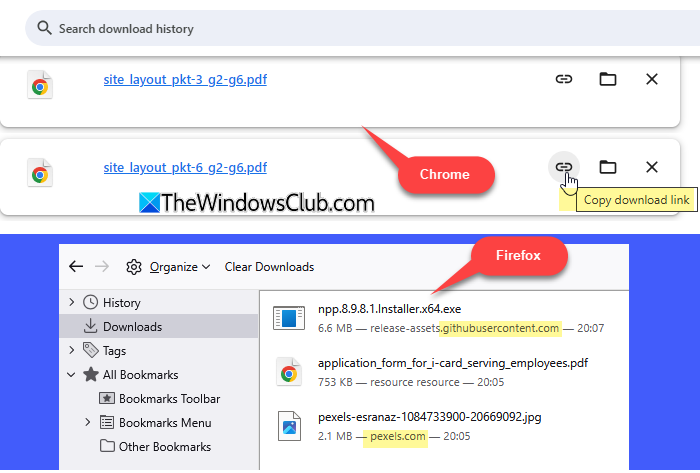
Press Ctrl + J to open the Downloads page in Google Chrome or Firefox. The information displayed varies by browser. For example, as shown in the image below, Chrome provides access to the download link, while Firefox shows the source website for some files.
Note: If you’ve configured the browser to clear its history automatically or manually cleared site data while troubleshooting, you may not find this information.
Microsoft Edge does not always display the source URL directly on its Downloads page. However, you can check its browsing-history database, which is stored as an SQLite database at the following location:
C:\Users\<UserName>\AppData\Local\Microsoft\Edge\User Data\Default\History
Replace <UserName> with your Windows account name. The database contains multiple tables related to browsing activity, including downloads and downloads_url_chains to track downloaded files and their source URLs. If you use an Edge profile other than Default, the database may be stored in that profile’s folder.
2] Inspect the file’s Zone.Identifier data
When you download a file from the internet, Windows may attach information to it to identify its origin and help apply security checks. This is known as Mark of the Web (MotW). On an NTFS-formatted drive, Windows can store this information in an alternate data stream (ADS) called Zone.Identifier (Alternate Data Streams enables multiple streams of data to exist in a single file. These streams allow a file to contain additional data beyond its primary visible content).
Depending on the available metadata, Zone.Identifier may include the original download URL and the webpage that referred you to the download. You can read this information using PowerShell or Command Prompt, or use a third-party tool to inspect the file’s alternate data streams.
Note: Alternate data streams are an NTFS feature, so this method may not work if the file is stored on a file system that does not support them or if its metadata has been removed.
Check whether a file has Mark of the Web
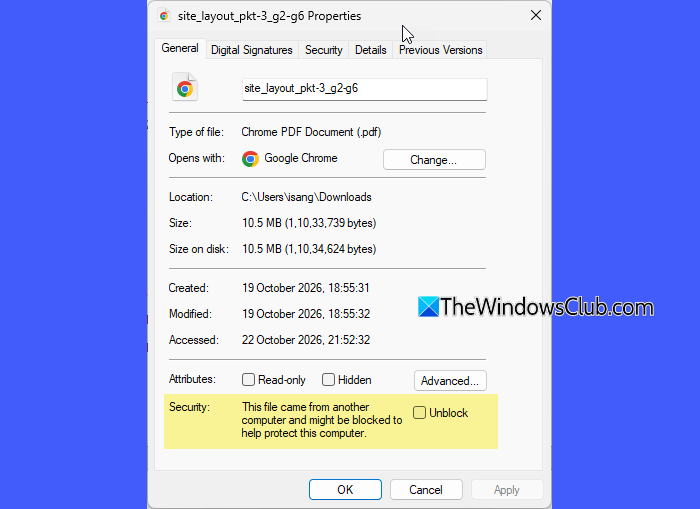
Before proceeding, check whether a file has Mark of the Web. Right-click the file and select Properties. Under the General tab, look for a security warning at the bottom stating that the file came from another computer and might be blocked to help protect your PC. This confirms the presence of the Mark of the Web.
You may also see an Unblock checkbox next to the warning. Selecting it and clicking Apply removes the Mark of the Web information and the restrictions applied to the file. Only unblock files from sources you trust.
A] Inspect Zone.Identifier using PowerShell
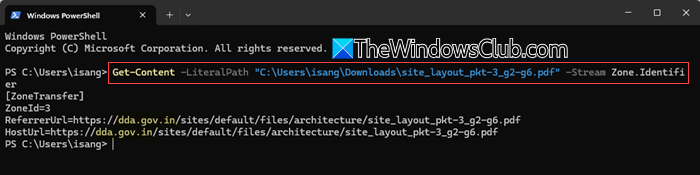
Open File Explorer and navigate to the folder containing the downloaded file. Right-click the file and select Copy as path.
Open Windows Terminal or PowerShell. Run the following command, replacing the example path with the path you copied:
Get-Content -LiteralPath "C:\Users\User\Downloads\example.zip" -Stream Zone.Identifier
Press Enter. If the stream exists, you may see the following output:
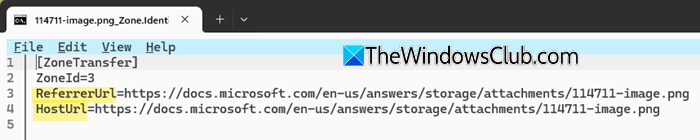
- HostUrl: The URL from which the file was downloaded.
- ReferrerUrl: The webpage that referred you to the download.
- ZoneId=3: Indicates that Windows associates the file with the Internet security zone.
B] Inspect Zone.Identifier using Command Prompt
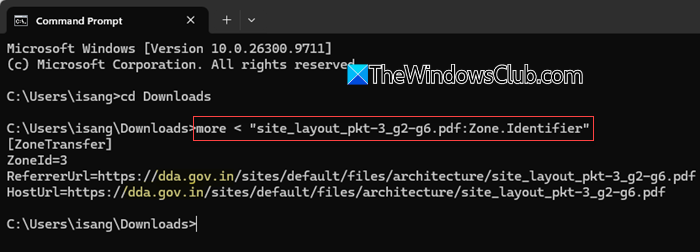
Open Command Prompt and navigate to the folder containing the file. Run the following command, replacing example.zip with the actual file name:
more < "example.zip:Zone.Identifier"
Press Enter to display the available metadata.
C] Inspect Zone.Identifier using third-party tool
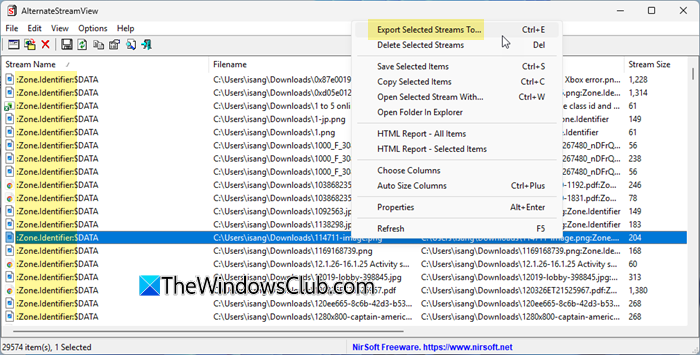
You can also use a free utility such as AlternateStreamView to inspect alternate data streams. It scans files and folders on an NTFS drive and lists the alternate data streams associated with them. This method is particularly useful when you want to inspect multiple files or identify files with alternate data streams without running commands individually. However, the tool cannot recover download information that was never stored or has already been removed.
Download AlternateStreamView from the official NirSoft website and extract the downloaded ZIP file. Run AlternateStreamView.exe. The utility does not require installation.
Select the folder containing your downloaded file, or choose the relevant NTFS drive, and click OK to scan it.
Once the scan finishes, look for the file in the results and check whether it has a stream named Zone.Identifier.
Right-click the relevant stream and select Export Selected Streams To… option. In the Export streams to… dialog, choose the destination folder where you want to save the exported stream.
Next, select Add the following extension to exported filenames and enter .txt. Click OK to export the stream. Open the exported stream file in Notepad to inspect the available metadata. The HostUrl and ReferrerUrl fields can help you identify the download URL and referring webpage.
I hope you find this useful.
Read: Folder icons or localized folder names not showing in Windows.
How to find the location of a downloaded file?
You can find a downloaded file’s location using your browser’s download history. Press Ctrl + J to open the Downloads page and locate the file in the list. Click the folder icon next to the file to open the folder where it is saved. Depending on the browser, this option may be labelled Show in folder or Open containing folder.
Where is the Downloads folder located in Windows?
By default, Windows 11 saves downloaded files in the Downloads folder located at: C:\Users\<UserName>\Downloads, where <UserName> is your Windows account name. To access it, open File Explorer and select Downloads from the navigation pane. If you’ve changed your default download location, your files may be stored in a different folder.
Read Next: The file you are attempting to preview could harm your computer.
