
Looking for a way to convert MP4 to HEVC on Windows 11/10? Here is a full guide to converting your MP4 videos to HEVC. HEVC, or High-Efficiency Video Coding, is a video compression standard that succeeded Advanced Video Coding (AVC, H.264, or MPEG-4 Part 10). It is also known as H.265 and is getting popular because of better data compression without compromising video quality. If you want to convert an MP4 video to HEVC format, check out this post. In this post, we share two ways to convert MP4 to HEVC/H.265. So, let us check out the methods.
How to convert MP4 to HEVC in Windows 11/10
Here are the methods using which you can convert an MP4 video to HEVC on your Windows 11/10 PC:
- Use free MP4 to HEVC converter software to convert MP4 to HEVC offline.
- Convert MP4 to HEVC online using a free online tool.
1] Use free MP4 to HEVC converter software to convert MP4 to HEVC offline
You can use a free desktop application to convert an MP4 video to HEVC format on Windows PC. There are multiple free software that let you do so. To help you choose a good one, here are some better free MP4 to HEVC converter software:
- HandBrake
- VidCoder
- MediaCoder
1] HandBrake
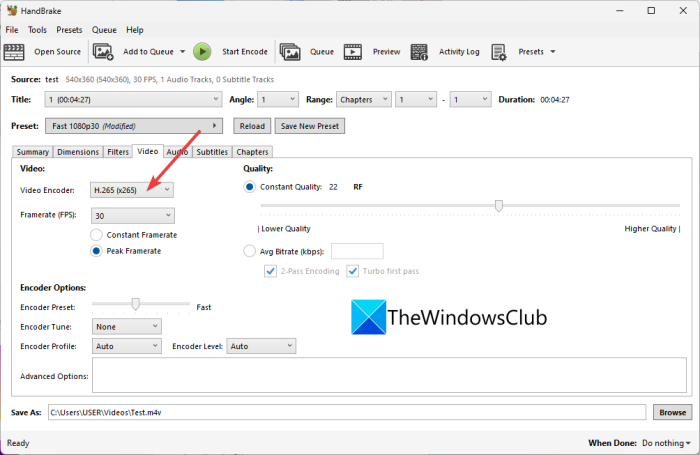
HandBrake is a free and open-source video converter and transcoder software for Windows 11/10. You can also use it to convert MP4 videos to HEVC (H.265). It supports 10-bit and 12-bit HEVC formats as output. You can convert multiple MP4 videos to HEVC at once, and it also supports batch video conversion.
Beyond HEVC, it lets you convert videos to many other formats, including H.264, MPEG-4, MPEG-2, Theora, H.265, VP8, VP9, etc. You can also customize many video encoder settings before conversion, such as frame rate, encoder preset, encoder tune, encoder profile, encoder level, video quality, etc. Additionally, you can also modify audio parameters e.g., audio codec, bitrate, audio channel, etc.
This software also offers useful video editing options like cropping, flipping or rotating, changing resolution, adding a border, etc. Now, let us look at the steps to convert MP4 to HEVC.
How to convert MP4 videos to HEVC using HandBrake
Here are the steps to convert MP4 videos to HEVC using HandBrake:
- First, download HandBrake from its official website and install it on your PC.
- Now, start the software and then press the Open Source button to import one or more input MP4 video files.
- Next, move to the Video tab, open the Video Codec drop-down menu, and select H.265, H.265 10-bit, or H.265 12-bit.
- If needed, you can configure parameters like audio codec, subtitles, create chapter markers, etc.
- Lastly, press the Add to Queue button and then click on the Start Encode button to start MP4 to HEVC conversion process.
It is a feature-rich yet easy-to-use MP4 to HEVC converter that you can use for free.
Read: Best free Audio Format Converter software for Windows.
2] VidCoder
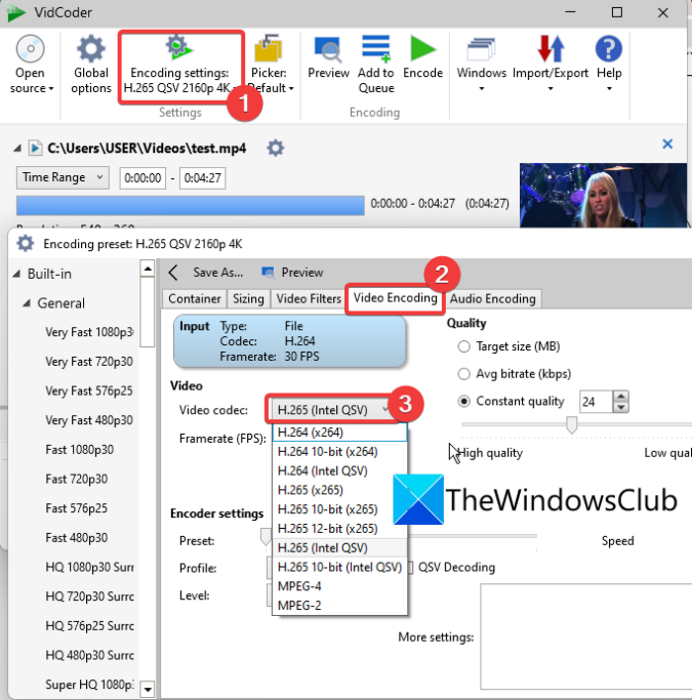
VidCoder can also be used to convert MP4 to HEVC format. You can convert MP4 to three HEVC versions: H.265, H.265 10-bit, and H.265 12-bit. It also lets you convert videos like AVI, MKV, FLV, MOV, and more to HEVC. Let’s look at the conversion steps.
How to convert MP4 video to HEVC using VidCoder?
Follow the simple steps below to convert MP4 videos to HEVC using VidCoder:
- Firstly, download and install it, or use its portable version.
- Now, launch the application and add a video file.
- Next, click on the Encoding Settings button present on the top toolbar.
- After that, in the newly opened window, go to the Video Encoding tab.
- Then, select one of the available HEVC codecs from the Video Codec drop-down options.
- If required, you can also customize video framerate, Video/Audio Bitrate, Quality, Resolution, Sample Rate, Audio Gain, etc.
- Now, save, the preset by clicking on the Save as button and then press the Encode button to start the conversion process.
It also provides various video filters, including denoise, chroma smoothing, sharpen, etc. You can also find rotate, crop, and resize features for basic video editing.
Overall, it is a great free converter using which you can convert videos, including MP4 to HEVC.
See: Use FFmpeg Batch A/V Converter to convert video and audio files.
3] MediaCoder
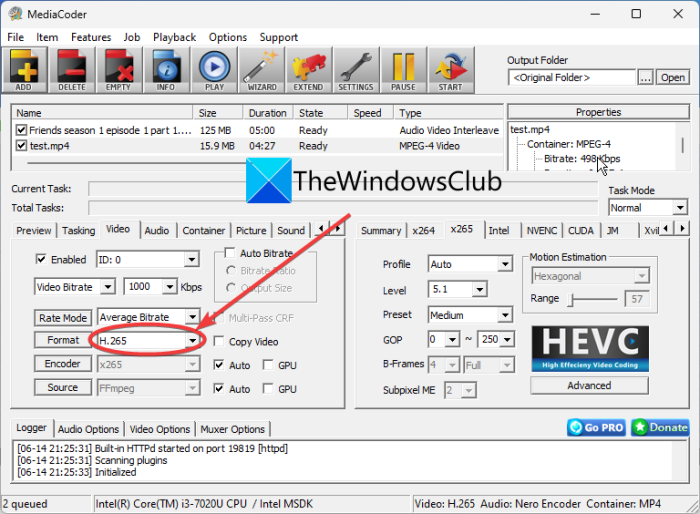
MediaCoder is a video transcoder software for Windows 11/10. It also lets you convert MP4 to HEVC (H.265) format without any hassle.
Here are the steps to convert MP4 to H.265/ HEVC format using MediaCoder:
- First, download and install MediaCoder. It also offers a portable version that needs no installation.
- Now, start the MediaCoder application and import one or more input MP4 videos using the Add button.
- After that, navigate to the Video tab and select the format as H.265.
- Then, you can customize other video settings by going to different tabs.
- Finally, tap on the Start button to start the conversion.
You can get it from mediacoderhq.com.
Read: How to play HEVC-coded videos on Windows 11/0 now?
2] Convert MP4 to HEVC online using a free online tool
If you prefer using online tools, you can also convert MP4 to HEVC online in a web browser. Some free websites let you do the conversion. Here is a list of some good free online MP4 to HEVC converter tools:
- video-converter.com
- Convertio
- evano
1] video-converter.com
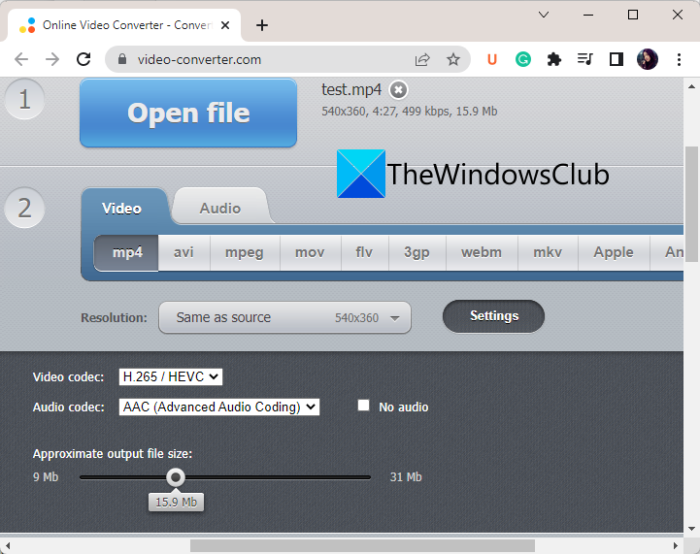
video-converter.com is a free online video converter tool that also lets you convert MP4 to HEVC. Using it, you can convert videos of a large file size (up to 4 GB). You can also convert AVI, MPEG, FLV, 3GP, WEBM, and more to HEVC.
How to convert MP4 videos to H.265 or HEVC online?
Here are the main steps to convert your MP4 videos to H.265 format online using this free online tool:
- Firstly, go to its website in a web browser and open an MP4 video file. You can upload the input video from Google Drive, Dropbox, or URL.
- Now, select the mp4 format from the Video section.
- Next, from the Video Codec options, choose H.265.
- Then set other parameters like resolution, audio codec, etc.
- Finally, click Convert to start the conversion process.
Read: How to view HEIC and HEVC files in the Photos app of Windows?
2] Convertio
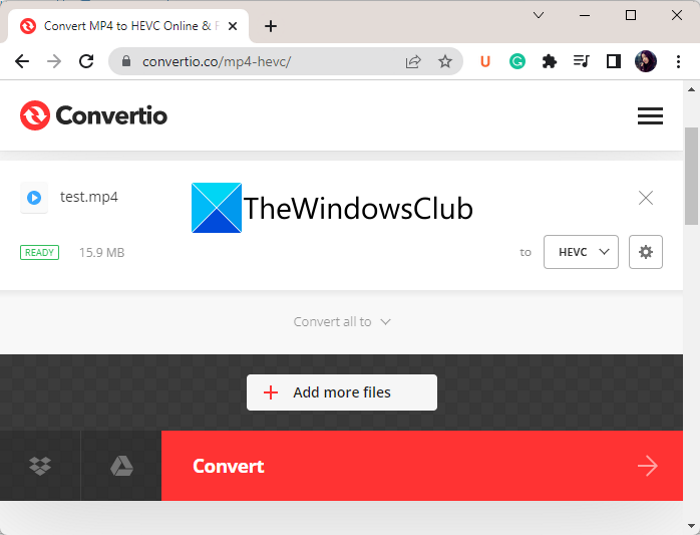
Convertio is a famous online file converter tool that also lets you convert MP4 to HEVC. It supports a wide range of input and output video formats, including FLV, OGV, M4V, MKV, AVI, etc. It is a straightforward tool that does it work pretty well. You can also customize output video settings before conversion, such as resize, quality, framerate, rotation, bitrate, audio channels, frequency, etc.
To use it, open the website in a web browser and upload the source MP4 file from your PC, Google Drive, or Dropbox. Then make sure the output format is set to HEVC, and press the Convert button. Once the conversion is done, you can download the output file to your PC.
Read: How to convert MOV video files to MP4 with these tools?
3] evano
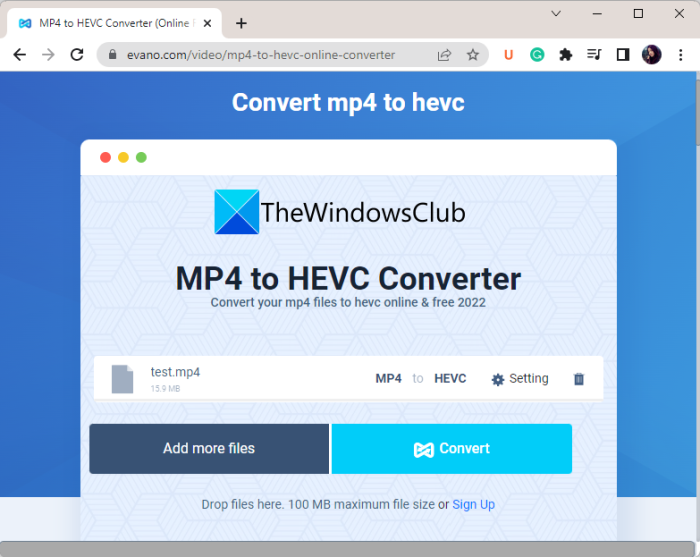
evano is one more free online MP4 to HEVC converter tool. It lets you convert videos of various file formats including AVI, MOV, 3GP, FLV, VOB, etc. You can simply upload an MP4 video and select the output formats as HEVC. After that, click on the Settings button to quality, bitrate, frame rate, resize, etc. Finally, you can start the conversion by hitting the Convert button.
It also provides some additional tools like PDF Manager, Image Compressor, Audio Converter, Archive Manager, and more. You can try it here.
Hopefully, this post helps you find a good free MP4 to HEVC converter software or online tool.
Can you convert MP4 to HEVC?
Yes, you can easily convert MP4 to HEVC on your Windows PC. You can use a free desktop application or an online tool to do the conversion. Converters like HandBrake, VidCoder, evano, and Convertio let you convert MP4 to HEVC.
How do you convert to HEVC?
To convert a video to HEVC, you can use the HandBrake software. It lets you import video files in formats like MKV, MP4, AVI, WMV, MOV, and more, then convert them to HEVC/H.265 (10-bit or 12-bit). We have shared the exact conversion steps in this post, so check them out.
Can H265 be MP4?
Yes, you can convert H.265 videos to MP4 format. To do so, try a converter that supports converting HEVC videos to MP4. You can try this free software called Video Converter & Transcoder. Other video converter software that lets you convert HEVC to MP4 includes FFmpeg Batch AV Converter and Any Video Converter.
Now read:
- How to convert 4K MOV Video to MP4 on Windows flawlessly
- How to Convert WMA to MP3 file format on Windows PC.
