
HEVC, or High-Efficiency Video Coding, is a video compression standard. It is also known as H.265 or MPEG-H Part 2. It is a successor to AVC or H.264 or MPEG-4. HEVC maintains the same video quality while doubling the compression ratio. It also supports 8K UHD resolution (8192 x 4320). It works on Windows 11 and Windows 11/10.
Microsoft removed inbuilt support for the HEVC codec.
Earlier, Windows 10 always supported playback of videos that were compressed with the HEVC codec. If you have the latest version of Windows 10 or Windows 11 installed now, you might be having issues playing these videos. There might be scenarios where the audio is playing while the video section shows a black screen. There might be times when the application throws an error saying the video codec is not supported. It is mainly faced with apps like Netflix, Movies & TV, or any other apps from the Microsoft Store.
Play HEVC coded videos on Windows 11/10
A Codec is a combination of Coder and Decoder or Compressor and Decompressor. This software can be used to compress or decompress digital media files, such as songs or videos. To play HEVC-encoded videos on Windows 11/10, you must install the codec manually. That’s because, with Windows 10 Fall Creators Update, Microsoft removed the built-in support for the HEVC codec. But thankfully, you need not wander the internet looking for players or third-party, less secure software to play your files.
TIP: 5KPlayer is a powerful Media Player that comes packed with unique features like AirPlay Service, Hardware Acceleration, etc.
HEVC Video Extensions from Device Manufacturer
Microsoft released a minor update to Windows named KB4041994, bringing HEVC Codec support for the devices. Microsoft has also made it available in the Microsoft Store for the users for free.
Play High Efficiency Video Coding (HEVC) videos in any video app on your Windows device. These extensions are designed to take advantage of hardware capabilities on some newer devices— including those with an Intel 7th Generation Core processor and newer GPU to support 4K and Ultra HD content. For devices that don’t have hardware support for HEVC videos, software support is provided, but the playback experience might vary based on the video resolution and PC performance. These extensions also let you encode HEVC content on devices that don’t have a hardware-based video encoder.
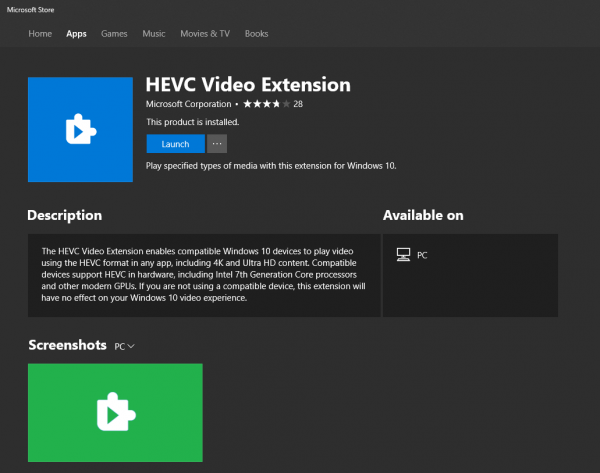
Before beginning, please note that this codec enables the streaming of 4K and UHD video. Also, this codec only supports compatible hardware. It includes Intel’s 7th Generation of Processors and some modern Graphics Processing Units or GPUs.
This list includes the following :
Kaby Lake, Kaby Lake Refresh and Coffee Lake, and GPUs like AMD’s RX 400, RX 500 and RX Vega 56/64, and NVIDIA’s GeForce GTX 1000 and GTX 950 and 960 series.
If the minor update KB4041994 is not working out well for you, you can go to this link to find and install the codec from Microsoft.
Now see how you can play OGG, Vorbis, and Theora coded media files on Windows.
What is the best media player for Windows to play HEVC files?
VLC is an undisputed media player that supports almost any format you can get your hands on. The same applies to videos that need the HEVC codec. It supports (HEVC/H. 265) @ up to 60fps. Behind the curtains, it uses x265, a free software library and application for encoding video streams into the H.265/MPEG-H HEVC compression format.
Do you need to buy HEVC Video Extensions on Windows?
Yes, you need to buy it —it costs $0.99 —but if you don’t, you can always use a third-party media player to play the video files. You can also stream with the right player. Also, you can use VLC to convert HEVC to MP4 or any other format. The option is available in the Media menu > Convert. Here you can select the HEVC or MP4 file and then choose the output accordingly. The conversion time will depend on the video file size.
