
Playing media files should be easy for any player today. But we still encounter problems when playing certain media files on some systems. This happens because the required Codec may be missing in some systems.
A Codec is a software that is used to compress or decompress a digital media file, such as a song or video. There are hundreds of audio and video Codecs in use today. Some have been created by Microsoft, but most Codecs have been created by other companies, organizations, or individuals.
Media Codec Packs for Windows 11
Codec Packs allow you to play any media file or song in any format. The three most popular Codec Packs for Windows 11/10 are covered below.
1] Windows 11 Codec Pack
Almost all kinds of files that are played have codecs attached to them. But many a time, when we actually play large, high-quality files with these codecs, they not only interrupt playback but also stop the video and possibly even crash the video player. To avoid this crash, the Windows Codec Pack is recommended. The Windows Codec Pack supports almost every compression and file type used by modern video and audio files. It is quite easy to install. Users of this Codec Pack do not need to go online to debug crashes. It has an inbuilt debugger. Get it here for Windows 10 or here for Windows 11.
2] Media Feature Pack for Windows N
Windows 11/10 N and the KN versions are designed to offer similar functionality as the main Windows editions, except that they miss the media features and related technologies. You can use the Media Feature Pack for Windows N and KN.
3] K-Lite Mega Codec Pack
Many files are embedded with randomized formats. For every format, coding is present. Most formats can be plugged into every player. But some cannot. The K-Lite Mega Codec has the ability to play every prescribed format file that the user wants. With the K-Lite Codec Pack, you should be able to play all the popular movie formats and even some rare formats. This package is mainly for power users and people who do their own encodings. Get it here.
4] Shark007 Codec Pack
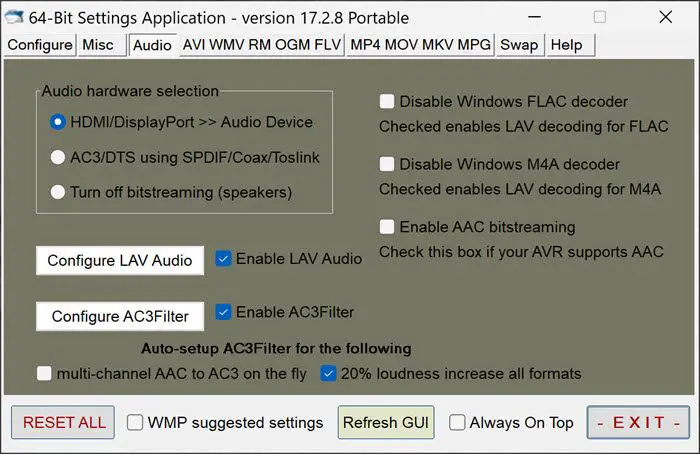
With the Shark007 Codec, you can now enjoy high-quality HD Audio and Video playback in a much simpler way than with the rest. You will also be able to watch high-definition videos without premium players, as this Codec Pack will give you everything you need.
The Shark007 Codec supports the following file types, including AMR, MPC, OFR, DIVX, MKA, APE, FLAC, EVO, FLV, M4B, MKV, OGG, OGV, OGM, RMVB, XVID.
Main features include:
- Full-color thumbnails, including FLV’s and 10bit MKV’s
- Enable the Preview Pane for ALL newly enabled file types, such as MKV and FLV.
- Explorer properties are displayed for non-native file types such as MKV and FLV
- Updated often – and has update notification built-in
- Allow use of the PDVD12 decoders for 32bit LiveTV
- Supports the use of Xbox360 as Extenders to playback MKV files
- Allows single-click setup of Bitstreamed Audio
- Support playback of MOD audio files and M4A files containing ALAC
- Supports playlist creation for use in Media Center
- Allow users to Enable/Disable codecs installed on their system
- Functionality such as WinDSFilterTweaker built-in.
- Support ‘Add to Windows Media Player List’ using right-click on all files such as MKV.
A settings Application has also been attached with this Codec Pack, to be used in conjunction with your preferred Windows Media Center Setup. This will allow the user to choose different types of splitters and decoders for each specific Filetype. Get it here.
5] DivX Codec Pack
The Shark007 codec pack meets most of the requirements, but I am very curious to test other packs that support the MKV format and have stumbled upon the DivX Media Pack HD. I found MKV quality much better with the DivX codec pack. Though it does not support all the formats that Shark007 does, the MKV quality is truly great, and it comes with the DivX Media player.
The DivX pack also includes codec packs for browsers that enable video streaming. It also supports streaming MKV files to your Xbox and PlayStation.
Visit divx.com to download it.
Bonus Tips:
- Use CodecInstaller to identify and install missing Codecs in minutes.
- The Codec Tweak Tool can help you manage, detect, and remove broken Codecs and Filters.
