
Deployment Image Servicing and Management (DISM) is a built-in Windows command-line tool used to service and repair Windows images. It can fix problems with the Windows component store, which contains the files required for Windows features, updates, and system repairs. However, some users have reported encountering the following error while running DISM to troubleshoot random shutdowns, PC freezing, and other system stability issues:
Error: 0x800f0915
The repair content could not be found anywhere.
Check the internet connectivity or use the “Source” option to specify the location of the files that are required to restore the image. For more information on specifying a source location, see https://go.microsoft.com/fwlink/?LinkId=243077.
The DISM log file can be found at C:\WINDOWS\Logs\DISM\dism.log
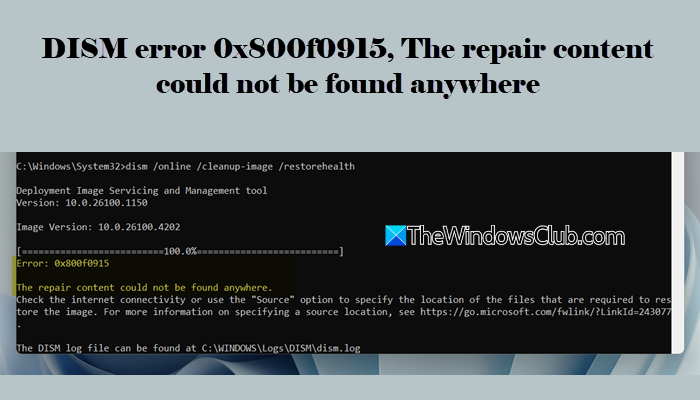
This error usually appears while running the DISM /Online /Cleanup-Image /RestoreHealth command. In this post, we will explain what DISM error 0x800f0915 means and how to fix it on a Windows 11/10 PC.
What does DISM Error 0x800f0915 mean, and why does it occur?
During a repair operation, DISM attempts to obtain replacement files either from Windows Update or from a repair source specified using the /Source parameter. If the required files are unavailable, inaccessible, or incompatible with the installed Windows version, the operation fails with this error.
Fix DISM error 0x800f0915, The repair content could not be found anywhere
To fix “DISM error 0x800f0915, The repair content could not be found anywhere”, use the following solutions:
- Verify Internet connectivity
- Use a matching Windows ISO as the repair source
- Verify the WIM image index
- Run StartComponentCleanup
- Perform an in-place repair upgrade
Let us now see the solutions in detail.
1] Verify Internet connectivity
This error may occur if DISM is unable to download the required repair files from Windows Update. Internet connectivity issues, firewall restrictions, proxy settings, or problems with Windows Update services can prevent DISM from accessing the files needed to repair the Windows image.
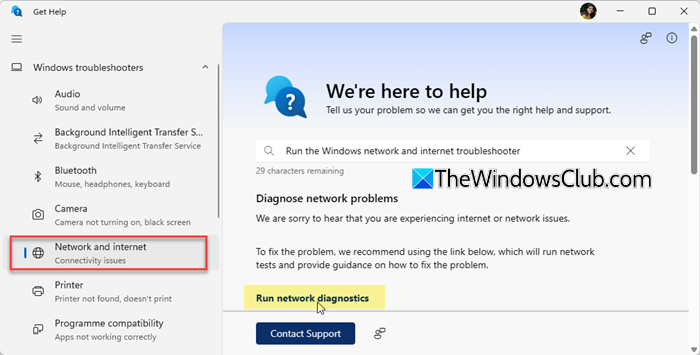
To rule out connectivity issues, make sure your PC can access the internet without interruptions. Try opening a few websites in your browser and check whether they load correctly. If the connection appears unstable or unavailable, troubleshoot the network issue first. You may use the Network Reset option or run the built-in Network and Internet Troubleshooter to detect and fix common networking problems.
If you use a third-party firewall, security software, or a proxy server, temporarily disable it and check whether the issue persists.
2] Use a matching Windows ISO or repair source
If you are using an install.wim file as the repair source, make sure it matches the version of Windows installed on your PC. DISM may fail with error 0x800f0915 if the repair source belongs to a different Windows edition, build, language, or architecture.
Note: Newer Windows 11/10 installation media may contain an install.esd file instead of install.wim because the ESD format uses higher compression. If your installation media contains an ESD file, you can either use it directly as the repair source or convert it to WIM format before running the DISM command.
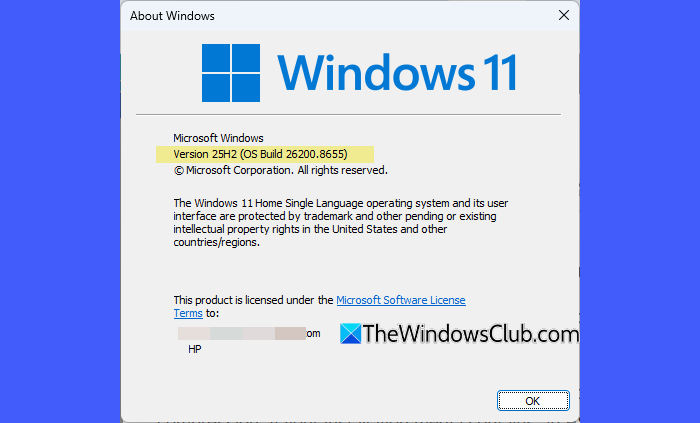
To check your Windows version and build, press Win + R, type winver, and press Enter. Note the Windows version and build number displayed in the About Windows dialog.
Next, obtain a Windows ISO that matches your installation and mount it by double-clicking the ISO file. If you are unsure whether the installation media is intact, download a fresh Windows ISO from Microsoft and try again.
Once you have mounted the ISO, proceed to the next solution step and verify that the correct WIM image index is selected before running the DISM command.
3] Verify the WIM/ESD image index
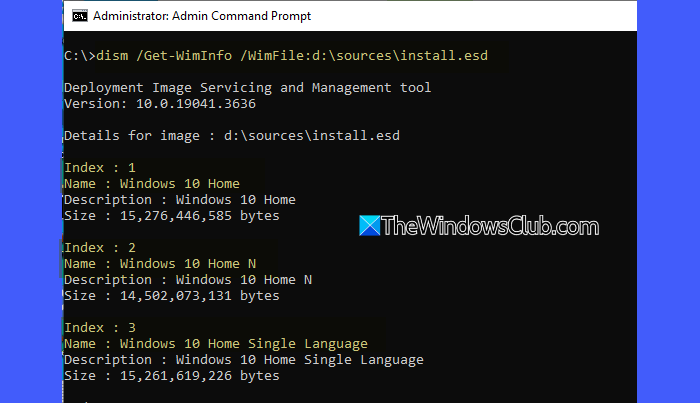
A single install.wim or install.esd file may contain multiple Windows editions, such as Home, Pro, Education, and Enterprise. Each edition is assigned an image index. If the wrong index is specified in the DISM command, the repair operation may fail because the selected image does not match the Windows edition installed on your PC.
To view the available image indexes, open Command Prompt as Administrator and run one of the following commands:
For a WIM file:
DISM /Get-WimInfo /WimFile:X:\sources\install.wim
For an ESD file:
DISM /Get-WimInfo /WimFile:X:\sources\install.esd
Replace X with the drive letter assigned to the mounted ISO.
The command will display a list of Windows editions along with their corresponding index numbers. Identify the index that matches the edition installed on your computer and use that index in the DISM command. For example:
DISM /Online /Cleanup-Image /RestoreHealth /Source:WIM:X:\sources\install.wim:6 /LimitAccess
In the above command, 6 is the image index. Replace it with the index number corresponding to your Windows edition.
Note: The /LimitAccess parameter prevents DISM from contacting Windows Update and forces it to use the specified repair source. If you want DISM to fall back to Windows Update when the required files are not available in the WIM image, omit this parameter.
If the command still fails after specifying the correct index, proceed to the next solution.
4] Run StartComponentCleanup
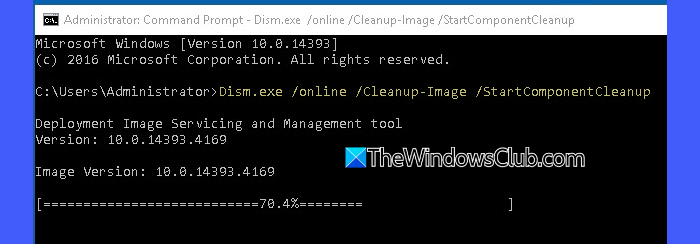
Some users have reported resolving error 0x800f0915 by cleaning up the Windows Component Store.
Open Command Prompt as Administrator and run the following command:
DISM.exe /Online /Cleanup-Image /StartComponentCleanup
The StartComponentCleanup operation removes outdated and superseded components from the Component Store (WinSxS) and can help resolve servicing inconsistencies that interfere with DISM repair operations.
Wait for the process to complete, then restart your computer.
After the restart, run the DISM command again and check whether it completes successfully.
5] Perform an in-place repair upgrade
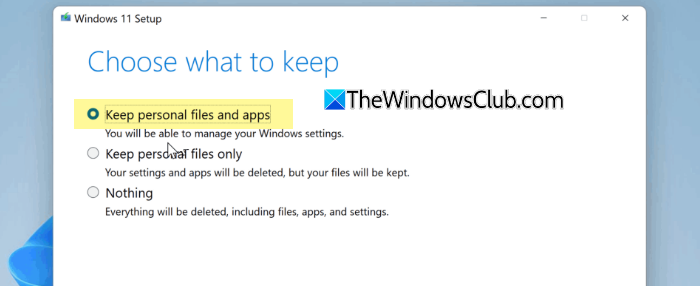
If none of the above solutions work, perform an in-place repair upgrade. It can repair component store corruption and servicing issues that DISM is unable to resolve.
Download the latest Windows installation media, mount the ISO, and run Setup.exe. When prompted, choose the option to Keep personal files and apps and complete the upgrade process. This reinstalls Windows while preserving your personal files, installed applications, and settings.
Once the repair upgrade is complete, run the DISM command again and verify that it completes successfully.
Note: Several Windows 11 25H2 users have reported encountering error 0x800f0915 after installing KB5094126. However, Microsoft has not yet confirmed whether the update is responsible for the issue. Since KB5094126 is a security update, we do not recommend uninstalling it unless running the DISM command is absolutely necessary. If your system is otherwise functioning normally, consider waiting for a future update.
I hope this helps.
Read: DISM vs SFC first? What should I run first on Windows?
How to fix DISM not working?
If DISM is not working, make sure your PC has a stable internet connection and that Windows Update services are running properly. You can also run the DISM command in a Clean Boot state to rule out interference from third-party services or security software.
Read: DISM Errors 87, 11, 3, 87,1726, 1392, 1393, 1910, 112
How to fix DISM The source files could not be found?
If DISM displays the “The source files could not be found” error, try cleaning up the system components and specifying an alternative Windows image repair source. You can also configure an alternate repair source using the Local Group Policy Editor.
Read Next: SFC Failed to Repair and DISM shows error 0x800f081f in Windows.
