
The MBR2GPT is a built-in tool in Windows computers that allows users to convert their hard drive partition style from MBR to GPT without data loss. If your disk does not meet the requirements, this tool shows the error. The “MBR2GPT validation failed, Last partition too close to the end of the disk, Should end at offset” is one such error that prevents users from converting the MBR disk to GPT using the MBR2GPT command-line utility. If you encounter this error, this article will help you.
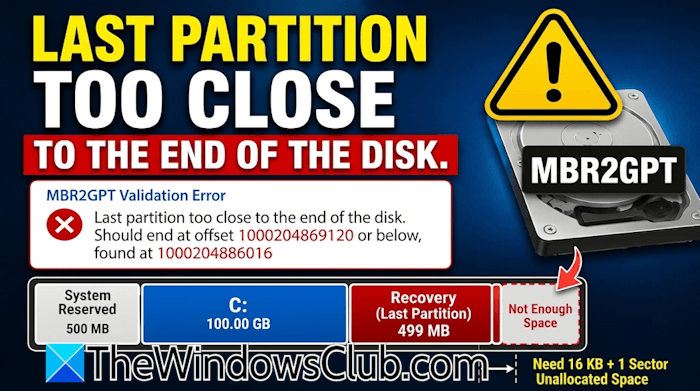
The complete error message is:
Last partition too close to the end of the disk. Should end at offset 1000204869120 or below, found at 1000204886016
The numerical values in this error message are not constant for all users. Therefore, you may see different values on your system.
MBR2GPT validation failed, Last partition too close to the end of the disk
Secure Boot requires the GPT partition scheme and is one of the requirements for Windows 11. If you want to install or upgrade to Windows 11, your hard disk should have the GPT partition scheme. You can check your hard disk partition scheme in Disk Management. If it is MBR, you can convert it into GPT using the MBR2GPT command-line utility. However, some users are unable to convert their hard disk partition scheme from MBR to GPT due to the “Last partition too close to the end of the disk” error. The MBR2GPT tool does not show this error on the interface. You can check it in the log file.
When you run the validation command in the MBR2GPT tool and the validation fails, the command-line utility will show you the following message:
Disk layout validation failed for disk 0
To know the exact error message, you have to open the setupact file. Open File Explorer and navigate to the following location:
C:\Windows
Search for the setupact file. Once you find it, right-click on it and select Open with > Notepad. Scroll down to the bottom to read the error message. If you see the error “Last partition too close to the end of the disk” in the setupact file, use the following fixes to resolve the issue.
- Shrink the respective partition.
- Align the disk partitions
- Delete the Recovery partition (if applicable)
- Use a third-party disk converter tool
All these fixes are explained in detail below. Before proceeding, I recommend that you back up all your important files.
1] Shrink the respective partition
Before starting the conversion process, the MBR2GPT tool validates the layout and geometry of the selected disk. If any of these validation checks fail, the tool shows an error message and the conversion process stops. One of these validation checks is:
There’s enough space not occupied by partitions to store the primary and secondary GPTs:
- 16 KB + 2 sectors at the front of the disk
- 16 KB + 1 sector at the end of the disk
The front and the last areas of a disk are used to create a space reserved for GPT headers. The front of the disk requires 16 KB + 2 sectors. This space is used to write the Primary GPT header and partition entries. The end of the disk requires 16 KB + 1 sector. This space is reserved for creating a secondary GPT that acts as a backup in case the primary GPT table gets corrupted. If your disk partitions span from the very beginning to the very end of the disk, the MBR-to-GPT conversion process does not complete. Instead, it throws an error. That’s why some users also encountered the error “First partition too close to the beginning of the disk.”
To fix this error, you need to create unallocated space at the beginning or end of your hard drive, depending on the error message recorded in the setupact file. You can calculate the required space to be created from the data in the sectupact file. For example, let’s consider the following error message:
Last partition too close to the end of the disk. Should end at offset 1000204869120 or below, found at 1000204886016
The above values are in Bytes. Subtracting these values gives the result 16896 Bytes, which is approx. 16 KB. In this case, you need 16 KB unallocated space at the end of the hard drive. Since creating the space in kilobytes is not possible, you can create an unallocated space of 17 MB. Follow these steps:
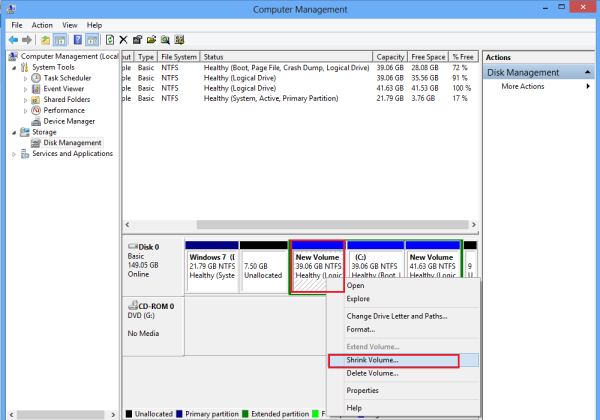
- Right-click on the last partition. In most cases, it is the Recovery partition.
- Select Shrink Volume.
- Enter the amount in MB. Since you need 17 MB in this case, enter some value more than 17 MB.
- Click Shrink.
2] Align the disk partitions
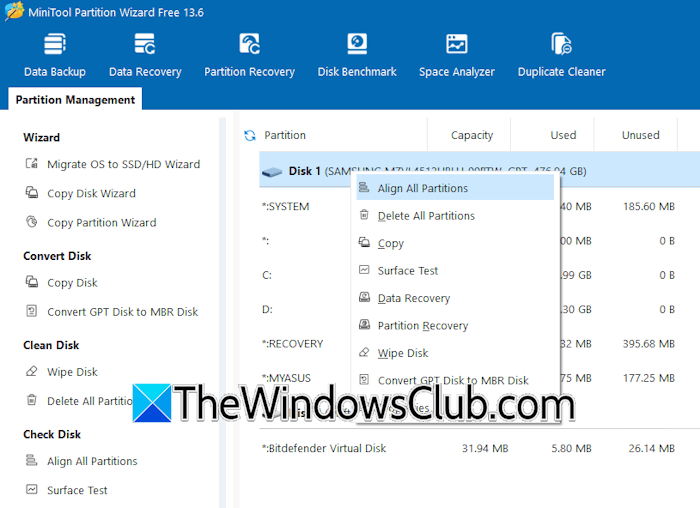
If the issue persists, some of the partitions might not be aligned on your disk. To resolve this issue, you can use any third-party tool, such as Minitool Partition Wizard, and align all the required partitions. Download and install Minitool Partition Wizard, and launch it. Now, right-click on the required hard disk and select Align all partitions. Click OK to confirm and then click Apply to save changes.
3] Delete the Recovery partition (if applicable)
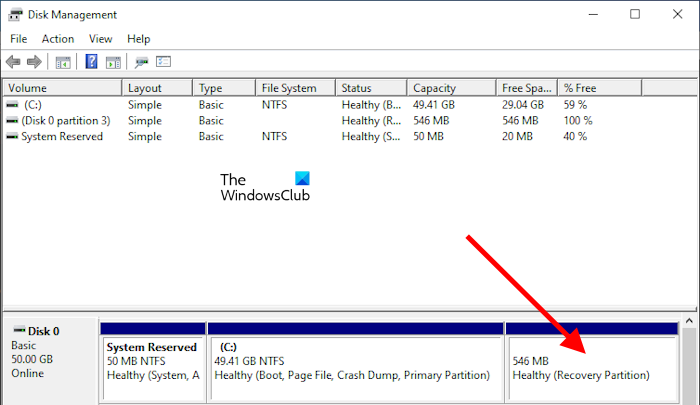
If the last partition is the Recovery Partition and you are encountering the error despite applying the previous fixes, you can delete the Recovery partition. The partition can be recreated manually after conversion (if Windows does not create it automatically during the conversion).
4] Use a third-party disk converter tool
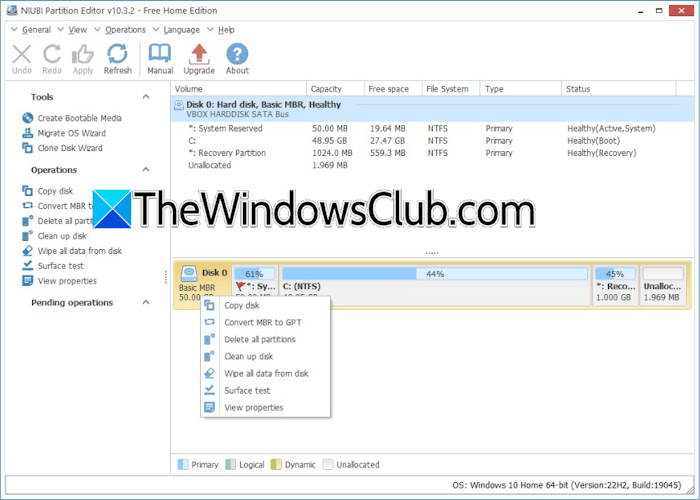
If the issue persists, you can use a third-party disk converter to convert your MBR disk to GPT. Disk converter tools simplify the disk conversion process, making them especially suitable for beginners or non-tech users. Many free third-party tools are available to help you carry out this conversion. One such tool is NIUBI Partition Editor.
That’s it. I hope this helps.
Why did MBR2GPT fail?
There can be multiple reasons why MBR2GPT has failed. It might be due to multiple logical partitions or more than 3 partitions on your MBR disk. The exact reason or error message is available in the setupact file. You will find this file in the Windows folder on your C drive.
How to remove MBR partition?
If you want to completely remove the MBR partition, you can convert it into GPT partition style. Windows 11/10 has a built-in tool, MBR2GPT, to convert MBR to GPT without data loss. MBR2GPT is a command-line utility. Therefore, if you are not familiar with command-line tools, you can use a third-party tool.
Read next: MBR2GPT failed to enable backup/restore privileges.
