
MBR2GPT is a Microsoft tool that converts a disk from the Master Boot Record (MBR) to the GUID Partition Table (GPT) partition style without modifying or deleting the data from the disk. The tool can be used from both Advanced Windows Recovery mode and from the full Windows 11/10 operating system (OS) by using the /allowFullOS option.
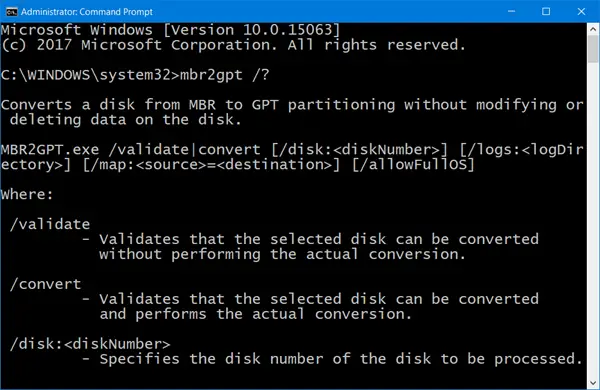
In case you are using this tool, the system generates an error message that relates to MBR2GPT failing, and permission or privilege issues, then this post will help you fix it.
Here is the full error message:
enableprivilege: AdjusttokenPrivileges failed (Error:0x514)
Error: failed to enable backup/restore privileges
Check that you are running in a process with elevated privileges
MBR2GPT failed to enable backup/restore privileges
The error clearly states that the command has not been executed or does not have enough privilege to execute. Any command that modifies system files of the OS needs admin permission. So the solution is rather simple.
1] Sign in with an admin account
First, ensure you are signed in with an Admin account, not a regular account. It can be a Microsoft connected account or a local admin account; it will not matter.
2] Temporarily disable UAC
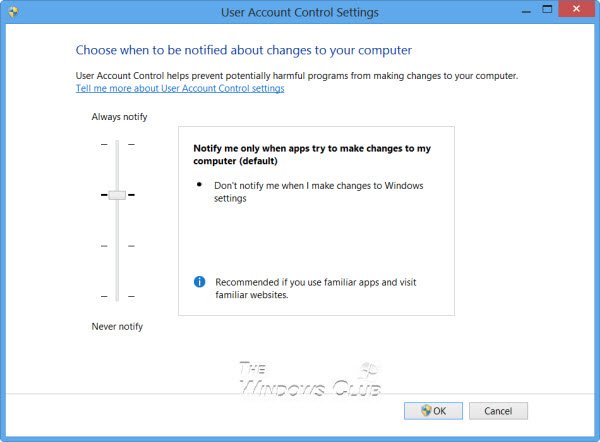
Second, disable UAC until the command execution is complete. User Account Control (UAC) is a technology and security feature that makes sure any program which wants to change system files has actually admin permission.
Read: MBR2GPT Last partition too close to the end of the disk
3] Temporarily disable system restore
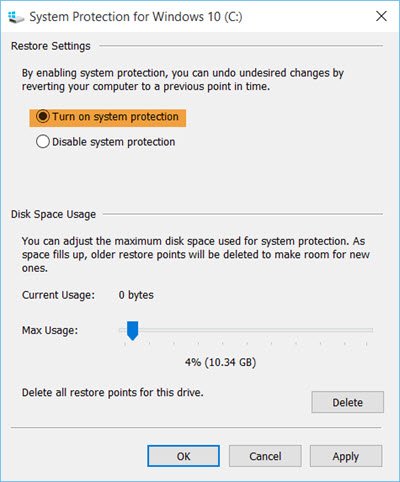
Third, disable system restore. Since you will be changing the Partition style, it is essential to remove any items that belong to the old system. Although the user files are not changed, it is better to delete them.
4] Run CMD or PowerShell with elevated privileges
Lastly, open an elevated Command Prompt or PowerShell. Then you can run the MBR2GPT tool to make the proper conversion. After this, you should not be stopped or restricted by admin issues.
I hope the post helped execute the MBR2GPT command without any privilege issues in Windows 11/10.
PS: See this post if you receive MBR2GPT disk layout validation failed, cannot find OS partition, non-system disk, cannot install new boot files, cannot find room for the EFI system partition errors.
Why is MBR2GPT not working?
There could be different things responsible for this error. For example, if you haven’t signed into your administrator account, you cannot use this utility. At times, the System Restore point can also cause the same issue. Finally, you can use the Command Prompt or PowerPoint with elevated privileges to run this tool.
How to use MBR2GPT in Windows?
To use the MBR2GPT in Windows 11/10 computers, locate the file in the Windows\System32 directory. As this is a command-line tool, you need to open the CMD or PowerPoint with administrator permissions. Then, you can navigate to the System32 folder and run it accordingly.
