
NIUBI Partition Editor is a great tool to manage your hard disk partitions. The tool offers many great features, such as file system conversion, merging and copying partitions, resizing, and moving volumes. Its user-friendly interface makes it a beginner-friendly tool to manage hard disk partitions. In this article, we will talk about how to use NIUBI Partition Editor on Windows 11.
How to use NIUBI Partition Editor on Windows 11
To use NIUBI Partition Editor, you have to download it from its official website. The website offers installer and portable versions of the software. You can download any one of them. The software provides you with the following three main tools:
- Migrate OS Wizard
- Clone Disk Wizard
- Create Bootable Media
The create bootable media option is not available in the free plan.
1] Migrate OS with NIUBI Partition Editor
The free version of NIUBI Partition Editor allows you to migrate your Windows OS from one disk to another. Migrating an operating system means moving the existing operating system, including the apps, settings, and files, from one storage drive to another. For example, moving Windows 11 from an HDD to an SSD.
This feature helps boost a computer’s performance. For example, if Windows is installed on an HDD and you have installed a new SSD in your system, you can speed up your system by migrating the Windows OS from the HDD to the SSD.
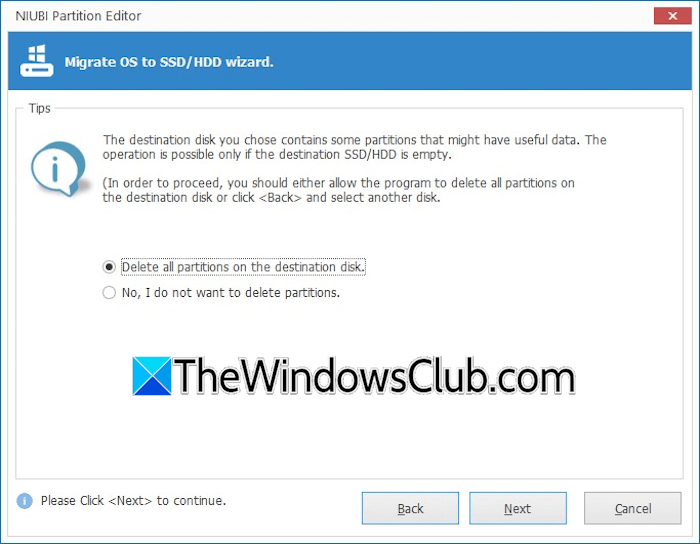
With NIUBI Partition Editor, you can migrate Windows easily. Launch NIUBI Partition Editor and click the Migrate OS Wizard link on the left pane. Select the destination drive and click Next. On the next screen, select the Delete all partitions on the destination disk option and click Next. On the next screen, you will see the drive on which Windows is currently installed along with other partitions, including the EFI and Recovery partitions. Select the partition on which Windows is installed and click Next. Now, click Finish. When you are done, click Apply to save the changes. Restart your computer.
2] Clone Disk with NIUBI Partition Editor
The free version of NIUBI Partition Editor also allows users to clone their hard disks. Disk Cloning is the process of creating an exact copy of one storage drive onto another drive. It copies everything from the source drive, including the OS, installed applications, system files, hard disk partitions, etc. This makes the new cloned hard drive an exact copy of the source drive.
To clone your hard disk, click the Clone Disk Wizard link on the left pane, then select the destination hard drive. The destination hard drive must contain sufficient unallocated space, with free space greater than the source drive’s data size. Select the destination drive and click Next. Now, select the required option on the next screen and click Next. Select the partition you want to clone and then click Next. When you are done, click Finish and then click Apply to save changes. Restart your computer.
3] Create Bootable Media using NIUBI
This feature of NIUBI Partition Editor allows you to create a bootable USB flash drive containing Windows installation media. You can use that bootable USB flash drive to install Windows on any computer. However, this feature is not available in the free plan.
Read: How to create bootable USB drive in Windows 11 using Rufus
4] Other features of NIUBI Partition Editor
Let’s see other features of NIUBI Partition Editor.
1) Dynamic to Basic Disk conversion

Dynamic disks use a flexible volume-based system, but they are more complex to manage. On the other hand, Basic Disks use a traditional partitioning system that is easier to manage. If you want to convert a dynamic disk into a basic disk without data loss, you can do so with the help of NIUBI Partition Editor.
2) Resize or move a volume
This feature allows you to create multiple partitions on your hard drive with a click. You just have to drag the hard drive partition to create an unallocated space. Later, you can assign a volume label and letter to that unallocated space.
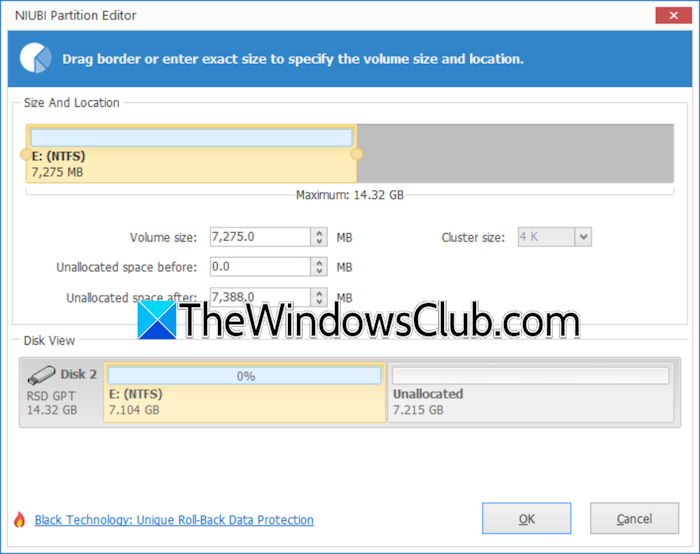
Select your hard drive and click Resize/Move volume. Now, drag the border of the hard drive to create an unallocated space. Alternatively, you can also enter a specific value to create an unallocated space. When you are done, click OK. Click Apply to save changes.
3) Merge Volume
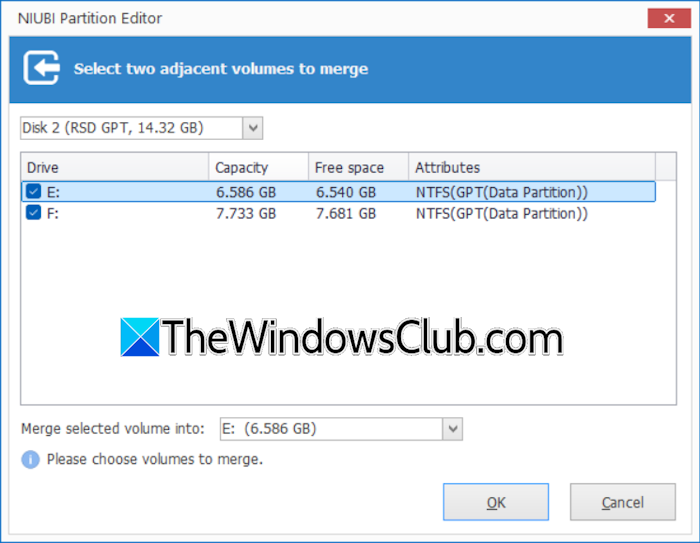
You can increase space on a particular hard drive partition by merging it with another partition on the same disk. In NIUBI Partition Editor, click Merge Volume and then select the hard disk, the partitions of which you want to merge. The software will show you all the available partitions on the selected hard disk. Select the partitions you want to merge and click OK.
4) Copy volume
This is another useful feature of NIUBI Partition Editor. With this feature, you can copy a particular partition to an unallocated space on the same hard disk. First, create an unallocated space on the same hard disk. The size of the unallocated space should be equal to or greater than the source partition.
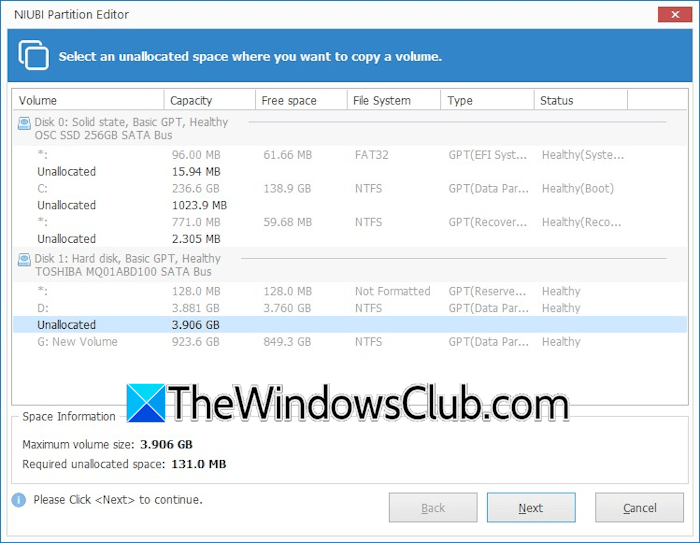
After creating the unallocated space, click Copy volume. A new window will appear. Select the Unallocated space and click Next. Assign a drive letter on the next screen and click Finish. NIUBI will create a copy of the source partition on the selected unallocated space. The new partition will contain all the files of the source partition.
5) Check volume
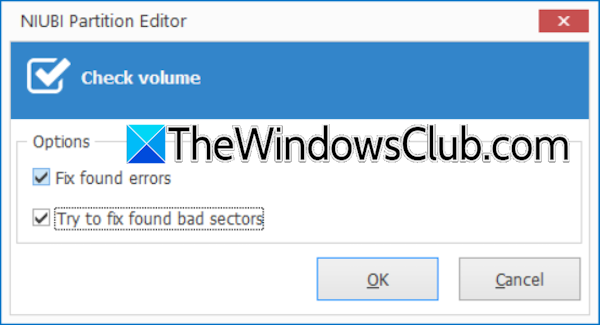
If you are experiencing issues with your hard drive, you can use the Check volume feature. After running this operation, the software will check your hard drive for errors. If you want it to fix the errors as well, select the following checkboxes:
- Fix found errors
- Try to fix bad sectors
6) Hide volume
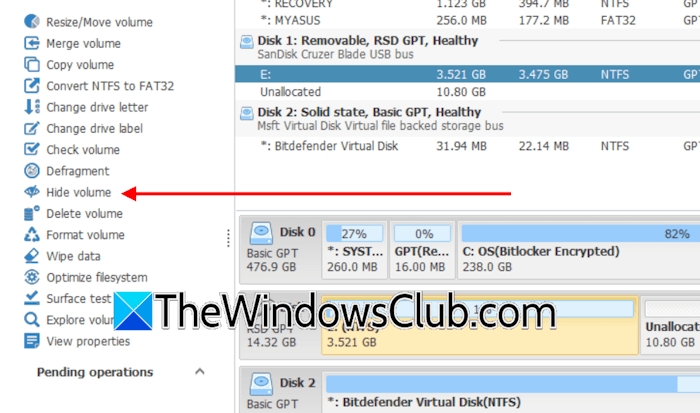
If you have confidential files that you want to keep away from the reach of others, you can use the Hide volume feature. First, create a new partition on your hard disk, then move all the confidential files into that partition. Now, launch NIUBI Partition Editor and click Hide volume. Click Yes in the confirmation box. This action will remove the drive letter from the selected partition and make it invisible in File Explorer. All your files will remain saved on that partition.
To access the files, you can unhide the partition by clicking the Unhide volume link.
7) Surface test
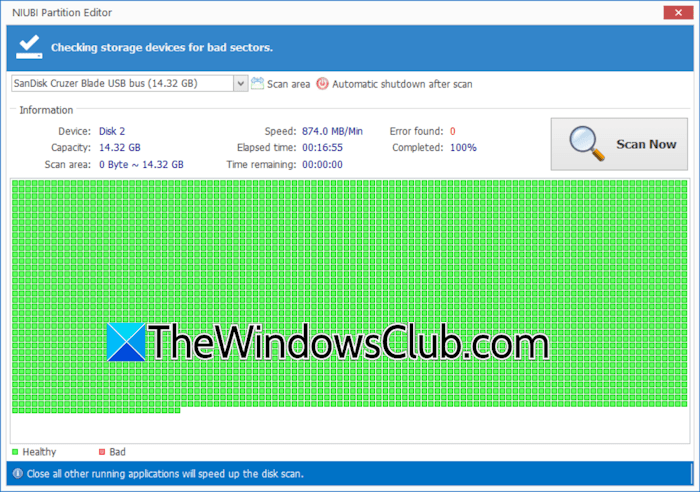
By running the Surface test, you can locate bad sectors and errors on your hard drive. Run the Surface test and click Scan Now. The software will take time to scan all the sectors of your hard drive. The bad sectors of your hard drive are shown in red, and the healthy sectors are shown in green.
Other useful features of NUIBI Partition Editor include Convert NTFS to FAT32, Change drive letter, Change drive label, Defragment, Delete volume, Format volume, and more.
That’s it. I hope this helps.
Read: Free Disk and Partition Manager software for Windows 11
Is the NIUBI Partition Editor free edition safe?
Yes, the NIUBI Partition Editor free edition is completely safe to use. The free version offers many useful features, including disk migration, disk cloning, merging, copying, hiding and unhiding volumes, and more.
How do I edit partitions in Windows 11?
You can use the built-in tool, Disk Management, to manage or edit your hard disk partitions. Apart from that, many free third-party tools are available that make it easier to use than Disk Management. You can also use them.
Read next: There is not enough free disk space to complete the System BIOS and Device Firmware update operation.
