
If you encounter “There is not enough free disk space to complete the System BIOS and Device Firmware update operation, Delete some files to free disk space and then retry again” error while trying to updade the firmware on your HP computer, this article will help. However, users with other brands may also encounter this error, though the wording of the message may be slightly different. Not enough free space on your EFI partition or C drive is the cause of this error.
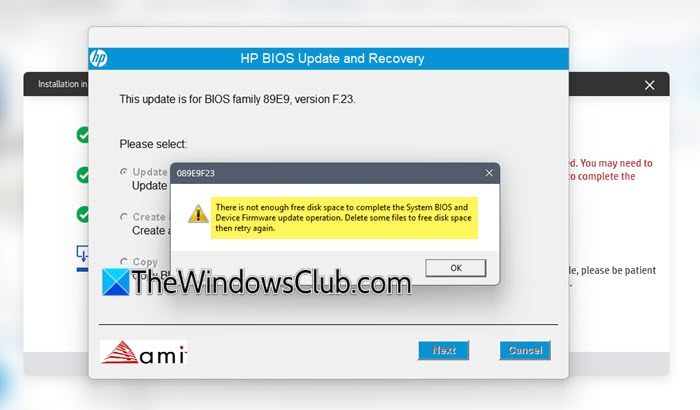
There is not enough free disk space to complete the System BIOS and Device Firmware update operation
Use the following fixes for the “There is not enough free disk space to complete the System BIOS and Device Firmware update operation” error:
- Run Disk Cleanup
- Delete unnecessary files from the C drive
- Update BIOS with USB
- Increase the size of the EFI/System partition
All these fixes are explained in detail below.
1] Run Disk Cleanup
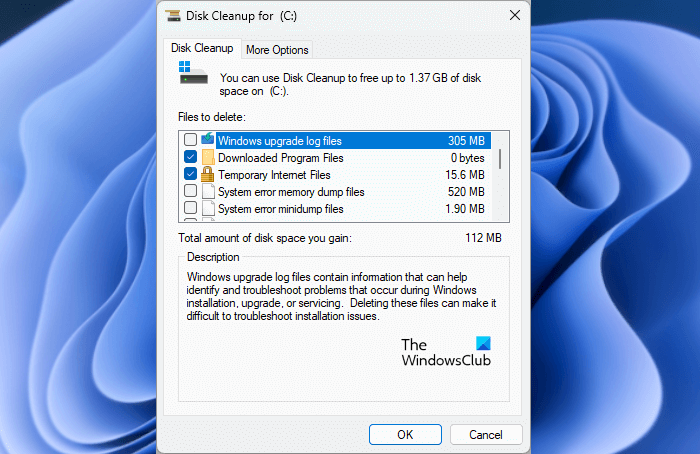
Disk Cleanup is a built-in utility in Windows computers to clean up junk files. Run this tool as an administrator and free up as much space as possible on your C drive by deleting junk files. These can be Windows Update Cleanup files, Downloaded Program files, thumbnails, old Restore points, etc. Once the tool finishes cleaning up junk files on your C drive, run the BIOS update again and see if the error occurs.
You can also use a free junk cleaner for more options.
2] Delete unnecessary files from the C drive
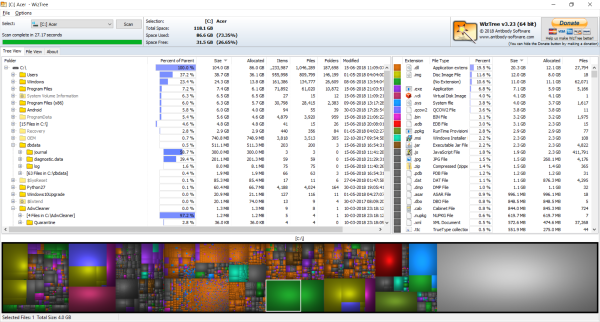
After running the Disk Cleanup tool, there might be some unnecessary files on your C drive that are taking up space. Therefore, the next step is to delete those files. Third-party tools, such as WizTree, let you know which files are taking up a huge space on your disk, so you can delete them safely. Scan your C drive with WizTree and delete unnecessary files. In most cases, they are usually program leftovers.
Some large files you can safely delete are Pagefile.sys, weights.bin, $Windows.~BT and $Windows.~WS folders, Windows.old, WhatsApp cache files, Hyberfil.sys, Windoes Search Index, and soon.
3] Update BIOS with USB
You can try updating the BIOS from the USB. This process is different from updating the BIOS by downloading the BIOS file onto your computer. When you update your BIOS using a USB flash drive, all the required files remain available on the drive. Therefore, the disk space error is less likely to occur.
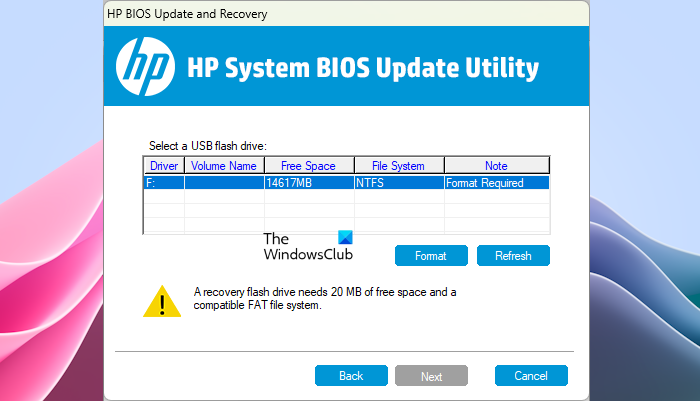
Follow these steps:
- Visit the official HP website and download the latest version of BIOS. Make sure that you download the BIOS for the right HP computer. If you do not know your HP computer model number, it is better to use the auto-detect option on the HP website. This will automatically detect your HP system model number.
- After downloading the latest BIOS version, run the installer file. The software will extract certain files and then automatically launch the HP Firmware Update and Recovery tool.
- Insert the USB flash drive. The tool will format your USB flash drive. Therefore, back up all your data before proceeding.
- Select the Create Recovery USB flash drive option and click Next.
- Select your USB flash drive on the next screen and click Format. If you do not see any USB flash drive, click Refresh. If this does not work, insert the flash drive into another USB port and click Refresh again.
- Click Next on the next screen.
- Select the formatted USB flash drive and click Next. The tool will prepare the USB flash drive for BIOS update.
- On the next screen, click Finish.
Now, turn off your system and turn it on. Keep the USB flash drive plugged in. Also, connect the charger and turn on the power supply, even if your laptop is fully charged. During the BIOS update process, the power supply should not be interrupted. Otherwise, your motherboard may be damaged.
4] Increase the size of the EFI/System partition
If the error still occurs, the last resort is to increase the EFI or System partition size. You can do so via the built-in Command Line tool or a third-party tool, such as MiniTool Partition Wizard.
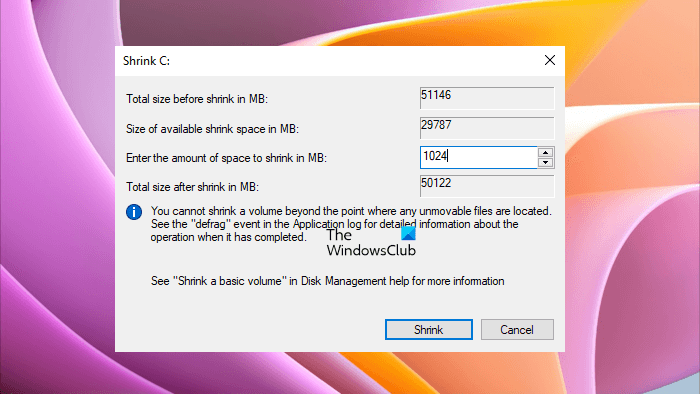
While it is easy to increase the size of the System partition,you will have to be careful while increasing the size of the EFI partition.
The default EFI Partition size is usually 100MB. Increasing it to 200 or 300MB should suffice.
Now let’s see how to increase the EFI partition size using the Command Line utility. Before proceeding, you need to create an unallocated space on your C drive or say 200 or 300MB. After that, launch Command Prompt as an administrator and enter the following commands. Press Enter after entering each command.
diskpart

list disk

select disk #
In the above command, replace # with the correct disk number. It should be the disk with the C drive.
create partition efi
Windows will automatically detect the unallocated space and create an EFI partition on that space. Now, type the following commands and press Enter after typing each command.
format quick fs=fat32
assign letter=y
exit
You can assign any letter to it. Now, paste the following command in the Command Prompt and press Enter.
bcdboot c:\windows /s y: /f UEFI
The above command will create the boot files on the new partition. Restart your computer. Now the previous partition is useless. You can delete it as follows:
Re-enter diskpart
Locate the old 100MB partition
Use delete partition override.
Create an EFI partition using MiniTool Partition Wizard
Follow the steps to extend the EFI partition using the MiniTool Partition Wizard. First, create an unallocated space on your C drive. Now, launch the MiniTool Partition Wizard.
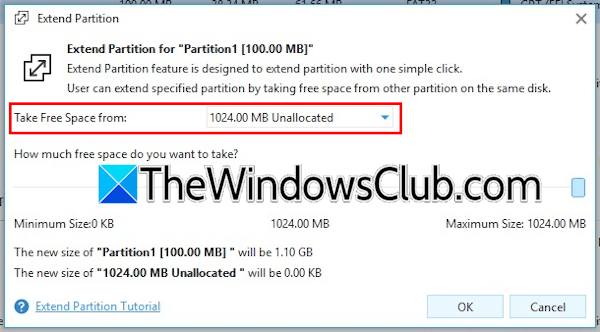
Right-click on your EFI partition and select Extend. A new window will appear on your screen. Here, you have to select the Unallocated space in the Take Free Space from drop-down. Move the slider to the right to allot all the space to the existing EFI partition. Click OK and then click Apply. Click Yes in the confirmation box. Now, click Restart to restart your system. After the restart, the unallotted space will be added to your EFI partition.
You can also use Niubi, AOMEI or Paragon to do the above operation.
I hope this helps.
Related: How to increase System Reserved Partition in Windows 11.
How to free up space for BIOS Update?
BIOS update requires free space on the EFI partition on your C drive. First clear junk files from the C drive and see if it helps. If your EFI partition has low space, you need to extend it. You can either create a new EFI partition or add more free space to the existing EFI partition. The latter one is not possible with Disk Management. Therefore, you need to use third-party software.
Is updating the BIOS still risky?
No, BIOS update is not risky. It is generally safe, especially if you use an OEM tool. However, you need to provide a continuous power supply during the BIOS update process. An interrupted power supply during the BIOS update process could damage your motherboard.
Read next: Black screen when entering BIOS on Windows computer.
