
A BIOS Update improves hardware compatibility. That’s why installing BIOS updates is important. During a BIOS update, it is recommended to provide a continuous power supply to your system. Interrupted power during the BIOS update can corrupt your system’s firmware, and you may need to replace the motherboard. However, there are still some chances to revive your BIOS. In this article, we will discuss what you can do if you have accidentally turned off your PC during a BIOS update on a Windows computer.
Accidentally turned off PC during BIOS update on Windows 11
Use the following fixes if you have accidentally turned off your PC during a BIOS update:
- Clear CMOS
- Wait for the Automatic BIOS Recovery process
- Try to recover BIOS using a USB
- Flash the BIOS
- Contact the manufacturer’s support
All these fixes are explained in detail below.
PC turned off during BIOS update
1] Clear CMOS
Clearing the CMOS in this situation worked for some users. Hence, you can also try this method. Follow the instructions given below:
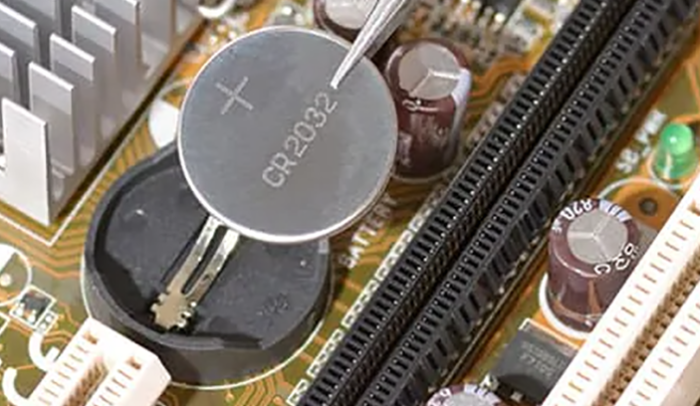
- Disconnect the charger. If you have a PC, turn off the switch and disconnect its power cord.
- Open your computer case or laptop.
- Locate the CMOS battery. It is a small coin-shaped battery.
- Gently pull the battery out of its socket.
- Wait a few minutes, then reinstall the battery with the correct polarity.
- Connect the charger or power cord and turn on your system.
If your computer revives, you can try updating BIOS again.
2] Wait for the Automatic BIOS Recovery process
Some motherboards have a dual BIOS setup. The secondary BIOS on such motherboards is the recovery BIOS and stores an additional copy of the BIOS files. The Recovery BIOS process triggers automatically when it detects an issue with the primary BIOS or the primary BIOS has been corrupted. If your motherboard has the dual BIOS setup, it should start the automatic BIOS recovery. Refer to your motherboard’s user manual to know whether you have a dual BIOS setup. If so, turn ON your system and see if the auto BIOS recovery is initiated. If not, see the user manual for instructions on triggering the automatic BIOS recovery.
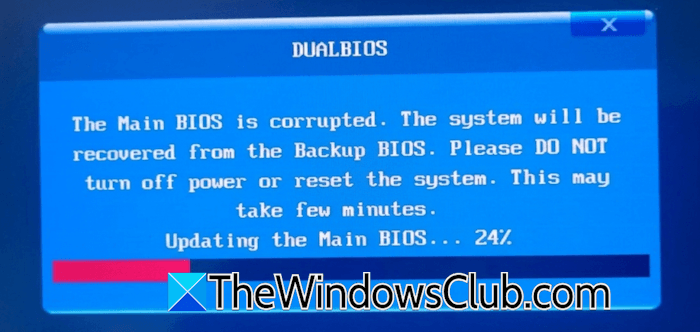
Some motherboards have a physical switch to switch between the dual BIOS. That switch is used only if the main BIOS is corrupted. If your motherboard has a dual-BIOS setup, open the computer case and check for a physical switch. If so, toggle the switch, then turn on your computer. The automatic BIOS recovery process should be initiated.
3] Try to recover BIOS using a USB
All motherboards have a BIOS recovery system, though its accessibility varies widely by manufacturer and model. For example, on HP computers, you can recover the BIOS using the Windows key and the B key combination. This key combination opens the BIOS Update screen. Alternatively, you can also use the USB flash drive to recover your BIOS. For this, you will need a working PC. On a working computer, create the bootable USB flash drive with the correct BIOS firmware version. The file system of the USB flash drive should be FAT32.
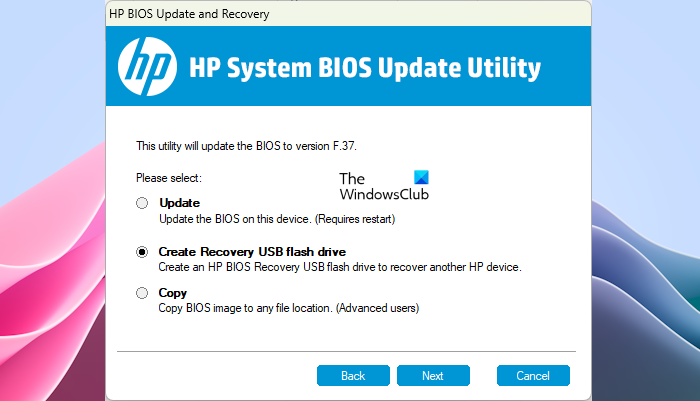
Refer to your motherboard’s user manual for the correct process of BIOS recovery using a USB flash drive.
4] Flash the BIOS
Some motherboards have a flash BIOS feature. Such motherboards have a dedicated USB port and a flash BIOS button. Refer to your motherboard’s user manual to check if it has this feature. Or, you can open your computer case and look for the flash BIOS USB port. If your motherboard has this feature, use another working computer and visit the official computer manufacturer’s website. Download the latest BIOS version and create a bootable USB flash drive using it. The file system of the USB flash drive should be FAT32. Refer to the user manual for proper instructions. You may need to rename the BIOS file accordingly.
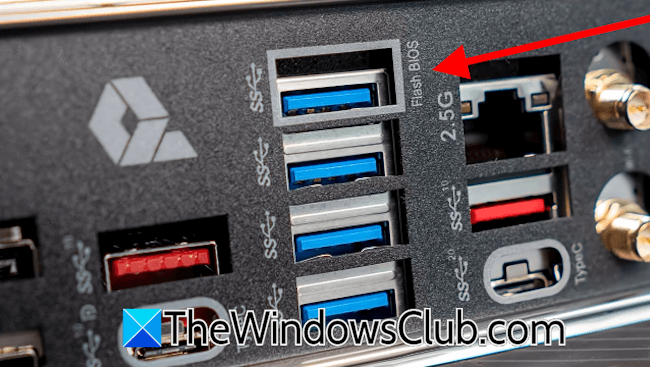
After creating the bootable USB flash drive containing the BIOS file, insert it into the dedicated USB port to flash the BIOS. Turn on the power supply and press the flash BIOS button. The LED should start flashing fast during the process. The LED turns off automatically when the BIOS flashing process is complete. Now, check if you can turn ON your computer.
When flashing your BIOS, ensure that the power supply is not interrupted, as a power failure can permanently brick the motherboard.
5] Contact the manufacturer’s support
If none of these fixes work, you need to contact your computer manufacturer’s support. Your computer motherboard might have been bricked, and you may need to replace it. Get professional help for further assistance.
That’s it. I hope this helps.
What happens if a PC turns off while updating a BIOS?
If you turn off your PC during a BIOS update, it may corrupt the BIOS. This will cause the POST to fail, leading to boot issues with your system. If you see any LED indicators on your motherboard or hear any beeps, decode them to troubleshoot the issue. Recovering or flashing the BIOS can help fix this problem.
What happens if PC turns off while updating?
If your PC turns off while installing Windows Updates, it may result in the operating system corruption. When this happens, the Startup Repair is triggered automatically. Let the Startup Repair complete, and after that, you will be able to boot into Windows. In some cases, Windows starts rolling back the changes.
Read next: BIOS recovery files cannot be found, or the files are corrupted.
