
Event Viewer, at times, shows that the ACPI BIOS is trying to write to an illegal PCI operation region. The Event ID 10 does not always crash your system, but it signals a firmware or driver flaw that can affect power management and stability. In this post, we will talk more about this error and see what you can do to resolve it.
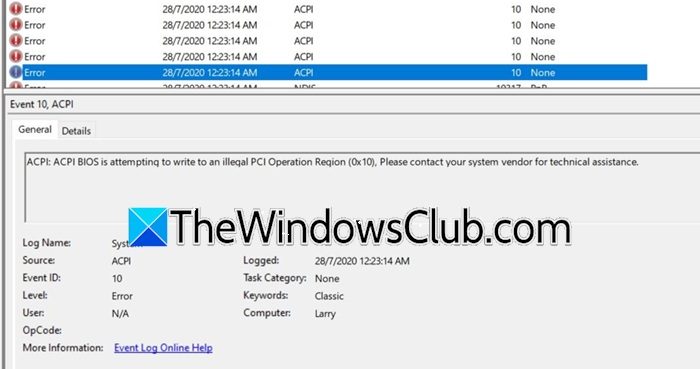
ACPI: ACPI BIOS is attempting to write an illegal PCI Operation Region (0x10). Please contact your system vendor for technical assistance.
Source: ACPI
Event ID: 10
What does ACPI mean in BIOS?
ACPI stands for Advanced Configuration and Power Interface. It is an open standard that the BIOS uses to communicate power management information to the operating system. ACPI handles tasks like putting devices to sleep, waking the system, controlling CPU power states, and managing thermal zones. The BIOS implements ACPI tables and code, which Windows reads to control hardware power efficiently without requiring OS‑specific drivers for basic power features.
ACPI BIOS is attempting to write an illegal PCI Operation Region
The firmware on your motherboard controls power and how the hardware is set up. A PCI device uses specific memory areas to communicate with the BIOS. If a faulty or outdated BIOS tries to write data outside of these areas, such as the address 0x10 mentioned in your log, Windows will block the action and record an error. This issue often arises after a Windows update, when you install a new driver, or if older hardware is running Windows 11 without a compatible BIOS update.
If the Event Viewer says “ACPI BIOS is attempting to write an illegal PCI Operation Region,” follow the solutions mentioned below.
- Update the BIOS/UEFI Firmware
- Update the Chipset and the PCI Express Drivers
- Disable the PCI Express Native Power Management in the BIOS
- Modify the Power Plan to turn off PCIe Link State Power Management
Let us talk about them in detail.
1] Update the BIOS/UEFI Firmware
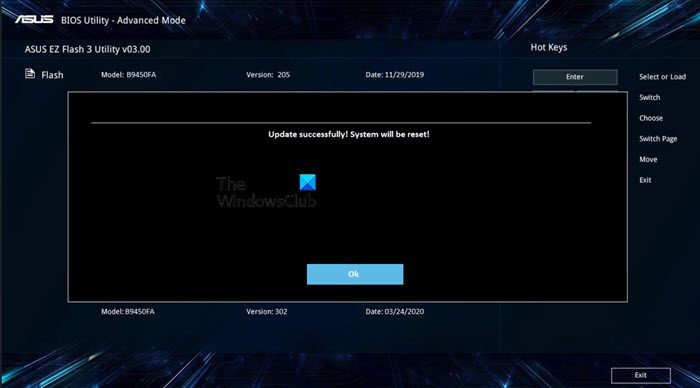
A BIOS update from your motherboard vendor fixes incorrect ACPI memory region definitions. The update removes the illegal write attempt completely.
To update your BIOS, first, open System Information and take note of the System Manufacturer and System Model. Next, visit the manufacturer’s support website to download the latest BIOS specifically for your model. Follow the vendor’s instructions for flashing the BIOS, which typically involves using a USB drive within the BIOS setup. After completing the update, reboot your system and check the Event Viewer for any errors.
2] Update the Chipset and the PCI Express Drivers
An outdated chipset driver or a PCI Express root port driver can misinterpret ACPI commands. Therefore, we need fresh drivers to correct the communication layer. To do so, follow the methods mentioned below.
- Update drivers from the manufacturing websites.
- Use a free driver update tool.
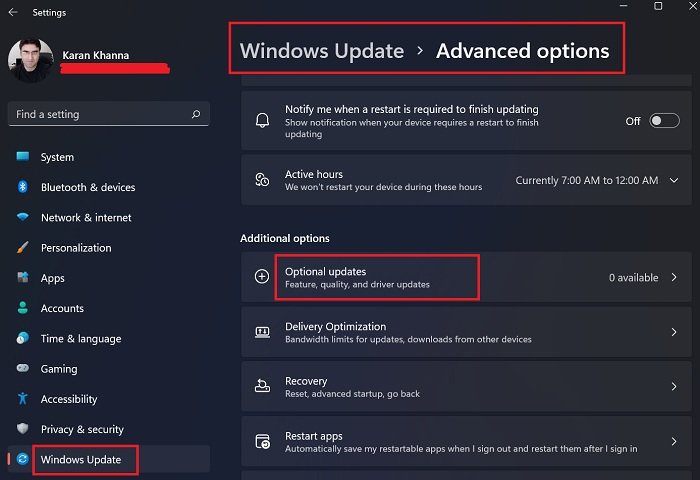
- Go to Settings > Windows Update > Driver and Optional Updates.
Now, check if the issue persists.
3] Disable the PCI Express Native Power Management in the BIOS
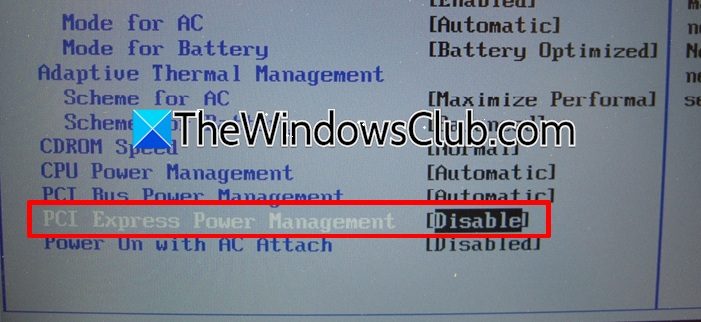
The ACPI error often links to PCIe power‑saving features (ASPM). Disabling native power management stops the BIOS from attempting those illegal register writes.
First, restart your computer and boot into BIOS.
Look for an option named PCI Express Power Management, ASPM, or Native ASPM. Now, set the option to Disabled.
Finally, save and exit.
Once your computer boots again, check the Event Viewer Log again and see if you see the same error message.
Read: ACPI wake alarm does not disable; How to disable it?
4] Modify the Power Plan to turn off PCIe Link State Power Management
Windows’ PCI Express Link State Power Management can trigger the buggy ACPI operation. Disabling this feature forces your system to avoid the problematic power transitions.
Follow the steps mentioned below to do the same.
- Open Power Options by searching for it from the Start menu.
- Go to Change plan settings, placed next to your active power plan.
- Select Change advanced power settings.
- Go to PCI Express > Link State Power Management.
- Set both On battery and Plugged in to Off.
- Click Apply > OK.
Finally, check if the issue persists.
Hopefully, with the help of these solutions, your issue will be resolved.
If none of the solutions work and the error causes no crashes or freezes, you can safely ignore it. However, if you experience blue screens or shutdown problems, contact your system vendor with the error details, exactly as the BIOS message recommends.
Read: Fix ACPI.sys Blue Screen on Windows 11
How to resolve an ACPI BIOS error?
To resolve ACPI BIOS error, update your motherboard’s BIOS/UEFI firmware first, as manufacturers fix incorrect ACPI memory region definitions in newer versions. Then update your chipset and PCI Express drivers through Device Manager. Disable PCI Express Native Power Management (ASPM) inside the BIOS settings. Alternatively, turn off PCI Express Link State Power Management in Windows 11’s advanced power plan options.
Also Read: ACPI BIOS ERROR or ACPI BIOS FATAL ERROR in Windows 11.
