
Event ID 10317 indicates that your Wi-Fi or network adapter cannot resume from a low-power state. You may notice sudden network drops, slow reconnections, or a yellow exclamation mark in Device Manager. In this post, we are going to see what to do if your Event Viewer log throws 10317 and says The miniport has failed a power transition to operational power.
Event 10317, NDIS
Miniport Microsoft Wi-Fi Direct Virtual Adapter has a Fatal error. The miniport has failed a power transition to operational power.
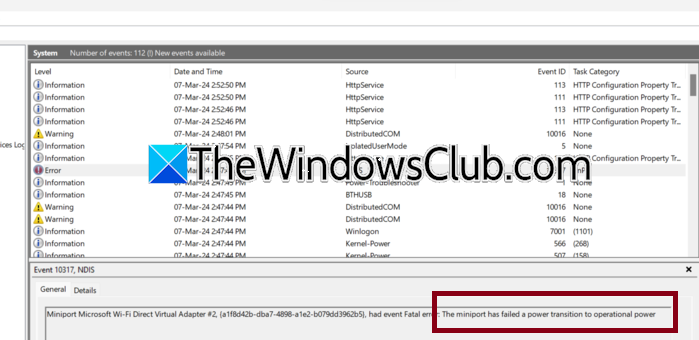
The miniport has failed a power transition to operational power, Event ID 10317
Windows 11 disables network adapters to save energy, but some drivers or hardware fail to wake up properly. A corrupted driver, outdated firmware, or conflicting power settings trigger the “fatal error.” The Microsoft Wi-Fi Direct Virtual Adapter often reports this because it handles virtual Wi-Fi connections (like hotspots or Miracast). Interference from other power-saving tools or a BIOS misconfiguration can also cause the miniport to stall during the power transition.
If the miniport has failed a power transition to operational power, follow the solutions mentioned below.
- Disable Power Saving for the Wireless Adapter
- Update or reinstall the Network Adapter
- Disable Wi-Fi Direct Virtual Adapter
- Reset the Entire Network Stack and Flush DNS
- Set Wireless Adapter Power Saving Mode to Maximum Performance
Let us talk about them in detail.
1] Disable Power Saving for the Wireless Adapter
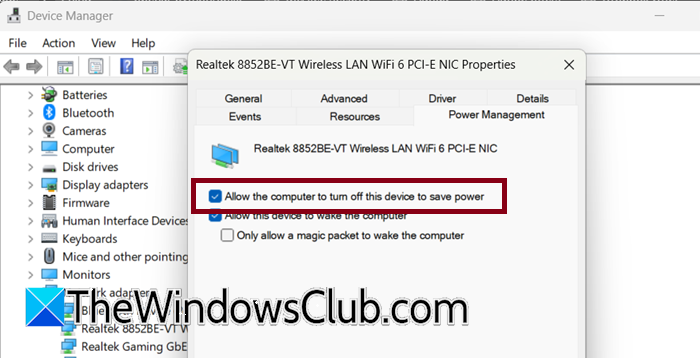
Turning off power management for the adapter stops Windows from sending sleep commands to your Wi-Fi hardware. Your adapter stays fully awake and ready, so it never has to struggle with a power transition again. To do the same, follow the steps mentioned below.
- Open the Device Manager.
- Now, expand Network adapters.
- Right-click your main Wi-Fi adapter (e.g., Intel, Realtek, Qualcomm) and choose Properties.
- Go to the Power Management tab.
- Then, uncheck Allow the computer to turn off the device to save power.
- Click OK.
Finally, reboot your computer and check if the issue persists.
2] Update or reinstall the Network Driver
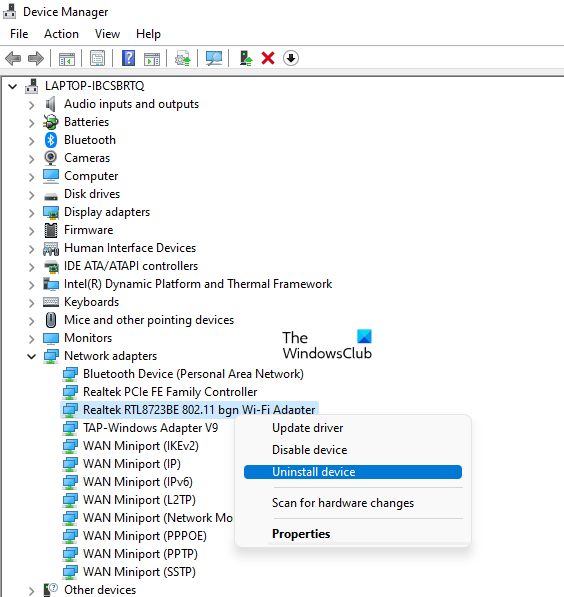
A fresh driver replaces any corrupted files or buggy power-handling code that came with the old one. Manufacturers constantly improve how their adapters wake from sleep, so a driver update often directly fixes this miniport error.
To uninstall the driver, open Device Manager, expand Network adapters, right-click on the driver, and select Uninstall driver. Then, check Delete the driver software for this device option.
Reboot your computer and then let Windows install a generic version of the driver.
Then, go to the manufacturer’s website, download and install the latest version of the driver.
3] Disable Wi-Fi Direct Virtual Adapter
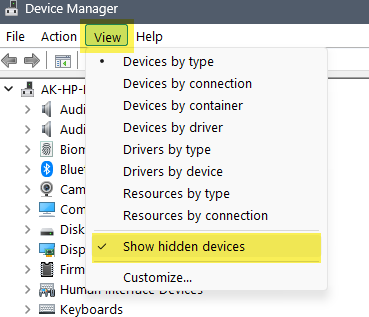
The virtual adapter runs in the background even when you don’t use Miracast or mobile hotspots, and its power management is notoriously flaky. Disabling it removes the exact component that logged the Fatal error without affecting your normal internet connection. To do the same, follow the steps mentioned below.
- Open Device Manager.
- Go to View > Show hidden devices.
- Now, expand Network adapters and locate Microsoft Wi-Fi Direct Virtual Adapter (may appear as #2, #3, etc.).
- Right-click it and select Disable device.
Confirm whether there are any warnings, reboot your computer, and finally check whether the issue persists.
4] Reset the Entire Network Stack and Flush DNS
Resetting your computer’s network software can help clear out outdated rules that may be preventing the Wi-Fi Direct adapter from waking up properly. Many users who followed this command sequence in an elevated Command Prompt found that the error stopped after they restarted their computer.
Open Command Prompt as an admin. To do so, open Run, type cmd, and hit Ctrl + Shift + Enter.
Then, run the following commands one after another, pressing Enter after each line.
ipconfig /flushdns

netsh winsock reset

netsh int ip reset
Now, reboot your computer and let it reset your network protocols.
5] Set Wireless Adapter Power Saving Mode to Maximum Performance
Windows sometimes throttles your Wi-Fi adapter even when you’re plugged into a power source, causing wake-up failures. Forcing the adapter to Maximum Performance, both on battery and while plugged in, removes those sleep interruptions entirely. Follow the steps mentioned below to do the same.
- Open Control Panel.
- Click on Hardware and Sound > Power Options.
- Then, click on the Change plan settings hyperlink.
- Go to Change advanced power settings.
- Scroll down and expand Wireless Adapter Settings > Power Saving Mode.
- Set On battery to Maximum Performance.
- Set Plugged in to Maximum Performance.
- Click Apply > OK.
Finally, reboot your system and check if the issue persists.
Hopefully, with the help of these solutions, your issue will be resolved.
Read: Network Adapter missing or not showing in Windows 11
Why does my Wi-Fi keep disconnecting after waking from sleep?
Your Windows 11 power settings may cause Wi-Fi disconnect after waking from sleep to save battery. This can cause the adapter to have trouble waking up, leading to the “miniport has failed a power transition to operational power” error. To fix this, follow these steps: Right-click the battery icon and select Power Options. Next, click on Change plan settings, then Change advanced power settings. Find Wireless Adapter Settings and set Power Saving Mode to Maximum Performance for both battery and plugged in. Finally, restart your PC.
How do I fix the “Miniport has failed a power transition” error in Windows 11?
If the miniport has failed a power transition, you need to resolve issues with your Wi-Fi or network adapter. We can try reinstalling the network adapter or the hidden virtual adapter. You need to follow the solutions mentioned earlier to fix this issue.
Also Read: WiFi Adapter disabled or hidden in Device Manager.
