
Event Viewer shows Kernel-Boot Event ID 29 when Windows 11 attempts fast startup but cannot complete the process. The error status 0xC00000D4 indicates a hibernation file read/write failure, often accompanied by the system logging an Unexpected shutdown (Event ID 6008). In this post, we will see what to do if Windows fails to start fast startup with error status 0xC00000D4.
Windows failed fast startup with error status (0xC00000D4)
Event ID: 29
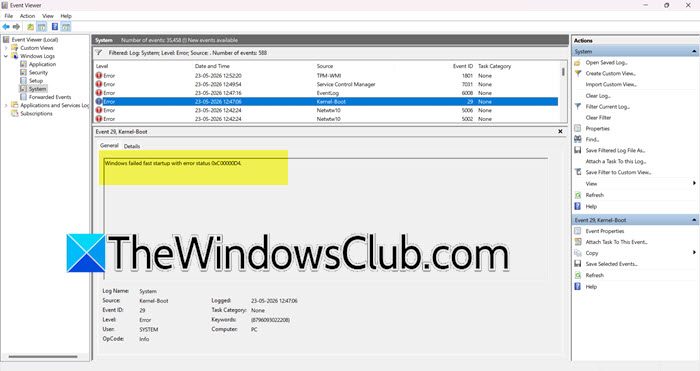
Windows 11 saves your kernel session and driver state to hiberfil.sys during shutdown. Error 0xC00000D4 means the system cannot restore that file on the next boot. Corrupted system files, a full system drive, outdated storage drivers, or conflicts with third‑party services (like TMA‑VM or Netstatv3 seen in your log) trigger this failure. Event ID 29 indicates that the boot loader found the hibernation file but failed to read or apply it, forcing a full, slow restart.
Windows failed fast startup with error status 0xC00000D4
If your Event Viewer says Windows failed fast startup with error status 0xC00000D4, follow the solutions mentioned below.
- Disable and re-enable Fast Startup via Control Panel
- Run SFC and DISM
- Free up space on your System Driver (C:)
- Update or Roll Back Storage Driver
- Permanently disable Hibernation and Fast Startup via Command Line.
Let us talk about them in detail.
1] Disable and re‑enable Fast Startup via Control Panel
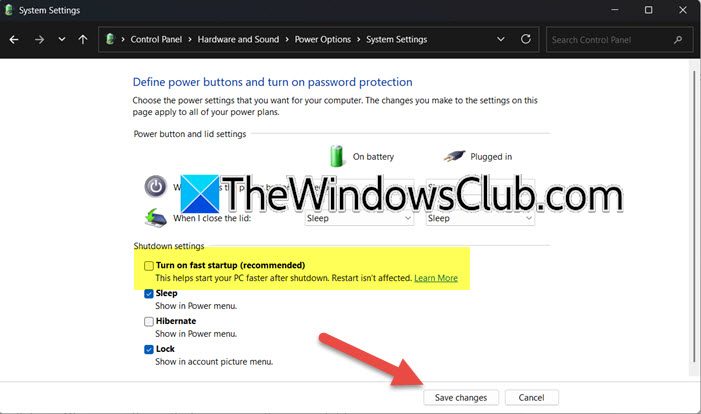
This resets the hibernation process, forcing Windows to regenerate hiberfil.sys and clear any corrupted session data that causes Event ID 29. To perform the reset, follow the steps mentioned below.
- Launch Control Panel.
- Then, go to Hardware and Sound > Power Options.
- Click on Choose what power button does.
- Click on Change settings that are currently unavailable.
- Then, untick Fast Startup and Save changes.
- Reboot your system, and enable Fast Startup.
Finally, check if the issue persists.
If this does not help, consider disabling Fast Startup entirely, since it offers little benefit on SSD systems and often causes instability.
2] Run SFC and DISM
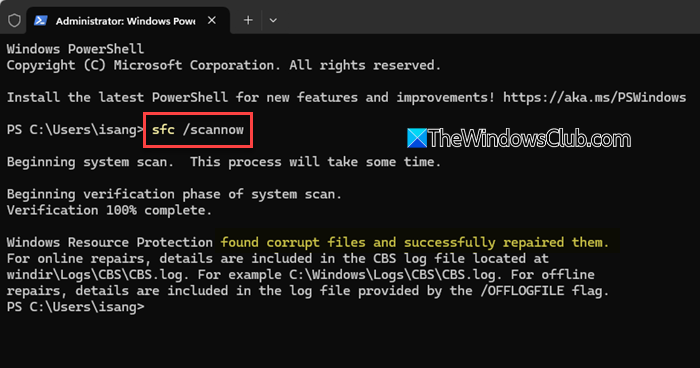
Corrupt system files (including boot or power management components) directly trigger error 0xC00000D4. SFC repairs them, while DISM fixes the Windows image itself.
Open Command Prompt as an administrator and then run the following command.
sfc /scannow
If SFC failed, run DISM using the command given below.
DISM /Online /Cleanup-Image /RestoreHealth
Once done, reboot your system and check the Event Viewer logs to see if you can find one related to Fast Startup.
3] Free up space on your System Drive (C:)
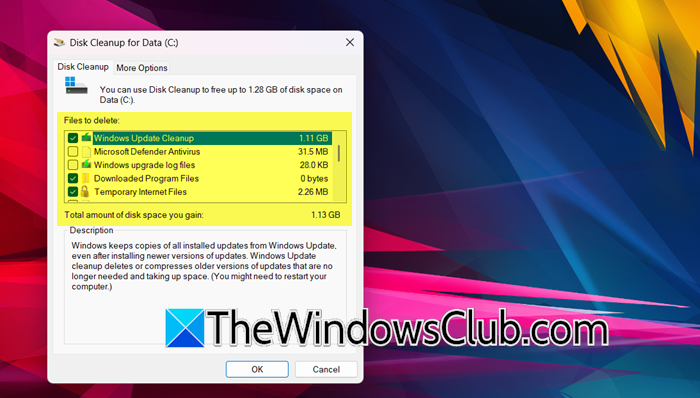
Fast startup requires several GB of free space to store hiberfil.sys. When your drive is nearly full, Windows fails to write the file, raising error 0xC00000D4.
We can use the Disk Cleanup tool for the same. First, open File Explorer, go to the C drive, right-click on it, and select Properties. If the free space is less than 10 GB, run Disk Cleanup. For that, type “Disk Cleanup” in Start, open the tool, and click on Clean up system files. Check Temporary files, Previous Windows installation, Delivery Optimization Files, and Recycle Bin, and then click OK.
Finally, restart your computer and check.
4] Update or Roll Back Storage Driver
Outdated or buggy storage drivers can fail to read the hibernation file on boot. Updating provides fixes; rolling back removes a recently installed problematic driver that caused Event ID 29. We can use Device Manager for this. Follow the steps mentioned below to do the same.
- Open Device Manager.
- Expand Disk drives and Storage controller.
- Right-click on your primary device (e.g., NVMe SSD) > Update driver.
- Click Search automatically for drivers.
- If the error began after a driver update, choose Properties > Driver tab> Roll Back Driver (if enabled).
- Restart your PC.
Finally, check if the issue persists.
5] Permanently disable Hibernation and Fast Startup via Command Line
If you don’t need fast startup, disabling it entirely avoids error 0xC00000D4 and the Event ID 29 log entry. Your PC will simply perform full shutdowns and boots.
Open Command Prompt as an administrator and then run the following command.
powercfg /h off
This deletes hiberfil.sys and disables fast startup.
Close the Command Prompt and then reboot your computer.
Disabling Fast Startup is a safe option recommended for SSD users, as it incurs no performance loss.
Hopefully, with these solutions, your issue will be resolved.
Read: Windows Updates may fail if Fast startup is enabled
How to bypass Fast startup?
To bypass or stop Fast Startup, open Control Panel > Power Options > Choose what the power buttons do. Click Change settings that are currently unavailable and uncheck Turn on fast startup. Save changes. Alternatively, hold the Shift key while clicking Shut down to perform a full shutdown and bypass fast startup temporarily.
Read: Turn on Fast Startup option missing in Windows 11
Is Fast startup just hibernation?
No, fast startup is a hybrid. It logs off all user sessions, then hibernates the kernel and drivers. Hibernation saves everything, including open apps and documents. Fast startup boots faster but doesn’t restore your unsaved work, unlike full hibernation.
Also Read: Fast Startup has stopped working on Windows 11.
