
Windows Fast Startup reduces boot times by combining shutdown and hibernation. When enabled, it saves the kernel session and device drivers to a hibernation file (hiberfil.sys), allowing for a quicker reboot. If Fast Startup fails, the system performs a full shutdown, indicated by a boot type of 0x0 in the Event Viewer, and resets the uptime counter in Task Manager after each shutdown. In this post, we are going to talk about this issue and see what you can do if Fast Startup has stopped working on Windows 11.
Fix Fast Startup has stopped working on Windows 11
Fast Startup is failing due to underlying system inconsistencies, such as corrupted hibernation files, misconfigured BIOS settings, or outdated drivers, which disrupt the boot optimization process. Even when hibernation appears functional, hidden issues in power plans, firmware, or registry overrides can silently force a full shutdown. In some cases, recent Windows updates or lingering bugs may also contribute to the failure, making diagnosis less straightforward.
If Fast Startup has stopped working in Windows 11/10, you need to follow the solutions mentioned below.
- Reset Hibernation and Fast Startup
- Clear the Prefetch folder
- Verify BIOS/UEFI and Power Settings
- Update Motherboard Drivers and BIOS
- Check Group Policy and Registry Settings
Let us talk about them in detail.
1] Reset Hibernation and Fast Startup
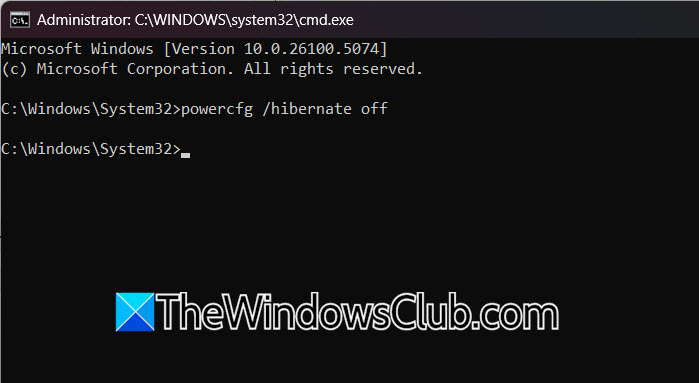
Disabling hibernation forcibly deletes the corrupted hiberfil.sys file. Re-enabling it forces Windows to generate a fresh, clean hibernation file, which Fast Startup requires to function properly. So, let us reset Hibernation and Fast Startup using some commands. Open Command Prompt as an administrator and then run the following commands.
powercfg /hibernate off
Now, reboot the computer. Once your system starts, run the following command to re-enable hibernation.
powercfg /hibernate on
Reboot the system again and check if the issue is resolved.
2] Clear the Prefetch folder
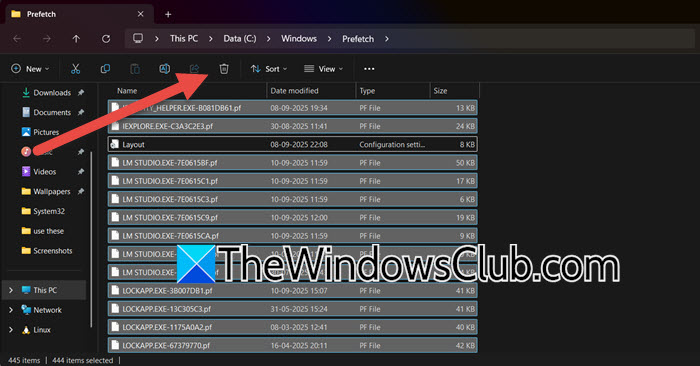
Follow the steps mentioned below to do the same.
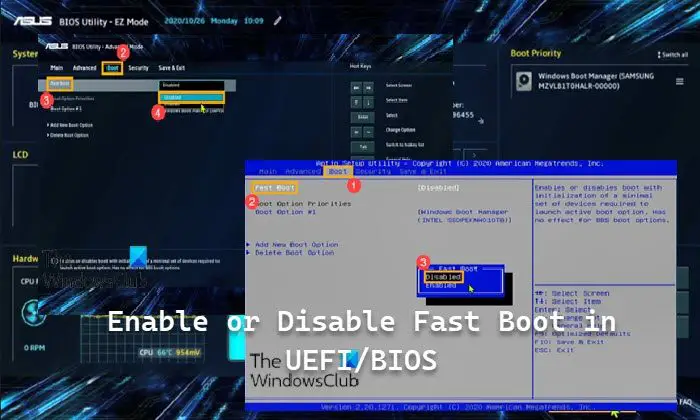
- First of all, boot into BIOS/UEFI.
- Ensure Fast Boot is enabled, set to Enabled or Ultra, not Disabled.
- Confirm SATA Mode is set to AHCI (not IDE or RAID).
- Finally, save changes and exit.
- Now, enable Fast Startup on Windows.
Finally, check if the issue is resolved.
4] Update Motherboard Drivers and BIOS
Old or faulty BIOS firmware and chipset drivers can cause problems that prevent the motherboard from managing low-power states and quick start-ups correctly. Updating these items ensures that your hardware and drivers can work well with Windows during the hybrid shutdown and boot process. Go ahead and update drivers first using one of the methods mentioned below.
- Download the latest version of the driver from the manufacturer’s website.
- Check for updates in Windows Drivers and Optional Updates.
- Install a Driver Updater Software to keep your drivers updated.
Now, check if the issue is resolved.
5] Check Group Policy and Registry Settings
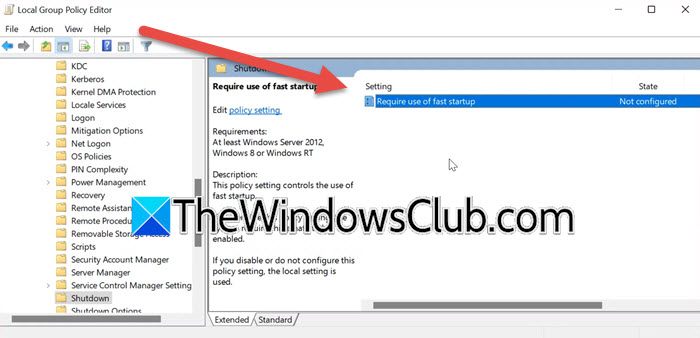
Group Policy can forcibly override the user’s Fast Startup setting, disabling it entirely. Additionally, incorrect values in the DumpFilters registry key can prevent the system from creating the hibernation file required for Fast Startup, forcing a full shutdown instead.
Open the Group Policy and then go to the following location.
Computer Configuration > Administrative Templates > System > Shutdown
Ensure Require the use of fast startup is set to Enabled or Not Configured.
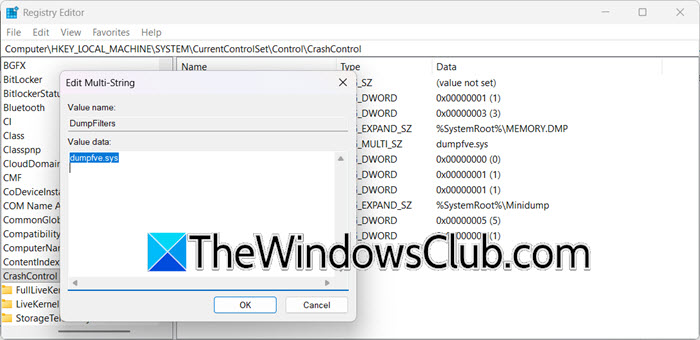
If you are on Windows 11 Home version, open the Registry Editor, create a registry backup, and go to the following location.
HKEY_LOCAL_MACHINE\SYSTEM\CurrentControlSet\Control\CrashControl
Ensure DumpFilters contains only dumpfve.sys (remove other values if present).
Hopefully, with the help of these solutions, your issue will be resolved.
Read: Force Windows to always boot using Fast Startup or Hybrid Boot
How to enable fast startup in Windows 11?
To enable Fast Startup in Windows 11, open the Control Panel, navigate to Power Options, and click Choose what the power buttons do on the left sidebar. Then, click Change settings that are currently unavailable, and under the Shutdown settings section, check the box next to Turn on fast startup (recommended). Finally, click Save changes to apply the new setting.
Read: Turn on Fast Startup option missing in Windows 11
Is fast startup bad for SSD?
No, Fast Startup is not bad for your SSD. While the feature does involve a small number of write operations to the hibernation file during each shutdown, the impact on the lifespan of a modern SSD is negligible. The convenience of faster boot times generally outweighs the minimal extra wear, and for most users, keeping it enabled is perfectly safe. However, if maximizing every bit of your SSD’s longevity is your absolute top priority, disabling it will eliminate those minor write cycles.
Also Read: How to enable or disable Fast Boot in UEFI/BIOS in Windows 11.
