
I started seeing a blank white window open every time I started or signed into my Windows computer. The blank white window appeared in the top-left corner, waited for 4-5 seconds, and then disappeared on its own.
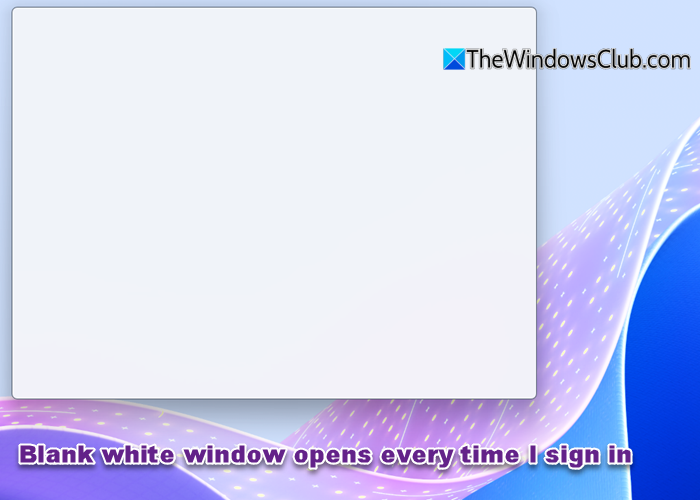
I had not installed any new programs or scheduled any new tasks to run, so I assumed that an update must have caused this issue. It must be some installed program running a scheduled task at startup or logon.
This issue is caused by a Scheduled Task belonging to Chrome browser, named RunPlatformExperienceHelperOnUnlock that is run by Google every time you unlock your computer.
What is RunPlatformExperienceHelperOnUnlock?
RunPlatformExperienceHelperOnUnlock is a scheduled background task created by Google Chrome that runs when you unlock your Windows PC. It runs Chrome’s Platform Experience Helper, which manages background interactions between Chrome and external components such as extensions, plugins, and update tasks. It starts the following process:
C:\Program Files\Google\Chrome\Application\PlatformExperienceHelper\platform_experience_helper.exe
Blank white window opens every time I start Windows 11/10
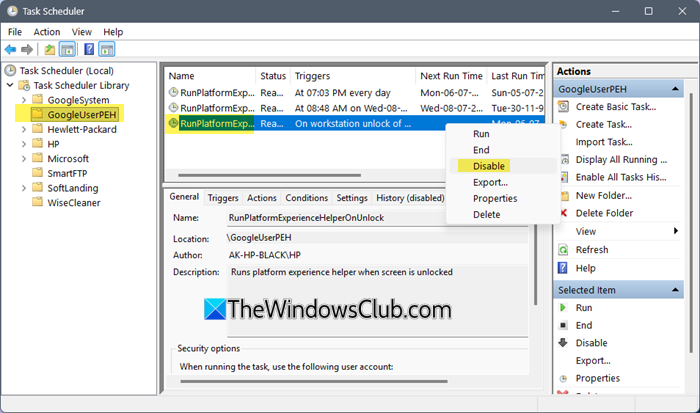
To stop the blank white window from appearing at startup, open Task Scheduler using the Search bar.
On the left side, expand Task Scheduler Library.
Select GoogleUserPH.
Now, on the right side, locate and select RunPlatformExperienceHelperOnUnlock.
Right-click on it and select Disable.
Restart your computer and you will find that the blank white window no longer appears.
Disabling this task may prevent Chrome background features, such as update helpers or extension sync, from working properly.
Do note, however, that this task will re-enable itself after every Chrome update.
So until Chrome issues an update to fix this, you will have to either live with this irritant or uninstall Chrome for now and switch to another Chromium-based browser like Edge.
Read:
- White or blank Screen issue in Google Chrome
- Black window keeps popping up and disappearing in Windows 11.
