
Google Chrome and other web browsers usually remember the last download location if the default save location is disabled. This also applies to apps or software we install on our system. However, some users are complaining that they have to select the download location in Chrome every time they save a file from the internet. This happens if Chrome does not remember the last download path. If you face such an issue, the solutions provided in this article will help.
Chrome does not remember the last download path anymore
Use the following fixes if Chrome does not remember the last download location:
- Update Chrome
- Check Chrome’s settings
- Disable all extensions
- Create a new Chrome profile
- Reset Chrome
- Uninstall and reinstall Chrome
Chrome does not remember the last Save as folder
1] Update Chrome
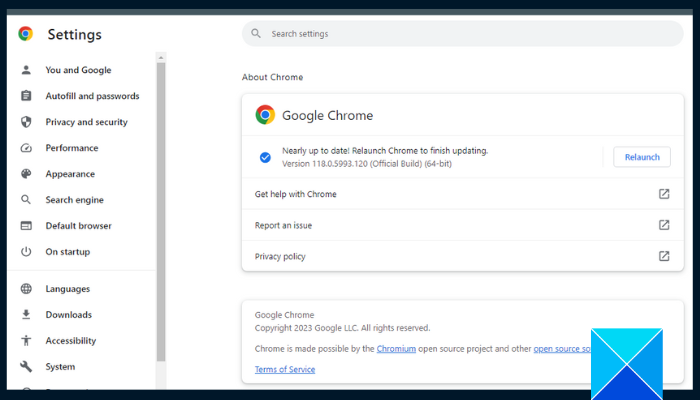
Make sure that you are using the latest version of Google Chrome. To update Chrome to the latest version, follow these steps:
- Launch Chrome.
- Click on the three dots on the top right side.
- Select Help > About Google Chrome. If an update is available, Chrome will start downloading and installing that update.
- After updating Chrome, you will see a Relaunch button. Click on that to apply the installed update.
2] Check Chrome’s settings
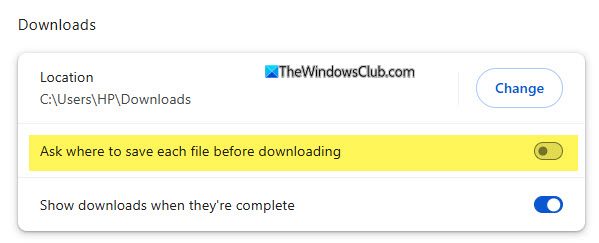
Open Chrome Settings and go to the Downloads section.
Make sure Ask where to save each file before downloading is turned off if you want it to always use the same folder.
You can also set your preferred folder under “Location” if you wish.
3] Disable all extensions
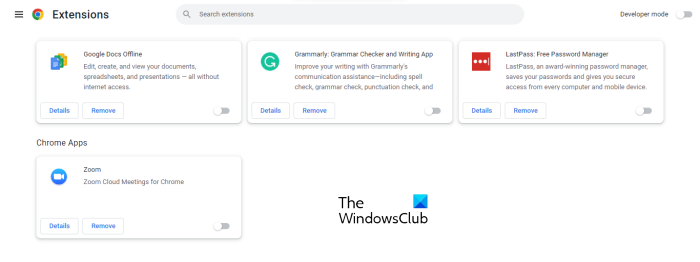
If the issue persists after updating Chrome or Chrome is already up to date, the problem could be due to an installed extension. To confirm this, disable all the installed extensions. After that, check if the issue persists. If not, your next step will be to identify the problematic extension. For this, enable one extension at a time and download a file. Repeat this step until the issue reappears. When the issue occurs again, the extension you have just enabled is the culprit. Now, remove that extension and find its alternative.
4] Create a new Chrome profile
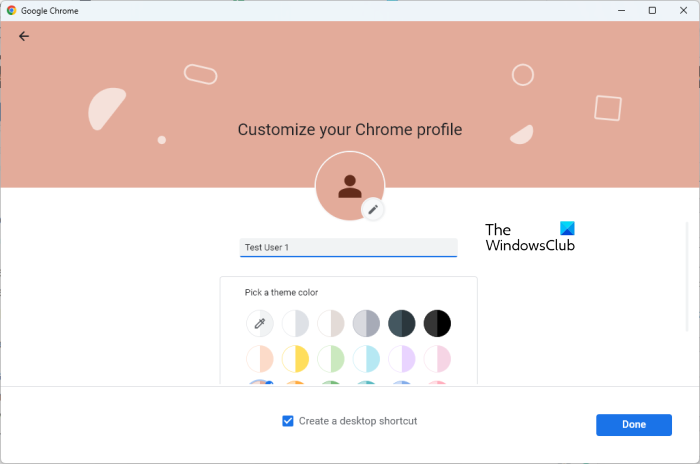
The problem might be associated with your Chrome profile. To confirm that, create a new Chrome profile. Now, launch the new Chrome profile and check if the issue occurs. If this works, your previous Chrome profile might have been corrupted. In this case, you can log in to the new profile with the same email to sync all your bookmarks, browsing history, and extensions. After that, delete the previous profile.
6] Reset Chrome
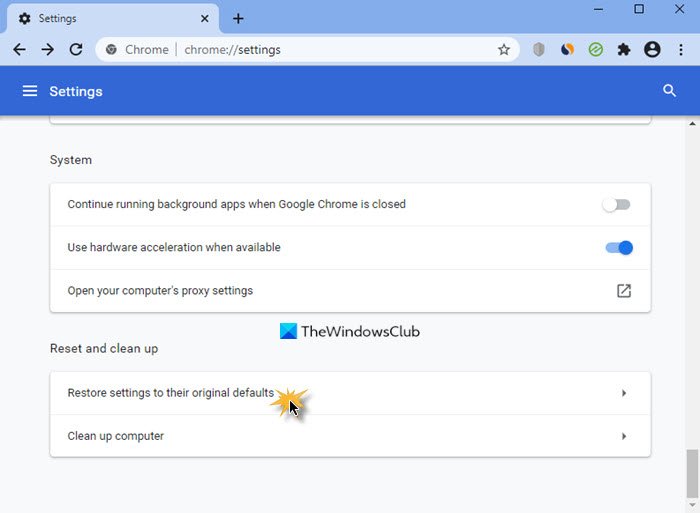
You can also reset Chrome to the factory default state. This step usually fixes issues with Google Chrome. Try this and see if it helps. Before resetting Chrome, sign in with your Google account, so all your bookmarks, extensions, and browsing history will sync to the cloud. If you use Chrome as a Guest user, you will lose all your bookmarks and extensions after reset.
6] Uninstall and reinstall Chrome
If the issue persists even after trying all fixes explained in this article, the last resort is to uninstall and reinstall Chrome. Restart your system after uninstalling Chrome. Now, download its latest version from the official website and install it again.
That’s it. I hope this helps.
How do I change the path of Downloads in Google Chrome?
By default, the Downloads folder is selected as the download path in Chrome. You can change it in Chrome settings. Go to the Downloads page in Chrome settings and click the Change button. Now, select the location to save your files. If you want Chrome to ask for the download location every time you download a file, enable the “Ask where to save each file” option.
Why is Chrome not asking to save downloads?
If Google Chrome is not asking to save downloads, its settings might have been misconfigured. Open Chrome Settings and go to the Downloads page to confirm this. If the “Ask where to save each file” option is turned OFF, turn it ON.
Read next: Chrome tabs open or reload automatically in Windows.
