
A Chrome update can sometimes cause compatibility problems with websites, extensions, or applications. In such cases, you can install an earlier version of Chrome or use Google Update policies to roll back Chrome in an enterprise environment. This guide shows you how to downgrade Google Chrome to an older version on a Windows 11/10 PC.
Before proceeding, note that using an older version of Chrome can leave your PC without the latest security fixes and may expose it to known vulnerabilities. Only downgrade Chrome when necessary, and update it to the latest available version once you have resolved the issue.
How to downgrade Chrome version on Windows computer
To downgrade the Chrome version on a Windows 11/10 PC, follow any of these methods:
- Use an older version of Chrome
- Use Group Policy
Let’s look at these methods in detail.
1] Downgrade Chrome using an older version
One way to downgrade Chrome on a personal Windows PC is to uninstall the current version and install an older version of Chrome.
Google does not provide older versions of Chrome through its standard download channels. You may find older Chrome installers on third-party software archives such as FileHippo.com. However, these are not official Google distribution channels, so verify the source and file integrity before downloading an older version of the browser.
Step 1: Download the older version of Chrome
Locate and download the Chrome version you want to install from a trusted source. Save the installer to your computer.
Step 2: Back up your Data
Before uninstalling Chrome, back up your important browser data to prevent data loss.
- Sync your settings: Open Chrome, click the Profile icon at the top-right corner of the window, and select Turn on sync. This syncs your bookmarks, passwords, history, and other settings with your Google Account.
- Manual backup: You can also manually export your Chrome bookmarks and back up your passwords and other data before proceeding with the downgrade.
Step 3: Uninstall the current version of Chrome
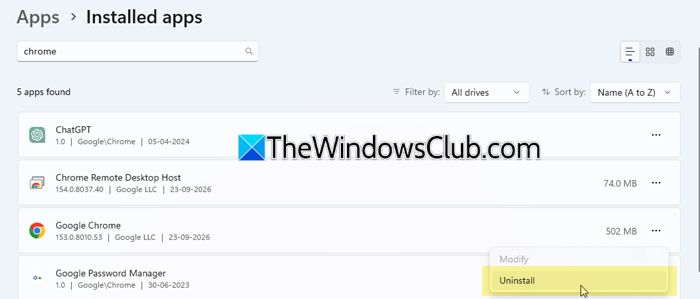
Press Win + I to open Settings. Go to Apps > Installed apps. Search for Google Chrome.
Click the three-dot menu next to Google Chrome and select Uninstall. Follow the on-screen instructions to remove Chrome.
Step 4: Prevent Chrome from automatically updating
Before installing the older version, temporarily disable Chrome’s automatic updates to prevent it from updating to the latest version immediately.
- Press Win + R, type services.msc, and press Enter. In the Services app, locate Google Update Service (gupdate) and Google Update Service (gupdatem). Double-click each service and set Startup type to Disabled. Click Apply and then OK.
- Press Win + R, type taskschd.msc, and press Enter. In Task Scheduler, go to Task Scheduler Library > GoogleSystem > GoogleUpdater. If you see any tasks listed, right-click them and select Disable.
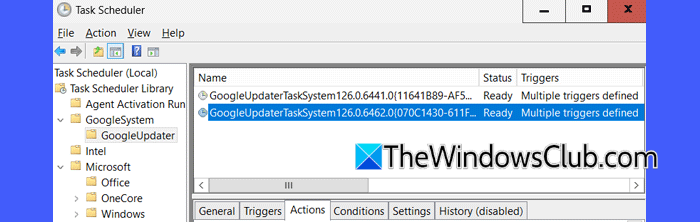
Note: Disabling auto-updates prevents software fixes and security patches from being applied to the Chrome browser. If you must downgrade Chrome, re-enable updates as soon as possible.
Step 5: Install the older version of Chrome
After you uninstall the current version, open the downloaded Chrome installer and follow the on-screen instructions to install the older version.
After installation, open Chrome and go to Settings > About Chrome to confirm the installed version.
2] Downgrade Chrome using Group Policy
Administrators using Chrome in an enterprise environment can use Google Update policies to control Chrome updates and roll back Chrome to an earlier version. Before proceeding, turn on Chrome sync for all users in your organization.
Step 1: Install the Google Chrome policy templates
Download the official Google Update policy templates and instructions from the Chromium Policy Templates page by clicking here, and install them on your system.
Step 2: Temporarily disable Chrome automatic updates
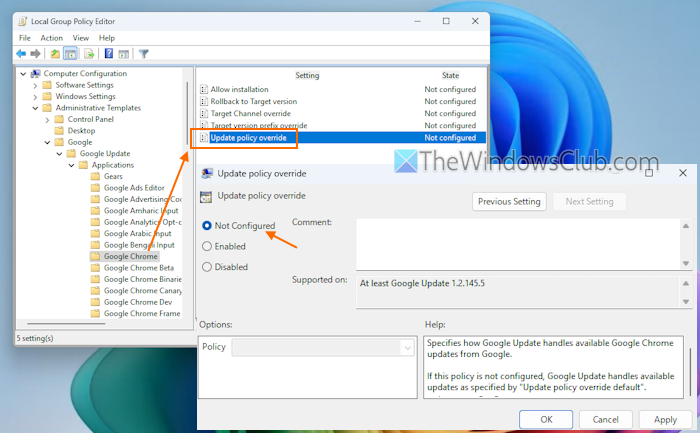
Press Win + R, type gpedit.msc, and press Enter.
- In Group Policy (Computer Configuration folder), go to Google > Google Update > Applications > Google Chrome.
- Turn on Update policy override.
- Under Options, choose Updates disabled.
- Click Apply and then OK.
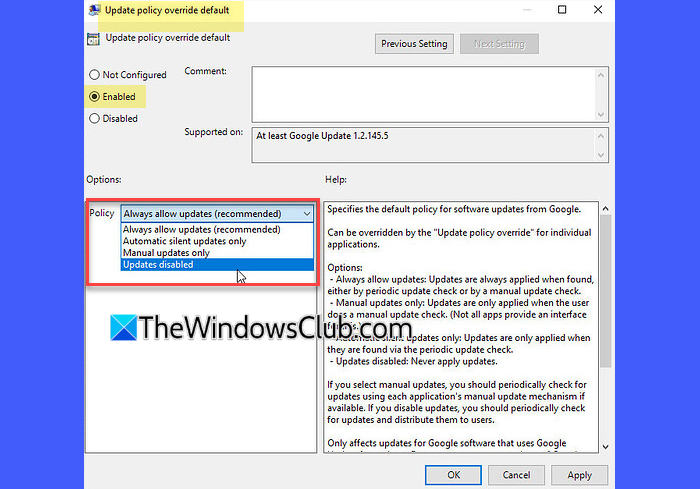
Note: Re-enable automatic updates after the issue has been resolved so that Chrome can receive the latest security and stability updates.
Step 3: Roll back Chrome to the previous version
To downgrade Chrome to the 3 latest major releases, use the following policy:
Open Group Policy Editor. Navigate to Google > Google Update > Applications > Google Chrome.
- Enable Rollback to Target version.
- Enable Target version prefix override. Under Options, enter the release number of the major version of Chrome you want to roll back to. For example, enter 89. to roll back to the latest release of version 89. Click OK.
To downgrade to earlier Chrome Browser versions, follow the steps below:
Download the official Google Chrome MSI installer for enterprise and bulk deployments from the Chrome Enterprise Download page here.
Open a command prompt. To downgrade to the version that you last installed using the MSI file, run:
msiexec /fvomus GoogleChromeStandaloneEnterprise.msi ALLOWDOWNGRADE=1
Otherwise, run:
msiexec /i GoogleChromeStandaloneEnterprise.msi ALLOWDOWNGRADE=1
If the MSI file is in a different folder, replace the file name with its full path.
Relaunch Chrome on a Windows computer and check the version to make sure the downgrade was successful. Make sure all your users relaunch Chrome on their Windows computers after the downgrade is complete.
That’s all!
Read: Google Chrome won’t update; Stuck at 50 on Windows.
How do I go back to the old version of Chrome?
You can go back to an older version of Chrome by uninstalling the current version and installing an older Chrome installer. For managed devices, administrators can also use Google Update policies to roll back Chrome.
Read: How to downgrade Microsoft Edge in Windows 11
Can I download an old version of Chrome for Windows 7 32 bit?
Chrome 109 is the last version compatible with Windows 7, including 32-bit systems. However, Chrome 109 no longer receives security updates, so you shouldn’t use it for regular browsing where security matters. For a more modern, actively updated Chromium-based browsing experience on Windows 7 32-bit, consider alternative browsers such as Supermium.
Read Next: How to manually update Chrome, Edge, Firefox, Opera on Windows.
