
Browser updates usually include security fixes, performance improvements, and new features. However, sometimes a new version can cause compatibility issues or disrupt your browsing experience. In such cases, you may need to temporarily roll back the browser to an earlier version. In this guide, we will show you how to downgrade Microsoft Edge to an older version on a Windows 11/10 PC.
Note: Running an older browser version can expose your PC to known security vulnerabilities. Downgrade your browser only when necessary, and update it again once the issue is resolved.
How to downgrade Microsoft Edge in Windows 11
To downgrade the Edge version on a Windows 11/10 PC, you have two methods:
- Use an MSI installer
- Use Group Policy
Let’s look at these methods in detail.
1] Downgrade Microsoft Edge using an MSI installer
Microsoft introduced a rollback feature that enables Edge to revert to an earlier version by installing an MSI package. The feature was primarily intended for organizations, but if you are using a personal Windows PC with a supported Windows edition, you can also use this method to roll back Edge to an earlier version when needed.
Note:
- This method requires Local Group Policy Editor, which is not available in Windows Home. If you are using Windows 11/10 Pro, Enterprise, or Education, you can follow the steps below.
- Before proceeding, enable Sync in Edge to reduce the risk of losing browsing data.
Step 1: Download and install Microsoft Edge policy templates
Microsoft provides administrative template files that allow you to configure Edge and Edge Update policies through Group Policy. The package contains two important templates: msedge.admx, which controls Microsoft Edge settings, and msedgeupdate.admx, which controls Microsoft Edge Update settings.
To install the templates on your Windows 11/10 PC, follow these steps:
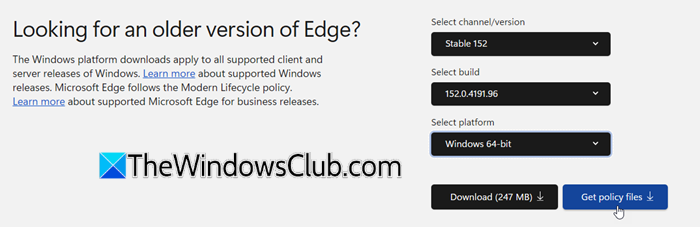
Go to the Microsoft Edge for Business website using this link. Scroll down to the section titled “Looking for an older version of Edge?“.
- Under Select channel/version, select the required Edge channel and version.
- Under Select build, select the required build.
- Under Select platform, select Windows 64-bit.
Click Get policy files.
Once the download is complete, open the downloaded ZIP file and extract its contents to a convenient location.
Open the extracted MicrosoftEdgePolicyTemplates folder, navigate to windows\admx
Copy the following files:
msedge.admx
msedgeupdate.admx
Next, navigate to C:\Windows\PolicyDefinitions
Paste the two .admx files into this folder.
Next, go back to the extracted admx folder and open the language folder that matches your Windows language. For example, en-US.
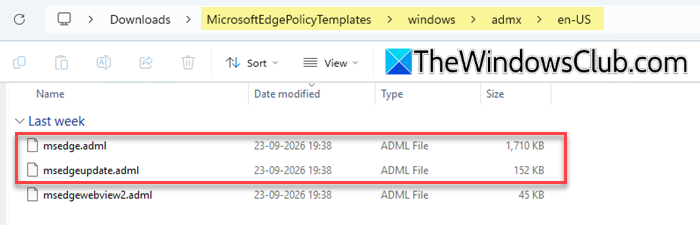
Copy the following files:
msedge.adml
msedgeupdate.adml
Next, open the corresponding language folder under C:\Windows\PolicyDefinitions and paste the two .adml files there.
Step 2: Disable Microsoft Edge updates
Before installing the older version of Microsoft Edge, you need to temporarily disable Edge updates. This prevents Microsoft Edge from immediately updating to the latest version after you complete the rollback.
Press Win + R to open the Run dialog box. Type gpedit.msc and press Enter.
In the Local Group Policy Editor, navigate to:
Computer Configuration > Administrative Templates > Microsoft Edge Update > Applications > Microsoft Edge
On the right side, double-click Update policy override. Select Enabled.
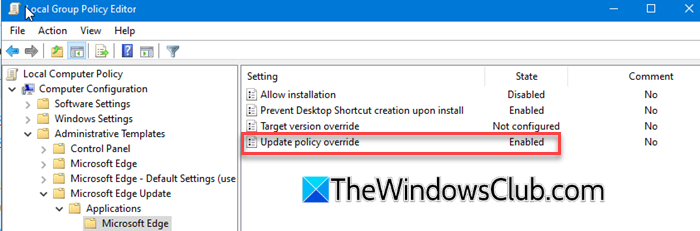
Under Options, select Updates disabled from the drop-down menu. Click Apply, and then click OK.
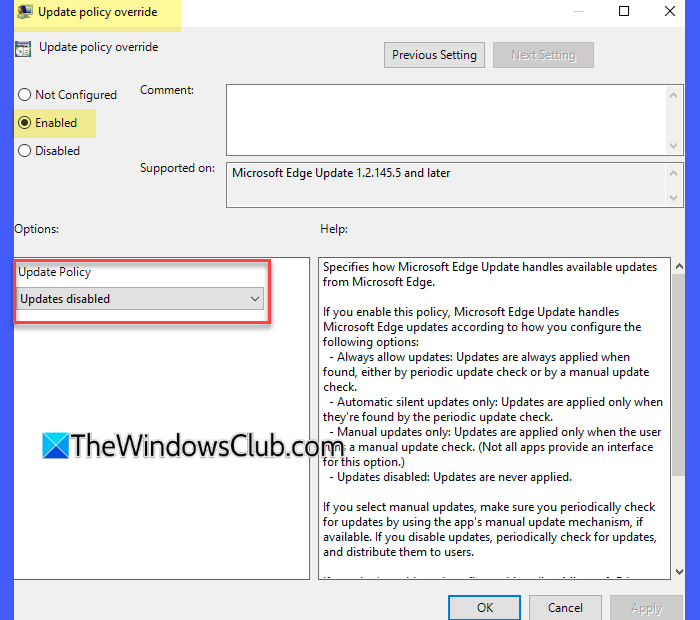
Note: After troubleshooting, restore the update policy so Edge can receive future security and feature updates. Microsoft recommends using the latest version of Edge whenever possible because rolling back to an earlier version can expose your PC to known security issues.
Step 3: Download the older version of Microsoft Edge
Go to the Microsoft Edge for Business website. Select the required channel/version, build, and platform under the “Looking for an older version of Edge?” section, and click Download.
Click Accept and download when prompted.
This downloads the MSI installer for the selected Edge version on your system. Save the MSI to your desktop.
Step 4: Roll back to the previous version of Microsoft Edge
Press Win + R, type cmd, and press Ctrl + Shift + Enter to open Command Prompt as administrator. Then run the following command:
C:\Users\username\Desktop\test>msiexec /I FileName.msi /qn ALLOWDOWNGRADE=1
Replace C:\Users\username\Desktop\test with the path to the MSI you downloaded, and FileName with the name of the .msi file. Press Enter and wait for the installation to complete.

Once the installation finishes, open Microsoft Edge and check its version to confirm that the browser has been rolled back.
2] Downgrade Microsoft Edge using Group Policy
If your Windows PC is joined to a Microsoft Active Directory domain, you can use Group Policy to roll back Microsoft Edge to a specific version.
Note: This method also requires the Microsoft Edge policy templates to be installed on your system. Refer to the previous section ( Step 1) to download and install them on Windows 11/10.
Press Win + R, type gpedit.msc, and press Enter. This opens the Local Group Policy Editor.
Navigate to:
Computer Configuration > Administrative Templates > Microsoft Edge Update > Applications > Microsoft Edge
Double-click Roll back to Target version. Select Enabled, and click Apply > OK.
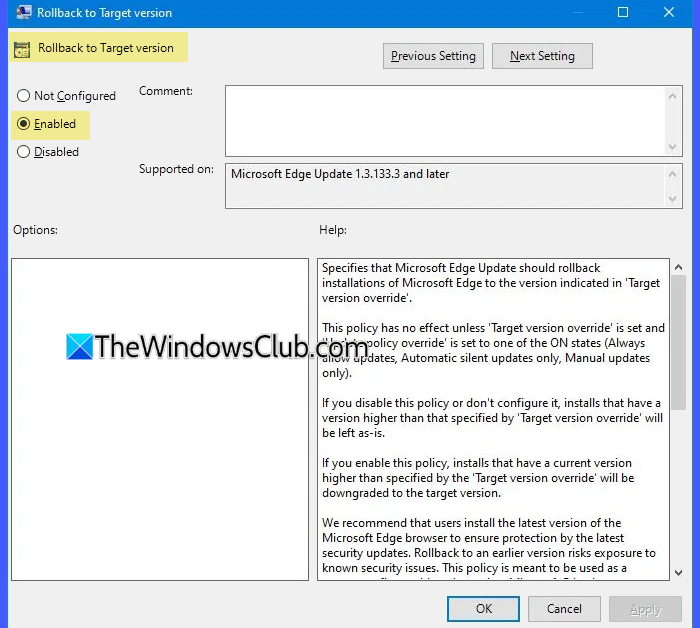
Next, double-click Target version override. Select Enabled. Under the Options section, enter the Microsoft Edge version you want to roll back to in the Target version field. Then click Apply > OK.
Next, double-click Update policy override, select Enabled, and choose Always allow updates or Automatic silent updates only under Options. Click Apply, then OK.
To apply the policy immediately, open Command Prompt as administrator and run:
gpupdate /force
Wait for Microsoft Edge Update to check for updates. The browser should then roll back to the target version.
Note: If you want to use an older website or web application that requires Internet Explorer, you do not necessarily need to downgrade Microsoft Edge. Edge includes Internet Explorer (IE) mode, which uses the Internet Explorer 11 engine to load websites that require legacy compatibility. See our detailed guide on how to enable Internet Explorer Mode in Microsoft Edge.
That’s all! I hope you find this useful.
Read: Microsoft Edge not updating in Windows 11.
How do I install an older version of Edge?
You can install an older version of Edge by downloading its MSI installer and using it to roll back the browser. On supported enterprise devices, you can also use Microsoft Edge rollback policies to install an earlier version.
Read: How to downgrade Chrome version on Windows computer
Can I uninstall Microsoft Edge and then reinstall it?
Yes, you can uninstall and reinstall Microsoft Edge, but with automatic updates enabled, the reinstall will generally install the latest available version of Edge. If you want to install an older version, follow the steps in this guide to downgrade Microsoft Edge on Windows 11/10.
Read Next: List of best alternative web browsers for Windows.
