
If the Copilot sidebar in Edge is not working or keeps disappearing on a Windows 11 PC, you can enable Copilot in Edge using Edge settings, Registry or Group Policy Editor.
Why is Copilot sidebar in Edge not working?
If the Copilot sidebar in Edge is not working, these are the reasons:
- Copilot is disabled in the Edge browser.
- You have blocked Copilot using Group Policy and the Registry Editor.
- The sidebar is disabled in Edge.
- Copilot can’t fetch your account details.
- Your browser profile has issues.
- Copilot isn’t available in your region or language.
Copilot sidebar in Edge not working
If the Copilot sidebar in Edge is not working or keeps disappearing, follow these instructions to fix the issue:
- Check keyboard shortcut
- Sign out and sign in again
- Verify Edge settings
- Update Edge browser
- Check Group Policy and Registry settings
- Disable all extensions
- Reset browser
- Create another Edge profile.
Let’s check out these solutions in detail.
1] Check keyboard shortcut
This is the first thing you must check if you are unable to open the Copilot sidebar using a keyboard shortcut. The default keyboard shortcut is “Ctrl+Shift+.” – however, if this shortcut is occupied by another program or task, you won’t be able to open the Copilot sidebar using the same.
That is why we suggest checking all keyboard shortcuts. If you use a keyboard shortcut remapper program, check all the settings in that tool.
Read: How to remap Keyboard Shortcuts in Windows 11
2] Sign out and sign in again
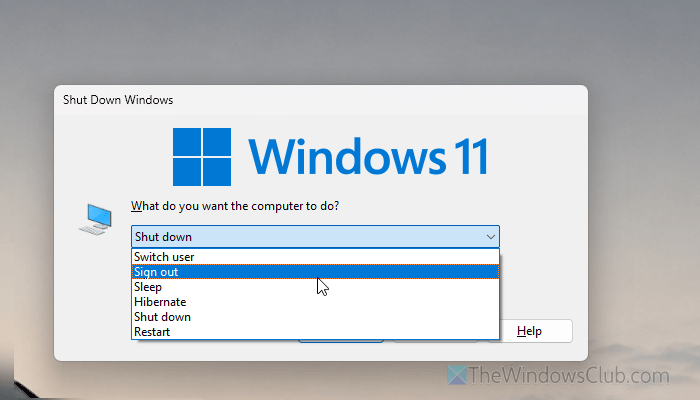
Sometimes, this problem can happen when other apps conflict with each other. That is why we suggest signing out of your Windows user account and signing back in. It will help you close those background apps.
You can also restart your computer.
3] Verify Edge settings
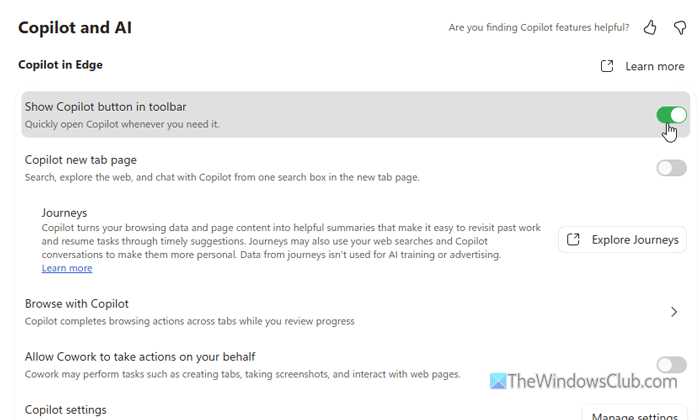
You must enable Copilot in Microsoft Edge. Otherwise, the sidebar won’t appear. To verify that setting, follow these steps:
- Open Microsoft Edge and go to the Settings wizard.
- Switch to the Copilot and AI section.
- Find Show Copilot button in toolbar and toggle it to turn it ON.
Then, you can click on the Copilot icon to open the sidebar or use the keyboard shortcut.
Read: How to use Copilot in Microsoft Edge
4] Update Edge browser
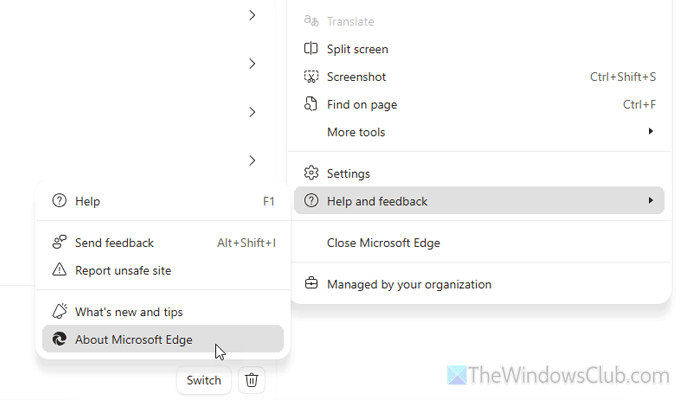
If you haven’t updated your browser in a long time, you may run into this problem. To update the Edge browser, click on the three-dotted icon visible on the top-right corner > Help and feedback > About Microsoft Edge.
If an update is pending, it will download and install automatically. Finally, restart your browser.
Read: How to update individual components of Microsoft Edge browser
5] Check Group Policy and Registry settings
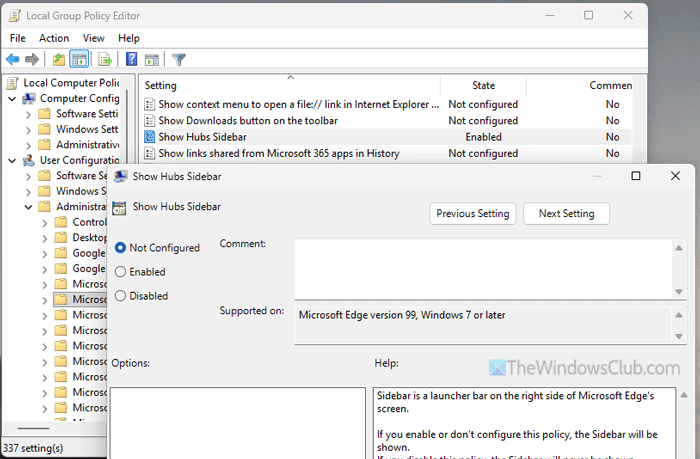
If you installed the Group Policy template for Microsoft Edge and tweaked a few settings, check them. There is a setting named Show Hubs Sidebar that controls whether the sidebar is shown or hidden.
To verify that, open the Local Group Policy Editor and navigate to this path:
User Configuration > Administrative Templates > Microsoft Edge
Double-click on the Show Hubs Sidebar setting and choose the Not Configured option. Then click OK to save the change.
You can also enable or disable this setting using Registry Editor.
To verify this setting in the Registry Editor, open the Registry Editor on your computer and navigate to this path:
HKEY_CURRENT_USER\Software\Policies\Microsoft\Edge
Right-click on the HubsSidebarEnabled REG_DWORD value and delete it.
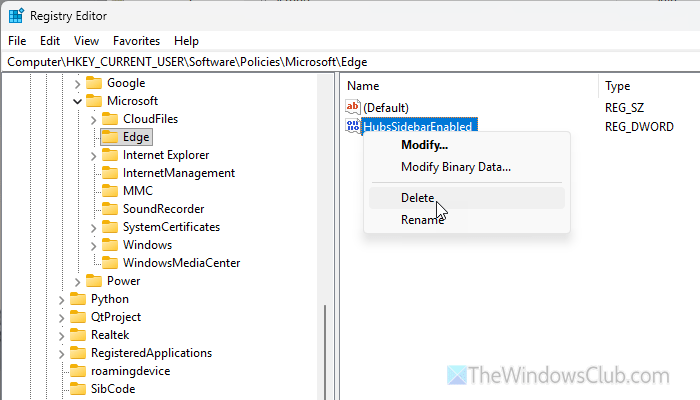
Finally, restart your computer.
Read: How to disable Copilot button in Edge
6] Disable all extensions
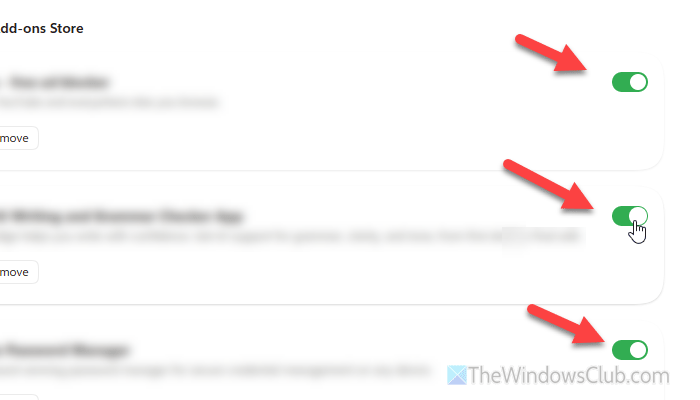
Copilot might create a conflict with another extension. This is common for users who often use browser-based VPNs, security, proxy, AI, and other extensions. If you use any such extension, we suggest disabling it.
For that, go to the Extensions section from the Edge Settings panel. Then, find the add-ins mentioned above and toggle the corresponding buttons to turn them OFF.
Note: You can enter edge://extensions/ in the address bar to directly open the Extensions panel.
8] Reset browser
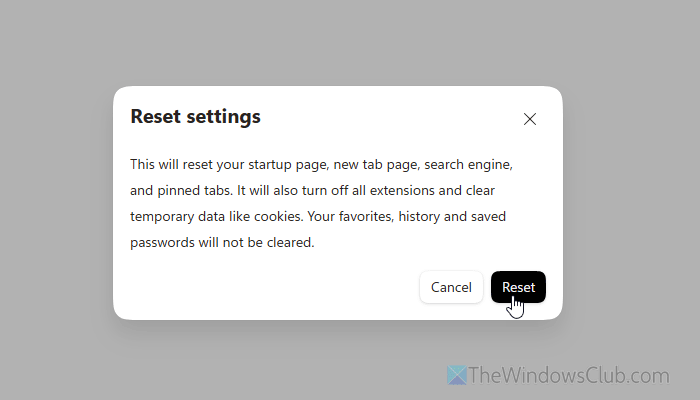
To reset Edge, open the Settings panel and go to the Reset settings tab. Select Restore settings to their default values, then click Reset.
Once done, don’t forget to enable Copilot in the Edge browser by following the second solution on this list.
5] Create another Edge profile
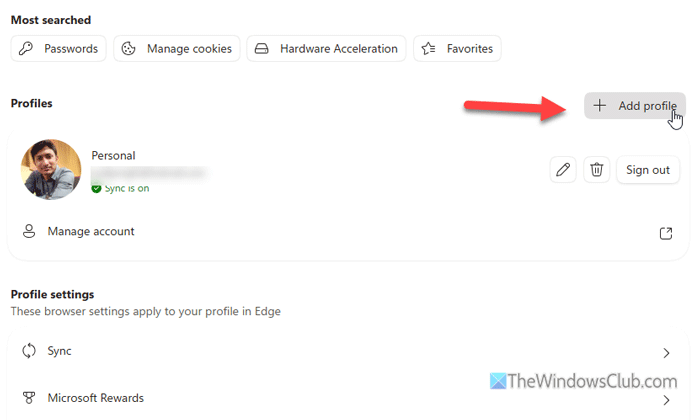
This problem can happen if your Edge profile has internal issues. This can happen when you sign in to multiple computers with the same account.
That is why we suggest creating a new Edge profile and trying the Copilot sidebar only in that profile.
To create a new profile in the Edge browser, go to the Profiles section and click on the Add profile button.
Then, click the Add button again in the pop-up panel. A new browser window will open. Click on the Start without your data button.
Then click the Copilot icon in the top-right corner and sign in to your Microsoft account.
Hope this works for you.
How do I enable Copilot Mode in Microsoft Edge?
To enable Copilot Mode in the Microsoft Edge browser, open the Edge Settings and go to the Copilot and AI tab. Then, toggle the Copilot new tab page button to turn it ON.
How do I turn on Microsoft Copilot?
To open Microsoft Copilot on desktop, search for it or press “Win+C“. To open Copilot in Edge, press “Ctrl+Shift+.“.
Read: How to enable, disable, use Copilot Actions in Windows 11.
