
In this tutorial, we will show you how to enable, disable, and use Copilot Actions in Microsoft Edge (or Actions in Edge) on a Windows 11 PC. This new feature lets you instruct Copilot to perform simple tasks, such as book an appointment, open a website, navigate to a webpage currently opened in a tab in your Edge browser, compose and send an email to a particular email address, edit the current webpage, and more. Depending on the nature of the request, Copilot will operate in the background tab or a new tab.
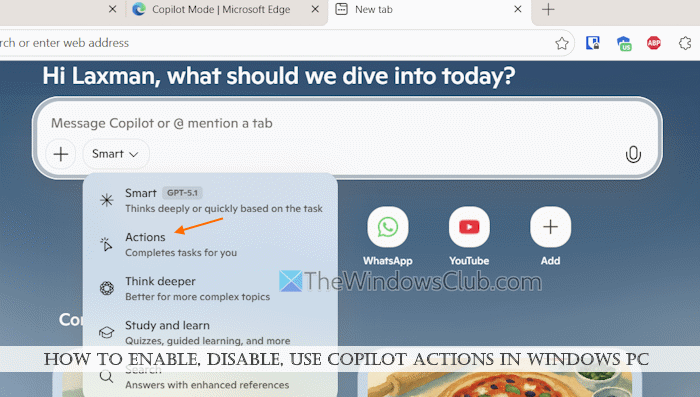
Currently, the Actions in Edge feature is available in preview as an opt-in experience for Windows Insiders (excluding EEA users) and is no longer accessible in the Copilot app or on copilot.microsoft.com. It works on most sites and webpages (excluding policy-based sites).
In addition, you can control when Copilot can access sites and when it should ask for your permission (e.g., when buying an item, deleting an event from your calendar, sending an email, buying groceries, etc.). You can also manage URLs that can be accessed by Actions in Edge.
How to enable Copilot Actions in Edge on Windows 11?
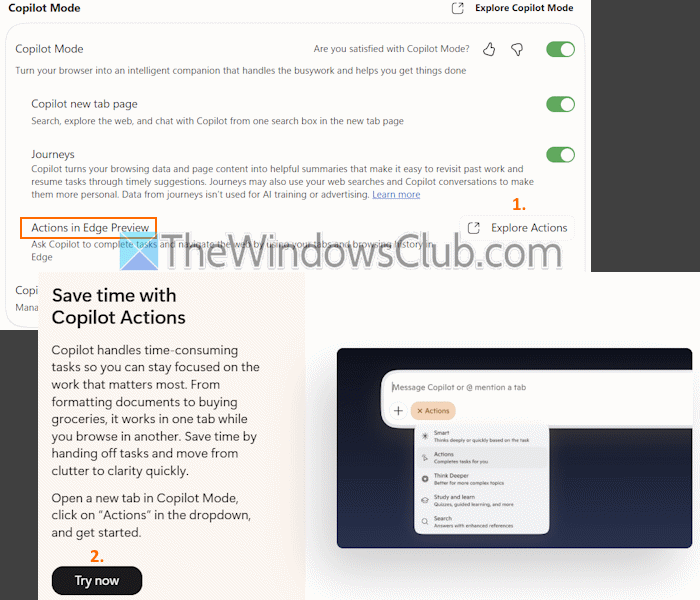
Here are the steps to enable Copilot Actions in Edge on a Windows 11 PC:
- Open the Microsoft Edge browser
- Press the Alt+F hotkey and select Settings
- Access the AI innovations page in Edge Settings
- Turn on or enable Copilot Mode in Edge. You won’t be able to access and use the Actions in Edge feature if Copilot Mode is turned off
- Look for the Actions in Edge Preview option and click on the Explore Actions option. A new tab will open
- If the Copilot Actions feature is available in your region and there’s no waitlist, you can click on the Try now button to activate it. If the feature is not available yet, press the Join Waitlist button and provide your region and email address.
This will turn on or enable Actions in Edge with default settings.
How to disable Copilot Actions in Edge on Windows 11?
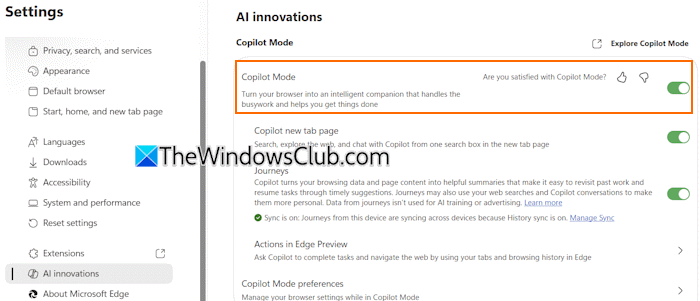
As of now, there’s no direct way to turn off or disable Copilot Actions in Edge. So, you need to turn off Copilot Mode in Edge to disable this feature. Access edge://settings/ai page in the Edge browser and turn off the Copilot Mode button. However, doing so will also turn off other AI features, including Copilot Journeys.
How to use Copilot Actions in Edge?
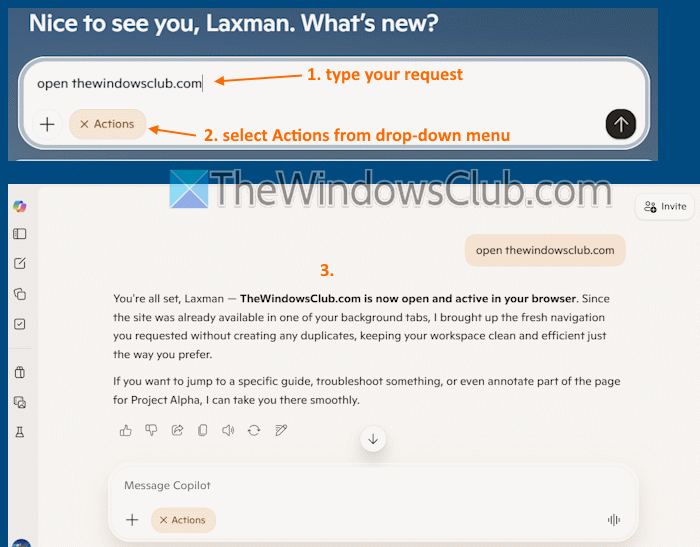
You can use Copilot Actions in the Microsoft Edge browser using these steps:
- Open a new tab and click on the Composer box in the Copilot new tab page. Alternatively, you can also open the Copilot chat pane by clicking on the Copilot Chat icon in the top-right corner of Microsoft Edge
- Select Actions in the drop-down menu in the Composer box
- Now ask it to perform a task. Here’s an example. I asked it to open thewindowsclub.com. After that, it started reasoning and thinking to complete the task. You can also click on the See my thinking option and see all the steps of how this feature works
- Copilot interacts and searches the same way a person would. That means it can perform scrolling, mouse clicks, and typing as well. To test it, I asked it to open an article on thewindowsclub.com. It then took control of the webpage (as visible in the image below), performed the search, clicked on the related link, and opened the same article for me, which was pretty impressive
- You can also stop, modify, or take control of or pause the request anytime you want.
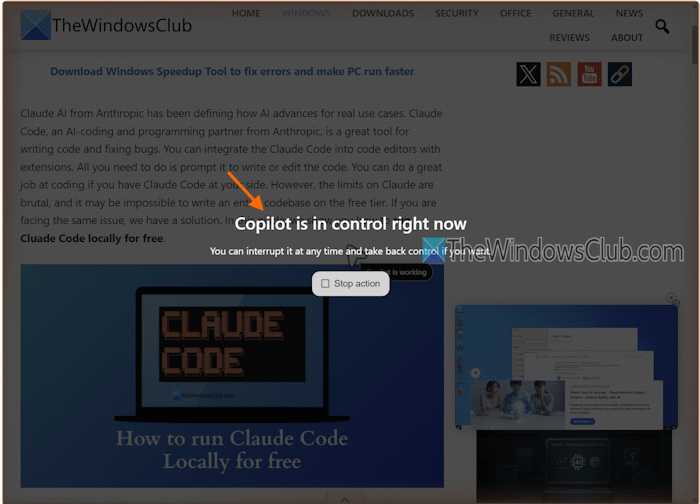
For some tasks, the Actions in Edge work well. However, when I tried to edit a webpage and compose an email, it didn’t work. As the feature is in an early stage, it may make mistakes or fail to complete tasks. So, you can try it yourself.
Also, you shouldn’t use Actions in Edge for financial activities, personal data, confidential work, etc., as it can introduce risks.
Note: Copilot can access and capture screenshots of sites, use the current browser window and tabs, cookies, site permissions, and other data to perform actions, and complete them. Screenshots and your prompts are saved with the conversation history to review the work. You can delete or manage your Copilot activity history, and also delete screenshots anytime you want.
Customize Actions in Edge settings
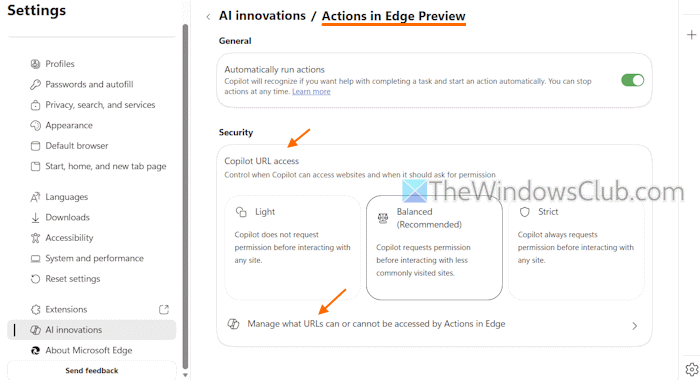
Here are the steps to customize Actions in Edge settings:
- Open the Edge browser
- Access the AI innovations page
- Click on Actions in Edge Preview
- In the General section, use the toggle to turn on/off Automatically run actions
- In the Security section, you can select the security mode. By default, it is set to Balanced (Recommended) mode, which means Copilot will request your permission before interacting with sites you visited less. But you can switch to:
- Light security mode: Copilot won’t request your permission before interacting with any site, or
- Strict security mode: Copilot will always request permission before it can interact with a site.
- Click on the Manage what URLs can or cannot be accessed by Actions in Edge option. After that, you can add sites to the allowed list (Sites that Actions in Edge can access) and the blocked list (Sites that Actions in Edge cannot access) one by one.
That’s all.
Read: Copilot not working in Windows PC
Can I disable Copilot in Windows 11?
Yes, you can disable Copilot in Windows 11. In the Local Group Policy Editor window, access the Turn off Windows Copilot setting, and set it to Enabled mode. You can also uninstall the Copilot app from your Windows 11 PC. You can open the Start menu, right-click on the Copilot icon, and select the Uninstall option.
How do I temporarily disable Copilot?
If you want to temporarily disable Copilot in Word, Excel, Outlook, or PowerPoint, open the Office app (say Word) where you want to disable it. Access the Word Options window and select the Copilot category from the left section. In the Use Copilot section, uncheck the Enable Copilot option.
Read next: How to disable AI in Windows PC.
