
In this tutorial, we will show you how to turn on or off Copilot Journeys in Microsoft Edge.
What is Copilot Journeys in Microsoft Edge?
Copilot Journeys is a new feature that organizes your browsing data into meaningful groups, known as Journeys. When you start browsing activity or research on a topic (say, a pizza recipe), Copilot creates a summary of the page content you visit. That summary, including URLs, Copilot Chats, related page titles, and web searches, is used to create a group called Copilot Journey. And that Journey appears as a card on the bottom part of your Microsoft Edge new tab page. For each card, a quick summary and a suggested next step are displayed. When you click a card, a chat is opened in a new tab with Microsoft Copilot to continue the task you were working on.
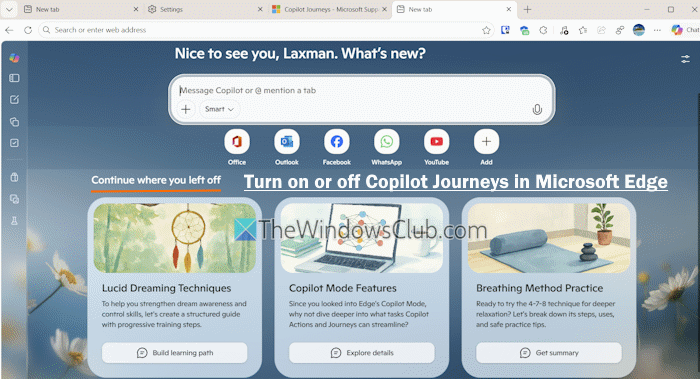
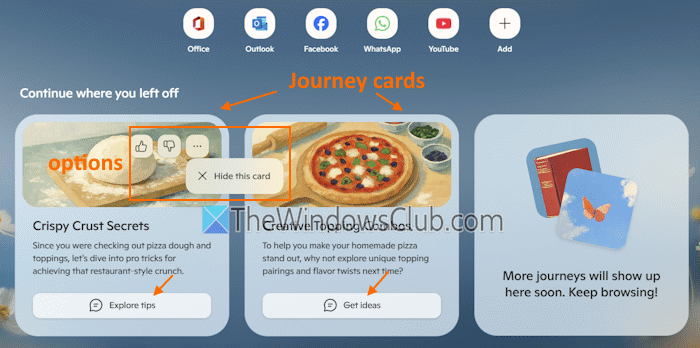
In the image above, you can see my Copilot Journeys based on my browsing activity. A maximum of three Journey cards are visible at a time, and older Journeys (including their data) are deleted automatically after 14 days.
Do note that to enable and use Copilot Journeys, first, you must activate Copilot Mode in Microsoft Edge. Also, this feature is currently available in limited regions (like the US). If you haven’t gotten this feature yet, you may have to join the waitlist.
How do I turn on Copilot Mode?
To turn on or enable Copilot Mode in Microsoft Edge, open the Settings page of Microsoft Edge. After that, click on the AI innovations option in the left section. Under the AI innovations section, use the toggle button to turn on the Copilot Mode.
How to turn on or off Copilot Journeys in Microsoft Edge
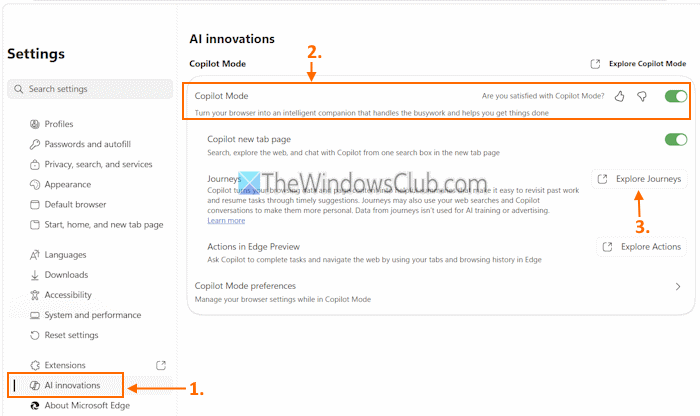
The steps to turn on Copilot Journeys in Microsoft Edge are as follows:
- Open the Microsoft Edge browser
- Press the Alt+F hotkey. This will open the Settings and more menu on the right section
- Click on the Settings option
- In the Edge browser Settings page, select the AI innovations option from the left section
- Turn on the Copilot Mode option if you haven’t already
- Click on the Explore Journeys button. A Copilot Mode page opens in a new tab
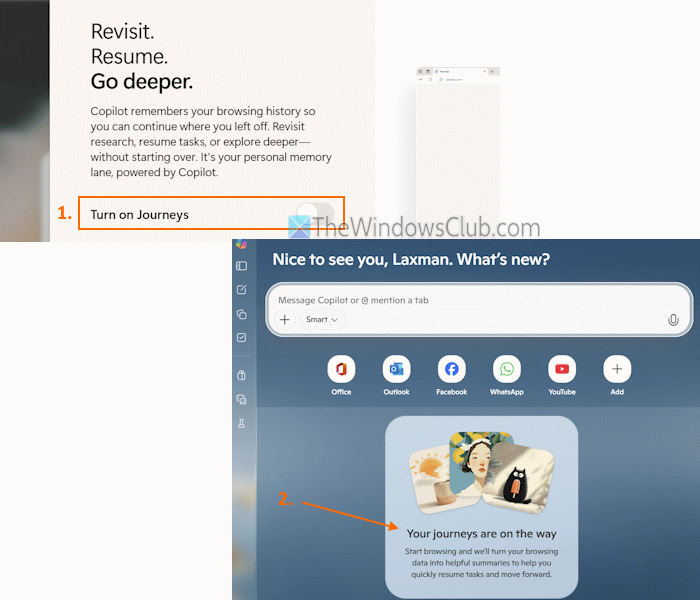
- In the pop-up that appears, press the Turn on Journeys button. If the feature is not available in your region, you will see a Join waitlist button instead
- In the You’re exploring something new pop-up, click on the I understand and want to proceed button
- You will see that the Journey is on button is turned on. That means the feature is activated
- Press the Close button
- In the new tab page, you will see a card displaying a Your journeys are on the way message
- Now, the feature will work in the background. Once you have some browsing activity, Journeys cards will be visible on the new tab page accordingly. If your History sync is turned on, your Copilot Journey data will be synced to your devices so that you can have the same Journeys across all devices.
For each card, you will also have a like and dislike icon. A See more (…) icon is also there. Clicking on that icon will provide a Hide this card option, which is helpful if you don’t find a card useful. Based on the Journey card, you will have a Get ideas, Explore tips, Get summary, or another suggested next step, as visible in the image below.
Clicking a card opens a Copilot Chat where you will get a short explanation on the related topic and other information to continue the same task.
Related: How to use Copilot in Microsoft Edge?
Data accessed by Copilot Journeys
Copilot Journeys feature excludes personal information (like your email, IDs, account number, etc.), browsing activity in Guest Mode or InPrivate window, and sensitive websites (say banking) while generating summaries. However, it may access the following data for generating cards and summaries:
- Webpage URL, non-sensitive content from visited sites, and title
- Time spent on a page or site to help Copilot evaluate the important sites
- Your Copilot conversations to make journeys more personal and meaningful, etc.
Manage data used by Copilot Journeys
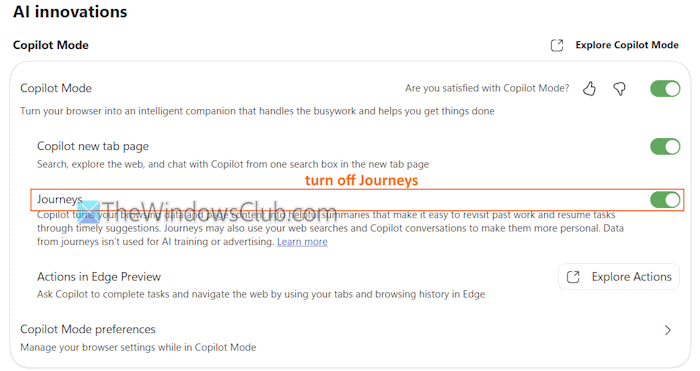
You can also manage, control, or delete the data used by Copilot Journeys. It can be done in two different ways:
- Clear your browsing history in Edge. This will prevent Copilot Journeys from using your browsing history, and
- Turn off Copilot Journeys. Go to Settings > AI innovations > Turn off Journeys option. This will delete previously stored data and stop the browser from collecting further data.
That’s all.
Now read: Copilot not working in Edge; Attempting to reconnect
Can you disable Copilot completely?
Yes, you can completely disable Copilot on a Windows 11 PC. Open the Local Group Policy Editor window and access the Windows Copilot folder using the following path:
User Configuration > Administrative Templates > Windows Components > Windows Copilot
Open the Turn off Windows Copilot setting and set it to Enabled. Press the OK button. You can also uninstall Copilot from your PC using the Settings app or Start menu.
Read next: How to use AI features in the Edge browser.
